

If you manage an internal Public Key Infrastructure, you already know that Active Directory Certificate Services fails quietly. A certificate authority can look “up” in Server Manager for months while its CRL silently expires, its audit filter sits at zero, or its request queue fills with thousands of failed enrollments nobody ever reviews. This AD CS health check script was built to catch exactly those problems in one PowerShell run, before they turn into an outage or an audit finding.
In this guide, I’ll walk through what the AD CS health check script checks, how to run it, how to read the color-coded HTML report it generates, and what to do about the most common findings – including a real (sanitized) example of an expired CRL that would otherwise have gone unnoticed.
Table of Contents
- What Is an AD CS Health Check and Why It Matters
- What the Script Checks: 12 Categories
- Prerequisites Before You Run It
- How to Run the AD CS Health Check Script
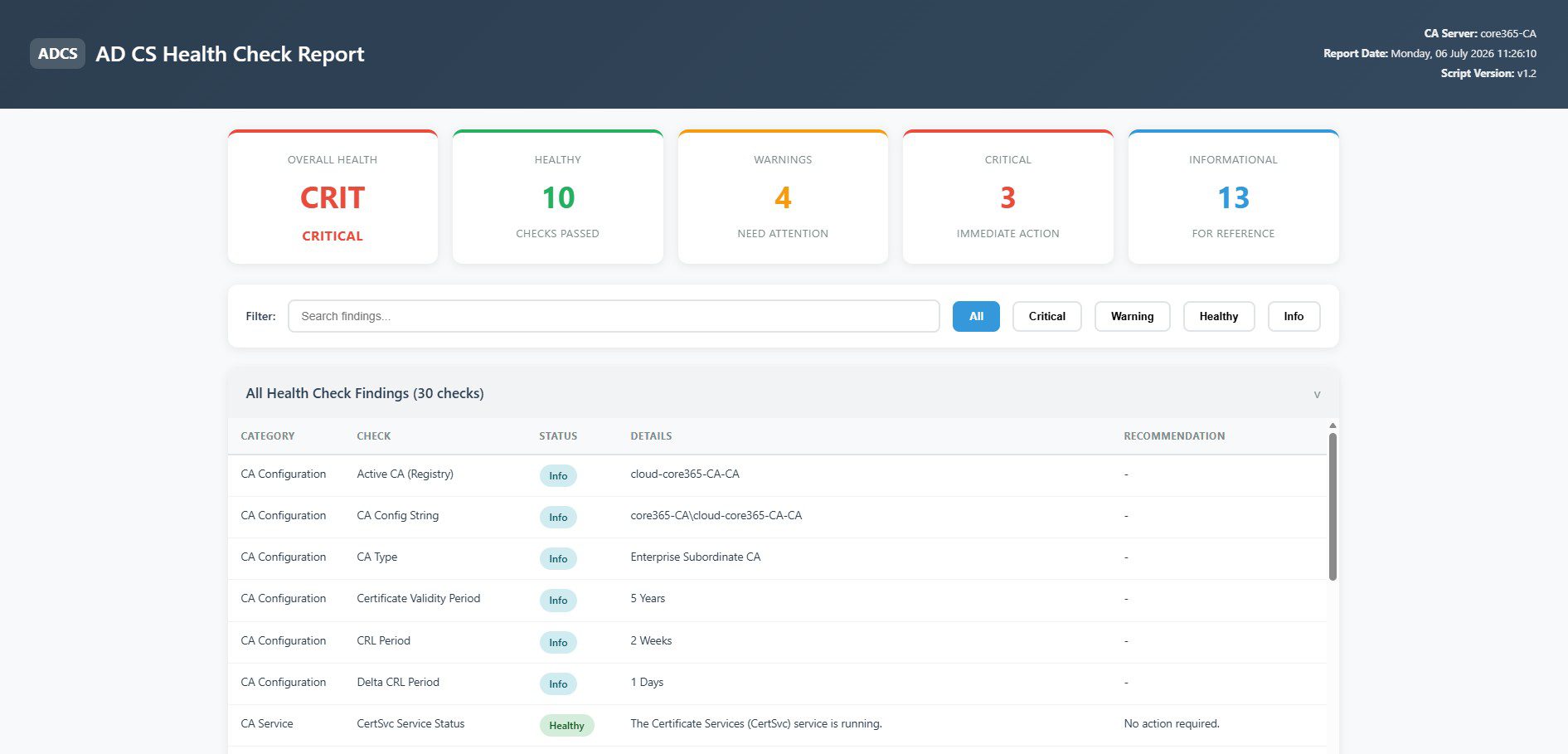
- Reading the HTML Report
- Deep Dive: The Checks That Matter Most
- Case Study: A Real Findings Set (Sanitized)
- Fixing the Most Common Findings
- Automating and Scheduling the Health Check
- Script Parameters and Customization
- Best Practices for Ongoing AD CS Monitoring
- Frequently Asked Questions
What Is an AD CS Health Check and Why It Matters
An AD CS health check is a structured review of your certificate authority’s service state, certificate and CRL validity, security configuration, and database health. Manually, that means running a dozen different certutil commands, checking Event Viewer, and cross-referencing registry keys. Understandably, most teams do this only after something has already broken.
This script automates that entire process. It runs 12 categories of checks against a CA server and outputs a single, searchable HTML report with clear Healthy, Warning, Critical, and Info badges. As a result, you get a full PKI status snapshot in under two minutes instead of an afternoon of manual verification.
If you’re also responsible for the domain controllers that issue Kerberos and LDAPS certificates alongside your CA, it’s worth pairing this check with a broader review of your domain controller types and placement, since DC health and CA health are closely linked in most AD environments.
What the Script Checks: 12 Categories
Each run walks through 12 numbered check groups. Every individual finding is tagged with a category, so the table below maps directly to what you’ll see in the report.
| # | Category | What It Verifies | Typical Risk If Ignored |
|---|---|---|---|
| 1 | CA Service | CertSvc service status and startup type | CA stops issuing or renewing certificates |
| 2 | CA Configuration | CA type, validity period, CRL period, delta CRL period | Misaligned lifetimes cause enrollment failures |
| 3 | CA Certificate | CA cert expiry, key size, signature algorithm | Expired CA cert invalidates every issued certificate |
| 4 | CRL Health | Base and delta CRL NextUpdate times, CRL publish test | Expired CRL breaks revocation checking domain-wide |
| 5 | AIA and CDP | Authority Information Access and CRL Distribution Point URLs | Clients can’t chain-build or check revocation |
| 6 | Certificate Templates | Published template count and template sprawl | Unused templates widen the attack surface |
| 7 | Expiring Certificates | Certificates expiring within a configurable window | Unexpected service or authentication outages |
| 8 | Request Queue | Failed and pending certificate requests | Hides misconfiguration or abuse patterns |
| 9 | CA Database | Database and log directory paths, database size | Uncontrolled growth affects performance and backups |
| 10 | Server Health | OS build, uptime, memory, CPU, RPC connectivity | Resource exhaustion or unreachable CA |
| 11 | Security | Audit filter, ESC6 (EDITF_ATTRIBUTESUBJECTALTNAME2), encrypted RPC, role separation | Privilege escalation paths into AD (ESC-style attacks) |
| 12 | Event Logs | CA-related error and warning events in a configurable window | Root causes go unnoticed until failure |
Prerequisites Before You Run It
Before running the AD CS health check script, confirm the following. Otherwise, several checks will silently fall back to a “Warning” or “Info” state instead of returning real data.
- PowerShell 3.0 or later is required; PowerShell 5.1+ is recommended for the most reliable output parsing.
- certutil.exe must be available, which normally means the AD CS role or the RSAT AD CS tools are installed.
- Run it directly on the CA server whenever possible. Several checks – CA certificate lookup, CRL file inspection, and database size – only return full detail locally; remote runs fall back to WinRM or skip the check with an Info note.
- Administrative rights on the CA server, since the script queries services, WMI, the registry, and the CA database.
How to Run the AD CS Health Check Script
Running the AD CS health check script is a single command. It accepts a handful of optional parameters, but it also works with zero arguments if you run it on the CA server itself.
.\ADCSHC_v1.2.ps1

# Or against a specific CA, with a custom report location and longer event log window
.\ADCSHC_v1.2.ps1 -CAServer "CA01.contoso.com" -ExportPath "C:\Reports" -EventLogHours 168
Behind the scenes, the script reads the active CA name from HKLM:\SYSTEM\CurrentControlSet\Services\CertSvc\Configuration, builds a CA config string, and then works through all 12 categories using a mix of native cmdlets (Get-Service, Get-WmiObject, Get-WinEvent) and certutil calls wrapped through a helper function. Each finding is stored as a structured object with a Category, Check, Status, Details, and Recommendation, which is what makes the resulting HTML table filterable.
Once complete, it writes a self-contained HTML file (no external dependencies) and opens it automatically unless you pass -NoOpen.
Reading the HTML Report
The report opens with a summary section: an overall health badge, plus counts for Healthy, Warning, Critical, and Informational findings. Below that sits a filter bar with a live search box and one-click buttons for each status.

The main findings table lists every check, grouped by category, with the badge colors mapped as follows:
| Badge | Meaning | Recommended Action |
|---|---|---|
| Healthy | Check passed; no issue found | None required |
| Info | Informational, not a pass/fail state | Review for awareness |
| Warning | Needs attention, not yet urgent | Plan a fix within days to weeks |
| Critical | Active failure or high risk | Address immediately |
Deep Dive: The Checks That Matter Most
CA Service Status and CA Certificate Health
These two checks matter more than any other on the list, because everything else depends on them. If the CertSvc service is stopped, the CA stops issuing entirely. If the CA certificate itself has expired or is nearing expiry, every certificate the CA has ever issued becomes suspect. The script checks the CA certificate’s expiry date, key size (flagging anything below 2048 bits), and signature algorithm, flagging SHA-1 as a Warning since it’s considered deprecated for certificate signing.
CRL and Delta CRL Expiry
This is, in practice, the check that catches the most damage. A Base CRL or Delta CRL that passes its NextUpdate time causes revocation checking to fail across every client that enforces it, which can silently break VPN, Wi-Fi (802.1X), smart card logon, and code-signing validation all at once. The script inspects every .crl file in the CertEnroll folder and calculates hours remaining until expiry, flagging anything inside your configured warning window (24 hours by default) as a Warning and anything already past NextUpdate as Critical.
AIA and CDP Configuration
Even a perfectly valid CRL is useless if clients can’t reach it. This check pulls the configured AIA (chain-building) and CDP (revocation-checking) URLs directly from the CA registry so you can confirm every published location – LDAP, HTTP, and file share – is actually reachable from client networks.
Certificate Templates and Expiring Certificates
Template sprawl is a quiet security debt. The script counts published templates and flags an unusually high number, since every published template is a potential enrollment path an attacker could target. Separately, it queries the CA database for certificates expiring inside your chosen window (30 days by default), which is the fastest way to get ahead of an authentication outage caused by an expired certificate nobody remembered to renew.
Security Hardening Checks
This category directly targets known AD CS escalation paths. It checks whether CA auditing is enabled, whether EDITF_ATTRIBUTESUBJECTALTNAME2 is set (the registry flag behind the ESC6 misconfiguration), whether encrypted RPC is enforced, and whether role separation is configured. These four settings show up repeatedly in AD CS security assessments, so seeing them consolidated into one table is a genuine time-saver.
Event Log Analysis
Finally, the script pulls recent error and warning events from the Microsoft-Windows-CertificationAuthority provider, defaulting to a 72-hour window. This surfaces the root-cause errors that often precede a Critical finding elsewhere in the report – for example, the exact reason a CRL publish attempt failed.
Case Study: A Real Findings Set (Sanitized)
To show what an AD CS health check script run actually looks like in practice, here’s a sanitized excerpt from a real run against a subordinate CA. Server names and domains have been replaced with generic placeholders, but the findings themselves are unedited.
| Category | Check | Status | Details |
|---|---|---|---|
| CRL Health | Delta CRL – CA01-CA+.crl | Critical | Delta CRL had expired years earlier and was never republished |
| CRL Health | Base CRL – CA01-CA.crl | Critical | Base CRL expired; NextUpdate had already passed |
| Request Queue | Failed Requests | Warning | Over 3,500 failed certificate requests accumulated, unreviewed |
None of these three issues would show up in Server Manager, and the CertSvc service itself was reported as Healthy and running the entire time. That’s exactly the gap this kind of check is meant to close: the service was “up,” but the PKI it supports was quietly broken for revocation checking purposes. As a result, any client strictly enforcing CRL checking during that window would have failed certificate validation without any obvious service-level alert.
Fixing the Most Common Findings
Most Warning and Critical findings map to a specific, well-documented fix. The table below covers the ones you’ll encounter most often.
| Finding | Fix |
|---|---|
| CertSvc service stopped | Start-Service CertSvc, then investigate why it stopped |
| Expired Base or Delta CRL | certutil -CRL to republish immediately, then fix the publication schedule |
| CA certificate nearing expiry | Plan renewal at least 90 days ahead; test chain-building after renewal |
| SHA-1 signature algorithm | Plan migration to a SHA-256 (or stronger) signed CA hierarchy |
| Auditing disabled (AuditFilter = 0) | certutil -setreg CA\AuditFilter 127, then restart CertSvc |
| ESC6 risk (EDITF_ATTRIBUTESUBJECTALTNAME2 enabled) | certutil -setreg policy\EditFlags -EDITF_ATTRIBUTESUBJECTALTNAME2, then restart CertSvc |
| High failed request count | Review patterns in Failed Requests in certsrv.msc before assuming it’s benign |
| Server uptime over 90 days | Schedule a maintenance reboot in your next patch window |
If several of these findings trace back to missed patching, it’s worth reviewing your current cadence alongside a guide like patching Windows Server 2025, since CA servers are frequently excluded from normal maintenance windows out of caution – which is exactly how uptime and update drift creep in.
Automating and Scheduling the Health Check
Running this manually once is useful, but scheduling it weekly (or daily on a production CA) is what actually prevents the kind of silent failure shown in the case study above. A simple approach is a Task Scheduler job that runs the script with -NoOpen and a fixed export path, so reports accumulate for trend comparison.
powershell.exe -ExecutionPolicy Bypass -File "C:\Scripts\ADCSHC_v1.2.ps1" -NoOpen -ExportPath "C:\Reports\ADCS"
From there, you can layer in email delivery of the HTML file, or point a monitoring tool such as ManageEngine at the exported reports for alerting. If you’re already using ManageEngine for patch orchestration, this pairs naturally with the workflow described in our ManageEngine Endpoint Central patch management guide.
Script Parameters and Customization
| Parameter | Default | Purpose |
|---|---|---|
-CAServer | Local computer name | Target CA server to check |
-ExportPath | Current user’s Desktop | Folder where the HTML report is saved |
-CertExpiryWarningDays | 30 | Window for flagging soon-to-expire certificates |
-CRLExpiryWarningHours | 24 | Window for flagging a soon-to-expire CRL as Warning |
-EventLogHours | 72 | Lookback window for CA-related event log analysis |
-NoOpen | Off | Suppresses auto-opening the report (useful for scheduled runs) |
Best Practices for Ongoing AD CS Monitoring
Once your AD CS health check script is scheduled and running, a few habits keep it genuinely useful instead of becoming another report nobody reads.
- Run it on the CA server itself for full detail on certificate store lookups and database size.
- Schedule it weekly at minimum, and daily if the CA supports 802.1X, VPN, or smart card authentication, where a CRL failure has immediate user impact.
- Keep historical reports so you can compare database growth and failed-request trends over time, not just a single point-in-time snapshot.
- Treat any Critical CRL finding as a same-day fix, since the blast radius of a stale CRL is domain-wide, not server-specific.
- Revisit the Security category after any AD CS role change, since template additions or CA reconfiguration can silently reset audit or interface flag settings.
Running this across more than one issuing CA, or blocked on WinRM? The v1.3 update adds multi-server support, OCSP monitoring, and a WinRM-free remote check method.
Frequently Asked Questions
What does an AD CS health check script actually check?
This script checks 12 categories: CA service status, CA configuration, CA certificate health, CRL and delta CRL expiry, AIA/CDP URLs, published certificate templates, expiring certificates, the failed and pending request queue, CA database size, server health, security hardening settings, and recent CA-related event log entries.
Do I need to run the script directly on the CA server?
It’s strongly recommended. Several checks – including CA certificate lookup in the local certificate store, CRL file inspection, and database size – only return full results when run locally. Remote runs fall back to WinRM for some checks and skip others with an informational note.
What PowerShell version does the script require?
PowerShell 3.0 or later is the minimum, though PowerShell 5.1 or later is recommended for the most reliable output parsing and event log queries.
Why is CRL expiry treated as a critical finding?
Because an expired CRL breaks revocation checking for every client that enforces it, often silently. Unlike a stopped service, there’s usually no obvious alert, which is why it can go unnoticed for a long time, as shown in the case study above.
What is the ESC6 check the script performs?
It checks whether the EDITF_ATTRIBUTESUBJECTALTNAME2 registry flag is enabled on the CA’s policy module. When enabled, requesters can specify an arbitrary Subject Alternative Name on any certificate request, which is a well-known AD CS privilege escalation path.
Can this script run against multiple CA servers at once?
Not natively; the script targets one CA server per run via the -CAServer parameter. However, you can wrap it in a simple loop or scheduled task per server and consolidate the exported HTML reports afterward.
What does the “Expiring Certificates” check actually query?
It runs a certutil -view query against the CA database, restricted to issued certificates (Disposition=20) whose NotAfter date falls within your configured warning window, which defaults to 30 days.
How does the script determine overall CA health?
Overall health follows the worst individual finding: if any Critical finding exists, overall status is Critical; otherwise, if any Warning exists, it’s Warning; otherwise, it’s Healthy.
Is the HTML report safe to share with non-technical stakeholders?
Largely yes, since it’s a self-contained, color-coded summary. That said, review the Details column first, since it can include internal server names, template names, and full certificate subjects that you may want to redact before wider distribution.
What does a high failed-request count usually mean?
It’s often historical noise from client misconfiguration, expired enrollment agent permissions, or autoenrollment retries, but a sudden spike can also indicate abuse or a broken template. The script flags counts over 100 as a Warning specifically to prompt that review.
Does the script make any changes to the CA?
It’s designed as a read-only health check, with one exception: the CRL Health section runs certutil -CRL as a publish test, which does republish the CRL. If you want a fully passive run, remove or comment out that line before use.
How do I schedule this to run automatically?
Create a Task Scheduler job that runs PowerShell with the -NoOpen switch and a fixed -ExportPath, as shown in the Automating section above, so reports are generated and saved without requiring anyone to be logged in.
What should I check first if the script reports “Could not read Active CA from registry”?
Confirm you’re running the script on the CA server itself, or that WinRM is enabled and reachable if running remotely. This finding means the script couldn’t locate the active CA name under HKLM:\SYSTEM\CurrentControlSet\Services\CertSvc\Configuration.

Antonio Rennvick is an IT Infrastructure Manager with 15+ years running enterprise Active Directory, Microsoft 365, and Azure environments. He’s Microsoft certified (AZ-104, MS-102) and writes Core365 Cloud to share what actually works in production—PowerShell automation, AD deep dives, and security hardening drawn from real-world work, not test labs.