If you’ve spent any time managing identities in Microsoft Entra ID (formerly Azure Active Directory), you’ve probably noticed two separate blades in the portal: App registrations and Enterprise applications. They both seem to deal with applications, and clicking between them can feel like looking at the same thing twice — but they are fundamentally different objects, and mixing them up will cost you in troubleshooting hours.
This article breaks down exactly what each object is, how they relate to each other, what you configure in each blade, and when you’ll work in one versus the other. By the end, you’ll have a clear mental model that applies whether you’re building a custom app, onboarding a SaaS product, or debugging a permission error in the portal.
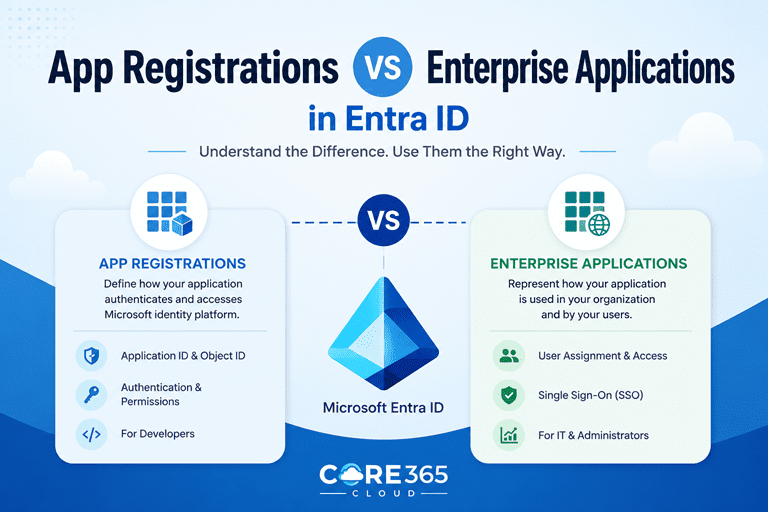
Quick answer: An App Registration is the blueprint of an application — it defines what the app is, what permissions it needs, and how it authenticates. An Enterprise Application (backed by a Service Principal object) is the deployed instance of that app inside a specific tenant — it controls who can use the app, SSO configuration, and provisioning. Every App Registration in your tenant automatically creates a matching Enterprise Application, but not every Enterprise Application has an App Registration in your tenant.
The Object Model: Application vs Service Principal
Before touching the portal, it helps to understand what Entra ID stores internally. The Microsoft identity platform uses two distinct directory object types:
- Application object — created when you register an app. Lives only in the home tenant (the tenant where the app was registered). This is what you see and manage in the App registrations blade.
- Service Principal object — created in every tenant that uses the application. This is what you see and manage in the Enterprise applications blade.
Think of the Application object as the class definition and the Service Principal as the instantiated object. One application definition can spawn many service principals across many tenants — this is the foundation of multi-tenant app architecture.
The Analogy That Makes It Click
Imagine an application as a job description posted by a company (the home tenant). The job description defines the role, required qualifications, and responsibilities. When a branch office (another tenant) wants to hire for that role, they create a local employee record — that’s the service principal. The job description doesn’t change when new branches adopt it, and each branch manages their own employee record independently.
App Registrations — The Identity Blueprint
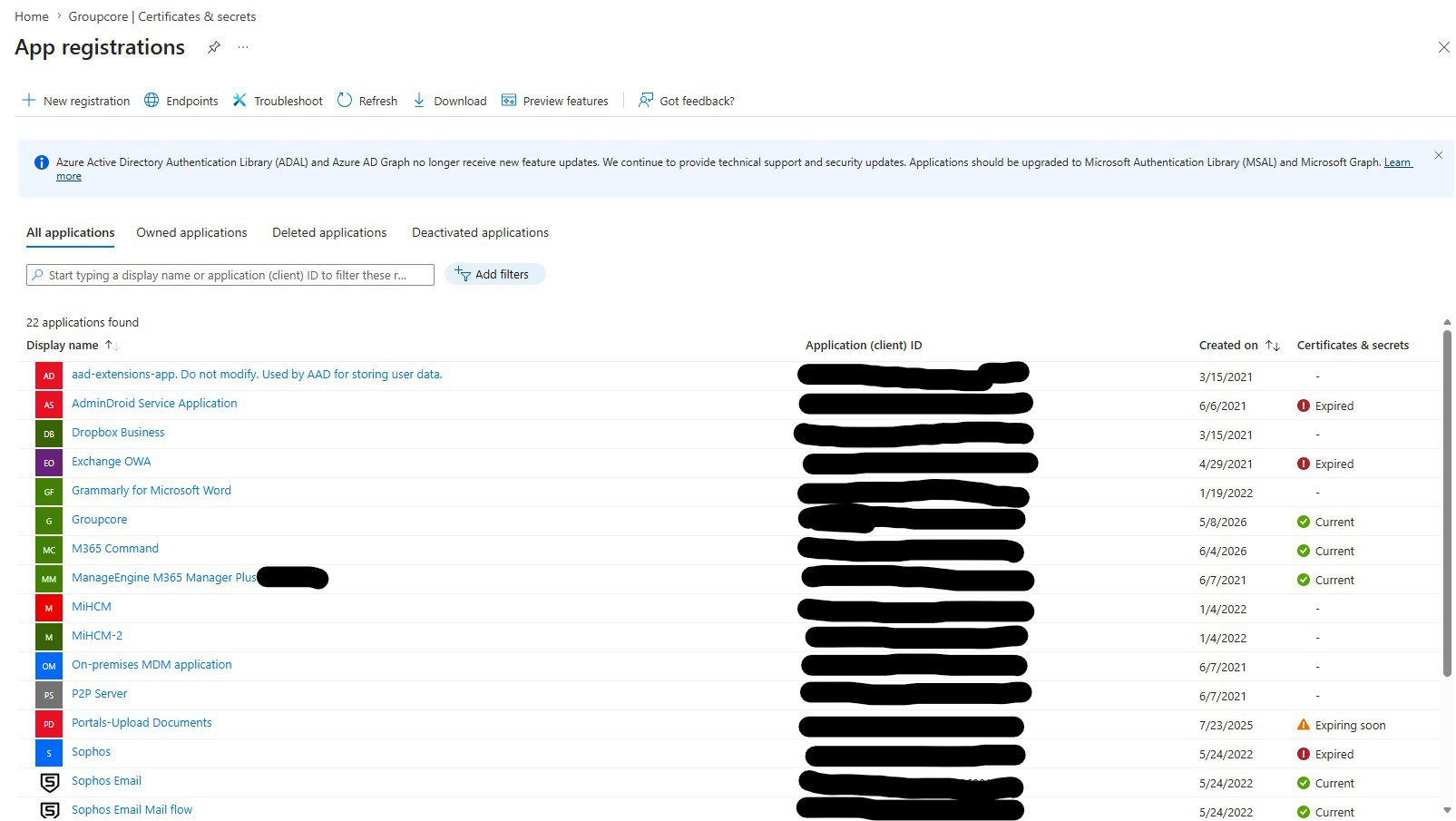
You create an App Registration when you own and develop an application that needs to integrate with the Microsoft identity platform. This covers custom-built web apps, APIs, daemon services, mobile apps, and scripts that call Microsoft Graph or your own protected APIs.
What an App Registration Defines
Every App Registration sets the following properties that travel with the application identity:
- Application (client) ID — a globally unique GUID that identifies your app across all tenants. This is your app’s public identity.
- Redirect URIs — the endpoints Microsoft will send tokens to after authentication. Must be explicitly allowed; wildcards are not permitted for production apps.
- Supported account types — single tenant, multi-tenant, or personal Microsoft accounts. This is a foundational architectural choice that affects the token issuance authority.
- App roles — custom roles the application can expose to users or other applications (e.g.,
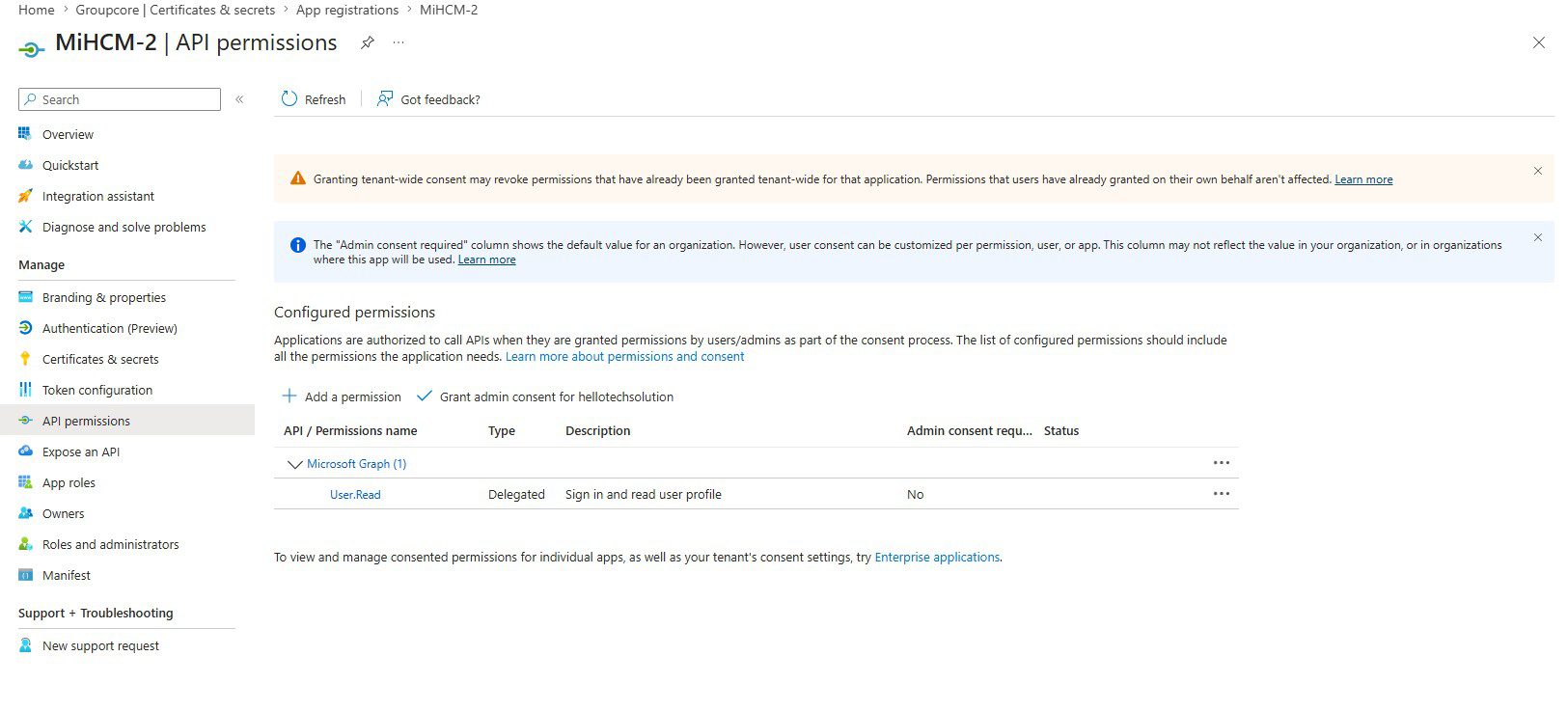
Task.Read,Reports.Admin). - API permissions — the Microsoft Graph scopes or other API scopes your app will request. Delegated permissions run as the signed-in user; Application permissions run as the app identity itself (no user context).
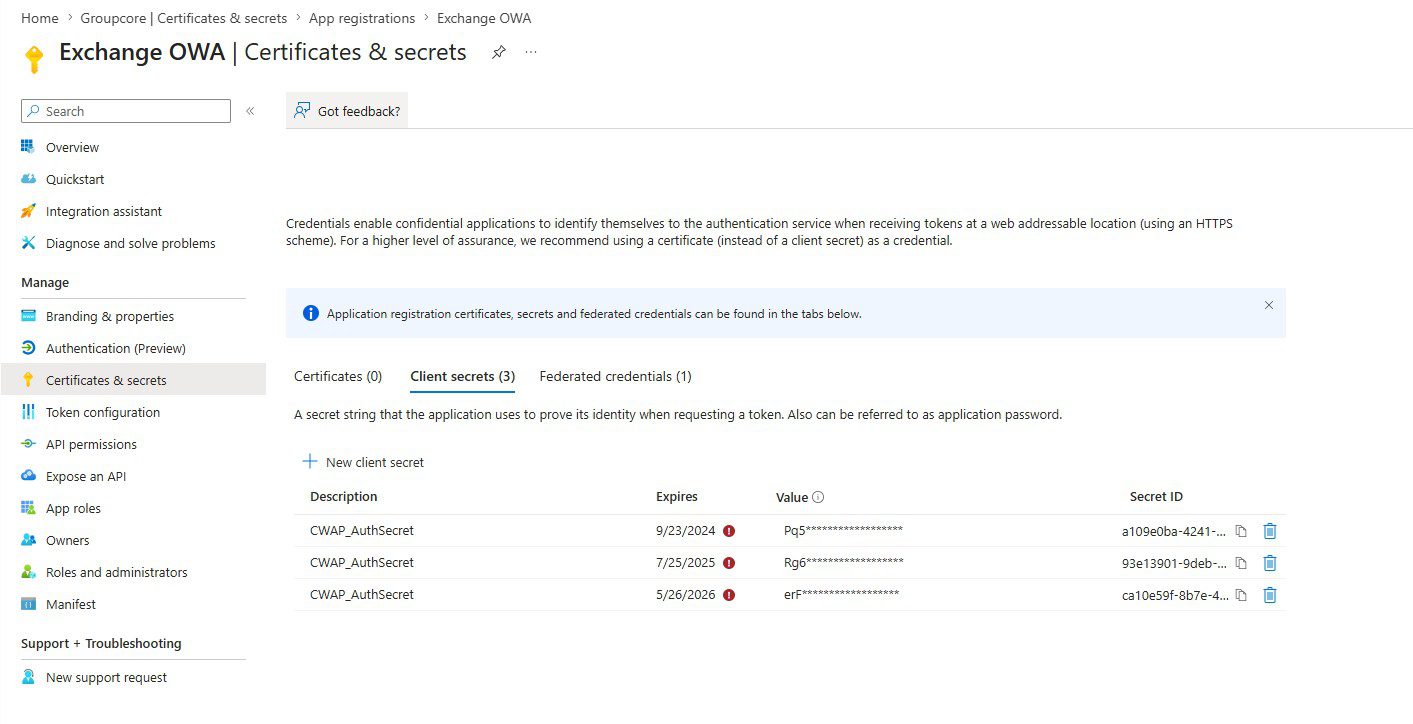
- Certificates & secrets — credentials used to authenticate the app’s own identity when requesting tokens. Certificates are preferred over client secrets in production.
- Token configuration — optional claims to include in access, ID, or SAML tokens (e.g., UPN, employee ID, group membership).
- Manifest — the raw JSON representation of the application object. Advanced configurations (like setting
accessTokenAcceptedVersionto 2 for v2.0 tokens) are made here.
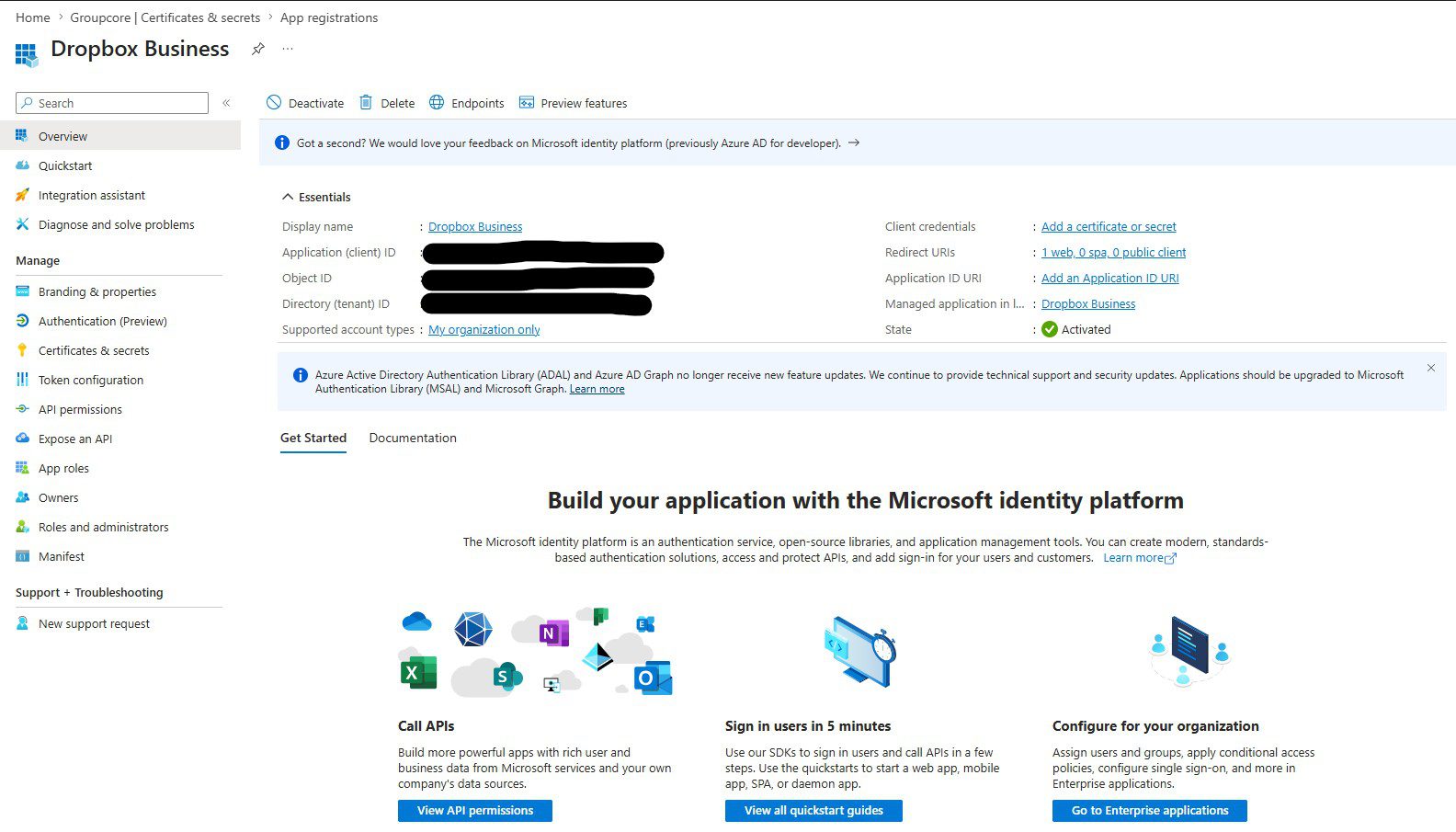
API Permissions: Delegated vs Application
This is the most common source of confusion for admins building integrations. Both permission types appear in the App Registration’s API permissions blade, but they behave completely differently at runtime:
| Property | Delegated Permissions | Application Permissions |
|---|---|---|
| Token context | App + signed-in user | App only (no user) |
| Auth flow | Authorization code, implicit | Client credentials |
| Admin consent | Required for high-privilege scopes | Always required |
| Effective permission | Lesser of app permission and user’s own permission | Full scope granted, regardless of which user triggers the call |
| Typical use case | User-facing web apps, SPAs | Background services, daemons, PowerShell automation |
Certificates vs Client Secrets
When your application needs to authenticate itself (client credentials flow), it proves its identity using either a client secret (a password) or a certificate (asymmetric key pair). Microsoft’s guidance and security best practice both point to certificates for production workloads:
- Client secrets — simple to create, expire on a set schedule (max 24 months), and are stored only at creation time. If lost, you must regenerate. Secrets showing up in logs or code commits is a real-world risk.
- Certificates — you upload the public key to the App Registration; your app holds the private key. The private key never leaves your control. Workload Identity Federation (for GitHub Actions, Azure DevOps) takes this further by eliminating secrets entirely using federated identity credentials.
Enterprise Applications — The Tenant-Level Instance
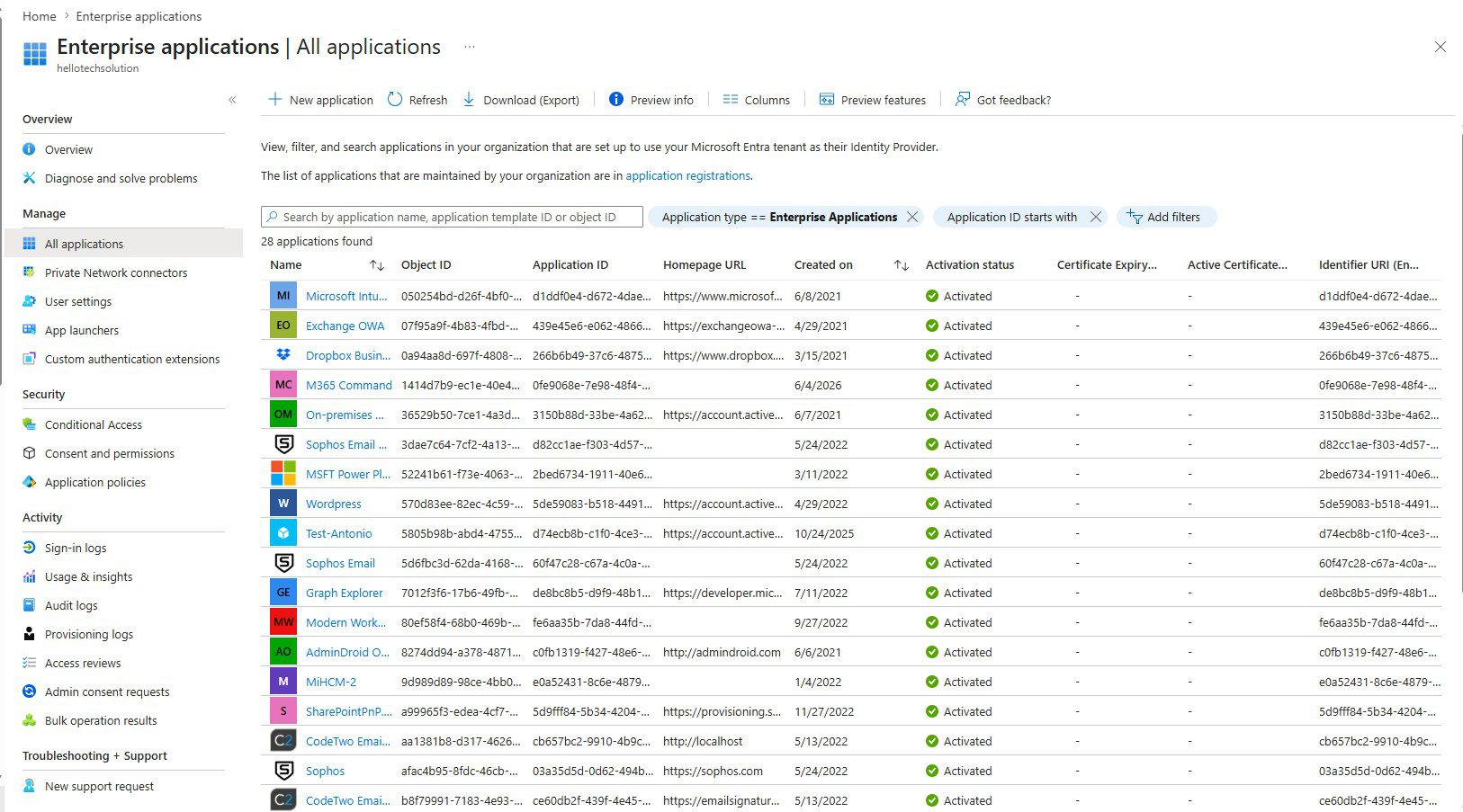
The Enterprise applications blade is where you manage how an application behaves within your specific tenant. Every application that exists in your tenant — whether you built it, sourced it from the Entra gallery, or granted consent to a third-party SaaS tool — has a service principal here.
This blade is where your day-to-day identity administration happens: controlling who can sign in, configuring SSO, setting up automatic provisioning, reviewing sign-in logs, and applying Conditional Access policies.
What You Manage in Enterprise Applications
1. Single Sign-On (SSO) Configuration
This is one of the most powerful features of the Enterprise Application blade. Entra ID supports four SSO modes:
- SAML — for legacy enterprise apps that use Security Assertion Markup Language. You configure the Entity ID, Reply URL (ACS), signing certificates, and claim mappings here. Most on-premises and older SaaS apps use SAML.
- OpenID Connect / OAuth 2.0 — modern token-based SSO. Configuration for OIDC apps typically lives in the App Registration, but the Enterprise Application controls access.
- Password-based SSO — form-fill SSO for apps that don’t support federation. Entra ID stores credentials and injects them via the browser extension.
- Linked SSO — points the My Apps portal to an existing SSO URL without Entra ID performing authentication.

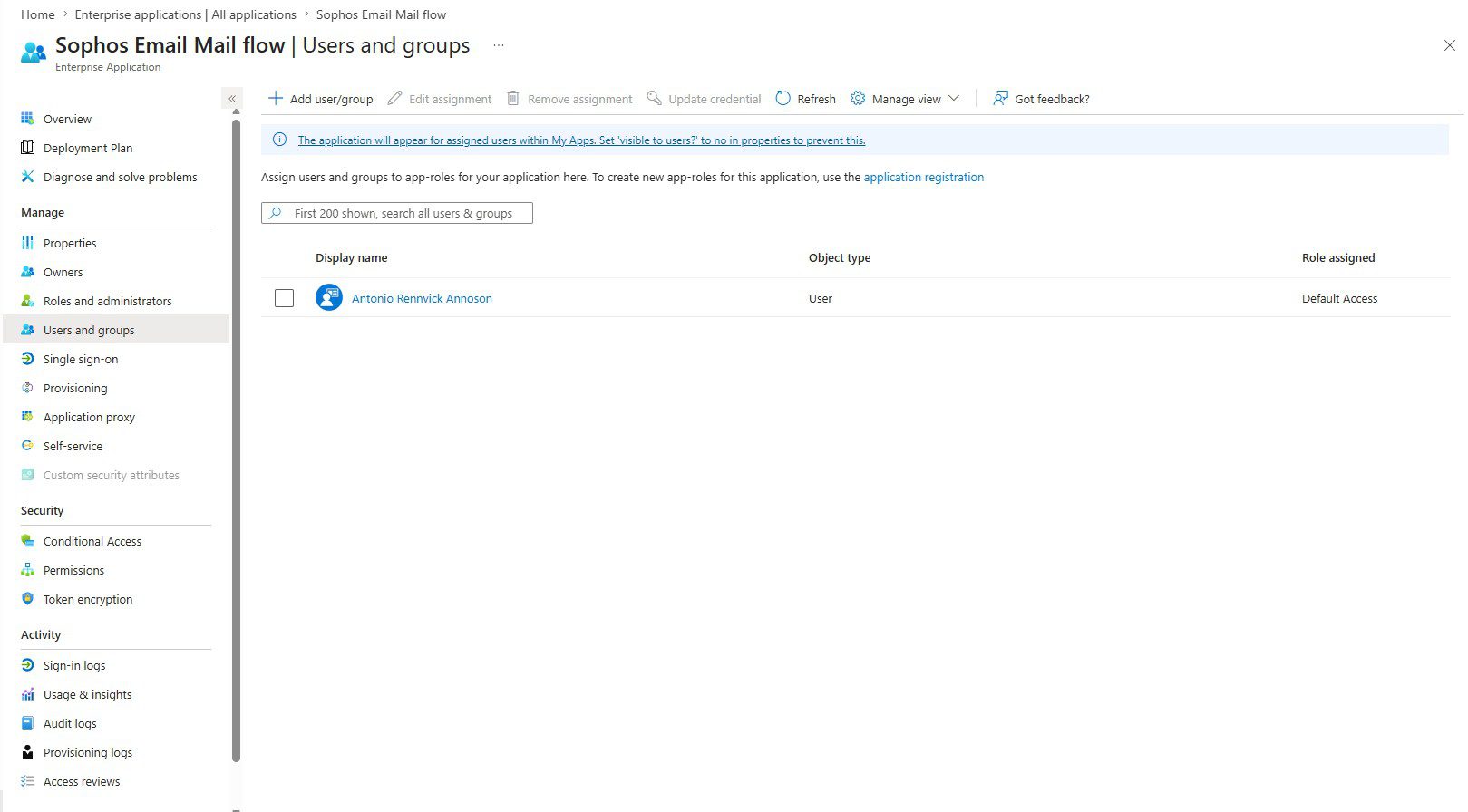
2. User and Group Assignments
The Users and groups blade in an Enterprise Application is your access gate. When Assignment required is set to Yes on the application’s Properties page, only explicitly assigned users and groups can authenticate to the app — everyone else gets an access denied error even with valid credentials.
This is a critical control point for Zero Trust access. Assigning a security group rather than individual users scales better and stays consistent with your broader RBAC model.
3. Automatic Provisioning (SCIM)
If the target application supports SCIM 2.0, you configure automatic user provisioning entirely from the Enterprise Application blade — not the App Registration. Entra ID acts as the identity provider and pushes user and group membership changes to the application in near real-time, eliminating manual account management in third-party systems.
Provisioning configuration includes the SCIM endpoint URL, authentication token, attribute mappings (which Entra ID attributes map to which app attributes), and scoping filters.
4. Sign-In Logs and Audit Logs
The Sign-in logs available under an Enterprise Application are filtered to show only sign-in activity for that specific application. This is invaluable during troubleshooting — you can filter by user, date range, status (success/failure), and Conditional Access policy result without wading through the full tenant-wide log.
5. Conditional Access Integration
Conditional Access policies target Enterprise Applications (service principals), not App Registrations. When you build a policy that requires MFA for a specific app, or blocks access from non-compliant devices, you are selecting the Enterprise Application as the target cloud app. The App Registration has no direct role in CA policy enforcement.
How the Two Objects Relate: The Three Scenarios
Understanding when each object exists — and whether they co-exist in your tenant — depends on how the application got there.
Scenario 1: You Register a Custom App (Single-Tenant)
You build an internal tool and register it in your tenant. Entra ID creates both an Application object (visible in App registrations) and a Service Principal (visible in Enterprise applications) in the same tenant. You manage the app definition and credentials in App registrations; you manage access control and SSO in Enterprise applications.
Scenario 2: You Add a Gallery or Third-Party SaaS App
You add Salesforce, ServiceNow, or any other app from the Entra gallery by going to Enterprise applications > New application. This creates a Service Principal only in your tenant. The Application object lives in Microsoft’s own tenant (or the publisher’s tenant). You cannot see or modify the App Registration — you only control the service principal in your tenant. This is why gallery app SSO configuration and provisioning are done entirely in Enterprise applications.
Scenario 3: A Multi-Tenant App You Register Gets Used by Another Tenant
You register a multi-tenant application in your tenant (home tenant). When an admin in another organization grants consent to your app, Entra ID creates a Service Principal in their tenant automatically. Your Application object remains in your tenant only. You manage one App Registration; multiple organizations each have their own service principal for your app, controlling their own access policies independently.
| Scenario | App Registration in your tenant? | Enterprise Application in your tenant? |
|---|---|---|
| Custom app you built (single-tenant) | ✅ Yes | ✅ Yes |
| Gallery / third-party SaaS app | ❌ No (lives in publisher’s tenant) | ✅ Yes |
| Your multi-tenant app used by another org | ✅ Yes (in your home tenant) | ✅ Yes (in their tenant) |
Key Differences at a Glance
| Attribute | App Registration | Enterprise Application |
|---|---|---|
| Underlying object | Application object | Service Principal object |
| Scope | Home tenant only | Per-tenant (can exist in many tenants) |
| Who creates it | Developer or admin (your org) | Auto-created on registration or consent |
| Credentials managed here | Yes (secrets, certs) | No |
| API permissions declared | Yes | Admin consent granted here |
| SSO configuration | No | Yes |
| User assignment / access control | No | Yes |
| Provisioning (SCIM) | No | Yes |
| Conditional Access target | No | Yes |
| Sign-in / audit logs | No | Yes |
Querying Both Objects with Microsoft Graph and PowerShell
Both object types are first-class citizens in Microsoft Graph and the Az/Entra PowerShell modules. Knowing the correct endpoint matters when scripting governance or reporting tasks.
Microsoft Graph Endpoints
# List all Application objects (App Registrations)
GET https://graph.microsoft.com/v1.0/applications

# List all Service Principal objects (Enterprise Applications)
GET https://graph.microsoft.com/v1.0/servicePrincipals

# Get the Service Principal for a specific App Registration by appId
GET https://graph.microsoft.com/v1.0/servicePrincipals?$filter=appId eq '<your-app-client-id>'
PowerShell with Microsoft Graph SDK
# Connect with required scopes
Connect-MgGraph -Scopes "Application.Read.All"

# List all App Registrations
Get-MgApplication | Select-Object DisplayName, AppId, CreatedDateTime

# List all Enterprise Applications (Service Principals)
Get-MgServicePrincipal -All | Select-Object DisplayName, AppId, ServicePrincipalType

# Find the Enterprise Application matching a specific App Registration
$appId = "00000000-0000-0000-0000-000000000000"
Get-MgServicePrincipal -Filter "appId eq '$appId'" | Select-Object DisplayName, Id, AppId
Notice the ServicePrincipalType property returned by Get-MgServicePrincipal. Common values include:
- Application — a service principal for an app registered in any tenant (including gallery apps and your own custom apps)
- ManagedIdentity — system-assigned or user-assigned managed identities for Azure resources
- Legacy — older service principals created before the current object model
Managed Identities: The Third Identity Type
When you enable a Managed Identity on an Azure resource (a VM, Function App, Logic App, etc.), Entra ID creates a service principal for it automatically — and you’ll see it in the Enterprise applications blade with type ManagedIdentity. There is no App Registration for a managed identity. Microsoft manages the credentials entirely; you never see a client secret or certificate. You assign permissions to the managed identity’s service principal just as you would any other service principal.
This is why managed identities are the preferred authentication method for any workload running inside Azure — there are no credentials for you to rotate, store, or accidentally expose.
Admin Consent: Where App Registrations and Enterprise Applications Intersect
Admin consent is one of the clearest examples of how both objects work together. When an admin grants tenant-wide consent to an application’s API permissions, this is recorded on the Service Principal (Enterprise Application) in the form of an oauth2PermissionGrant or an appRoleAssignment object — not on the Application object itself.
This means you can grant consent in two places:
- App registrations > API permissions > Grant admin consent — works only for apps registered in your tenant. Grants consent on the service principal in the background.
- Enterprise applications > Permissions > Grant admin consent — works for any app that has a service principal in your tenant, including third-party gallery apps where you don’t own the App Registration.
Both paths write the same underlying consent record to the service principal. The App Registration blade is a convenience shortcut for apps you own.
Common Admin Mistakes and How to Avoid Them
Mistake 1: Deleting the App Registration When You Should Delete the Enterprise Application (or vice versa)
Deleting an App Registration deletes the Application object and cascades to delete all service principals based on it — across every tenant that has consented. This is the nuclear option. You would use this when you are fully retiring an application you own.
Deleting an Enterprise Application removes only the service principal from your tenant. The Application object in the home tenant is unaffected. Other tenants are unaffected. This is the right action when you want to remove a third-party app from your tenant or revoke all user access.
Mistake 2: Granting Application Permissions When Delegated Permissions Are Correct
Application permissions (used with client credentials flow) grant the app access to all data in scope — for example, Mail.Read as an Application permission lets the app read every mailbox in the tenant. If your use case is a user-facing app that reads the signed-in user’s mail, Mail.Read as a Delegated permission is the correct and far safer choice. Over-provisioning with Application permissions is a privilege escalation risk.
Mistake 3: Looking for SSO Settings in App Registrations
SAML SSO configuration does not exist in the App Registration blade. If you’re setting up SSO for a gallery app or a custom SAML app, go to Enterprise applications > [app] > Single sign-on. The App Registration has no SSO blade.
Mistake 4: Expecting Client Secrets Rotated in One Tenant to Apply Everywhere
Client secrets and certificates are properties of the Application object and live in the home tenant’s App Registration. If your app is multi-tenant and another organization’s tenant is using it, rotating the secret in your home tenant affects all consuming tenants — they all pick up the new credential from the same Application object. This is a change management consideration for multi-tenant ISV applications.
Real-World Use Cases: Which Blade Do You Open?
| Task | Go to |
|---|---|
| Register a new custom application | App registrations > New registration |
| Rotate a client secret or upload a certificate | App registrations > [app] > Certificates & secrets |
| Add Microsoft Graph permissions to your app | App registrations > [app] > API permissions |
| Configure SAML SSO for Salesforce | Enterprise applications > Salesforce > Single sign-on |
| Restrict who can log into an app | Enterprise applications > [app] > Users and groups + Properties (Assignment required = Yes) |
| Enable automatic provisioning to ServiceNow | Enterprise applications > ServiceNow > Provisioning |
| Investigate a sign-in failure for a specific app | Enterprise applications > [app] > Sign-in logs |
| Grant tenant-wide admin consent to a third-party app | Enterprise applications > [app] > Permissions > Grant admin consent |
| Create a Conditional Access policy for an app | Conditional Access > Policies > Target: Cloud apps > Select Enterprise Application |
| Remove a third-party app from your tenant | Enterprise applications > [app] > Delete |
Summary
App Registrations and Enterprise Applications are two sides of the same coin, but they serve distinct purposes and you manage them for different reasons. The Application object (App Registration) is the identity definition — it belongs to the developer’s tenant, holds credentials, and declares what the app can request. The Service Principal (Enterprise Application) is the per-tenant runtime instance — it controls access, SSO behaviour, provisioning, and policy enforcement within your organization’s boundary.
The clearest way to remember the distinction: if you’re building or modifying an application’s identity, you’re in App registrations. If you’re managing how an application behaves for your users, you’re in Enterprise applications.
Getting this right reduces misconfigurations, tightens your security posture, and makes troubleshooting significantly faster when something breaks at 2 AM.
Further Reading
- Microsoft Learn — Application and service principal objects in Microsoft Entra ID
- Microsoft Learn — What is application management in Microsoft Entra ID?
- Microsoft Graph API — Application resource type
- Microsoft Graph API — ServicePrincipal resource type
- Microsoft Learn — Grant tenant-wide admin consent to an application
Frequently Asked Questions
An Entra ID App Registration defines the application’s identity — its permissions, credentials, and redirect URIs — and lives only in the home (developer) tenant as an Application object. An Enterprise Application (Service Principal) is the per-tenant instance of that app that controls access, SSO configuration, and user provisioning within a specific organization’s tenant. One App Registration can have many Enterprise Applications across multiple tenants.
Yes. When you create an Entra ID App Registration in your tenant, Entra ID automatically creates a corresponding Service Principal (Enterprise Application) in the same tenant. However, the reverse is not always true — an Enterprise Application can exist without an App Registration in your tenant when the app is owned by a third-party publisher, such as a gallery app or a Microsoft first-party service.
SAML SSO is configured exclusively in the Enterprise Application blade, not in the App Registration. Navigate to Entra ID > Enterprise applications > [your app] > Single sign-on and select SAML. You will configure the Entity ID, Reply URL (ACS), claim mappings, and signing certificate there. The App Registration blade does not have a Single sign-on configuration section.
Deleting an Entra ID App Registration deletes the underlying Application object and cascades to remove all Service Principals (Enterprise Applications) created from it — including those in other tenants that have consented to the app. This is irreversible and effectively retires the application across all tenants. If you only want to remove an app from your own tenant, delete the Enterprise Application instead, not the App Registration.
Yes, and this is the most common scenario for third-party and gallery apps. When you add Salesforce, ServiceNow, or any application from the Entra application gallery, Entra ID creates a Service Principal (Enterprise Application) in your tenant. The corresponding App Registration lives in the publisher’s home tenant, not yours. You manage SSO, user assignment, and provisioning through your tenant’s Enterprise Application, but you cannot view or modify the App Registration.
By default, any member user in Entra ID can create App Registrations (controlled by the “Users can register applications” setting under User settings). To restrict this to admins only, disable that setting. The minimum privileged admin roles for managing App Registrations are Application Administrator or Cloud Application Administrator. Global Administrator can also manage App Registrations but granting that role solely for this purpose violates least privilege principles.
Use Delegated permissions when your app acts on behalf of a signed-in user — for example, a web app reading the current user’s calendar. Use Application permissions when your app runs as a background service or daemon with no user present — for example, a PowerShell script that sends email via Microsoft Graph using client credentials. Application permissions always require admin consent and grant access to all tenant data within the scope, so they must be provisioned carefully to follow the principle of least privilege.
Navigate to Entra ID > Enterprise applications > [your app] > Permissions, then click “Grant admin consent for [your tenant name].” You must be a Global Administrator or a Privileged Role Administrator to perform this action. For apps you own (with an App Registration in your tenant), you can also grant consent from App registrations > [app] > API permissions > Grant admin consent — both paths write the consent record to the Service Principal object.

Antonio Rennvick is an IT Infrastructure Manager with 15+ years running enterprise Active Directory, Microsoft 365, and Azure environments. He’s Microsoft certified (AZ-104, MS-102) and writes Core365 Cloud to share what actually works in production—PowerShell automation, AD deep dives, and security hardening drawn from real-world work, not test labs.