
Keeping Windows Server, client desktops, and everyday applications patched is one of the most effective ways to reduce security risk — yet it’s also one of the most time-consuming tasks for IT teams. ManageEngine Endpoint Central patch management automates this entire process, from scanning for missing updates to testing, deploying, and reporting on patches across your whole environment.
In this guide, you’ll learn how to patch Windows Server and client machines using Endpoint Central, how to safely test patches before a full rollout, how to generate compliance reports, and how the platform compares to Microsoft’s free WSUS tool.
Table of Contents
- What Is ManageEngine Endpoint Central?
- Why Patch Management Matters
- Prerequisites and Initial Setup
- Step-by-Step: Patching Windows Server
- Step-by-Step: Patching Windows Clients
- Patching Third-Party Applications
- Best Practices for Patch Management
- How to Test Patches Before Deployment
- Generating Patch Compliance Reports
- Endpoint Central vs WSUS: Pros and Cons
- Frequently Asked Questions
- Conclusion
What Is ManageEngine Endpoint Central?
ManageEngine Endpoint Central (formerly Desktop Central) is a unified endpoint management platform. It handles patch management, software deployment, asset tracking, and remote troubleshooting from a single console. Unlike WSUS, which only distributes Microsoft updates, Endpoint Central also patches hundreds of third-party applications such as browsers, PDF readers, and collaboration tools.
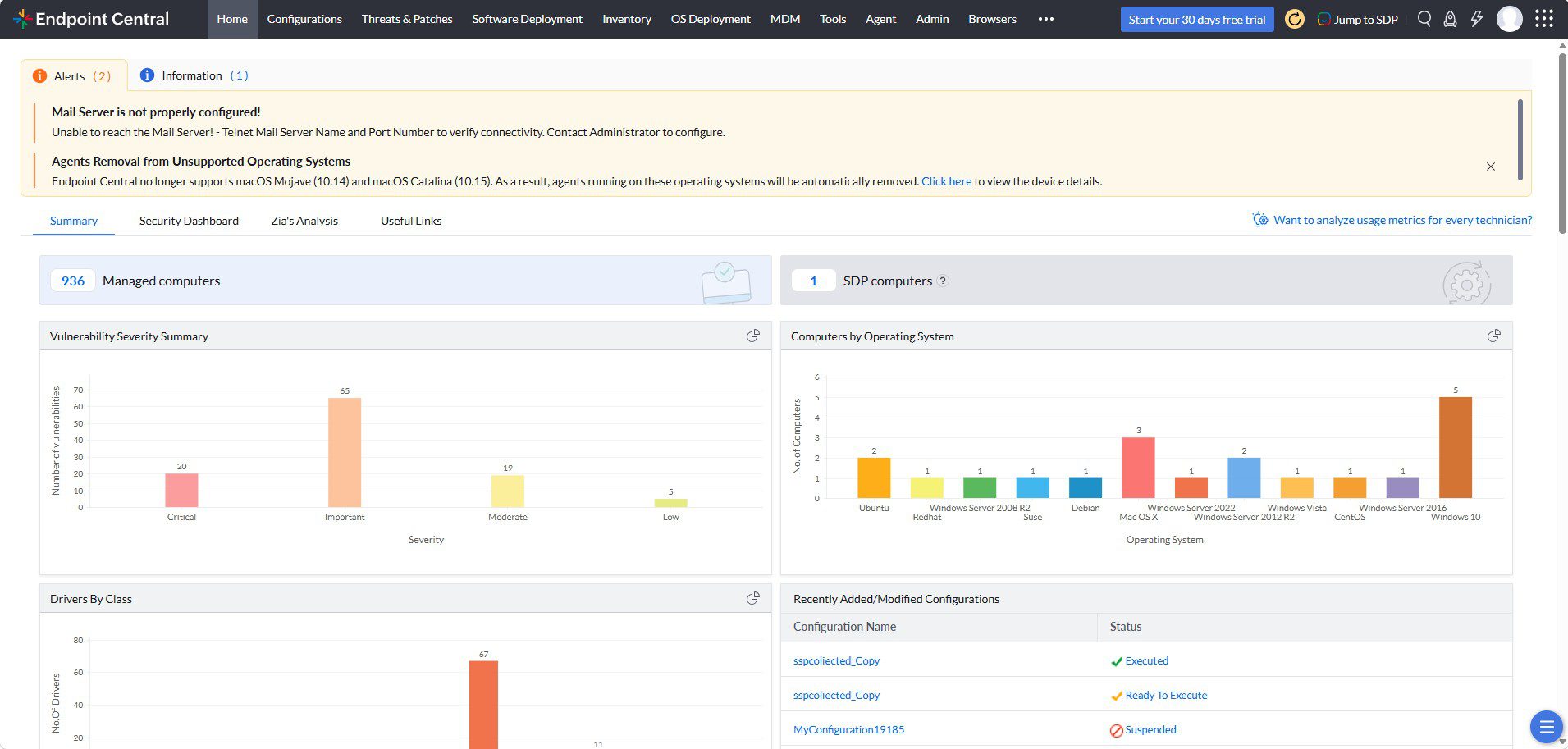
Endpoint Central console home dashboard
Because Endpoint Central agents run on servers, desktops, laptops, and even remote or roaming devices, IT teams get consistent patch coverage regardless of where a machine connects from. For related identity and mail-flow issues, you may also want to review our Microsoft Exchange NDR messages guide, since unpatched servers are a common root cause of mail delivery failures.
Why Patch Management Matters
Unpatched systems remain one of the top entry points for ransomware and data breaches. Therefore, a consistent patching cadence is not optional — it’s foundational security hygiene. Additionally, regulatory frameworks like PCI-DSS, HIPAA, and ISO 27001 require documented patch compliance evidence, which is exactly what a tool like Endpoint Central produces automatically.
However, patching too aggressively without testing can break production applications. As a result, the goal isn’t just “patch everything immediately” — it’s a balanced, tested, and auditable process, which is what the rest of this guide walks through.
Prerequisites and Initial Setup
Before you begin ManageEngine Endpoint Central patch management, make sure the following are in place:
- Endpoint Central server installed (on-premises or cloud-hosted instance)
- Valid license covering the number of managed endpoints
- Agents deployed to target Windows Servers and client machines
- Firewall rules allowing agent-to-server communication
- An internet-facing DMZ agent configured if you manage remote/roaming laptops

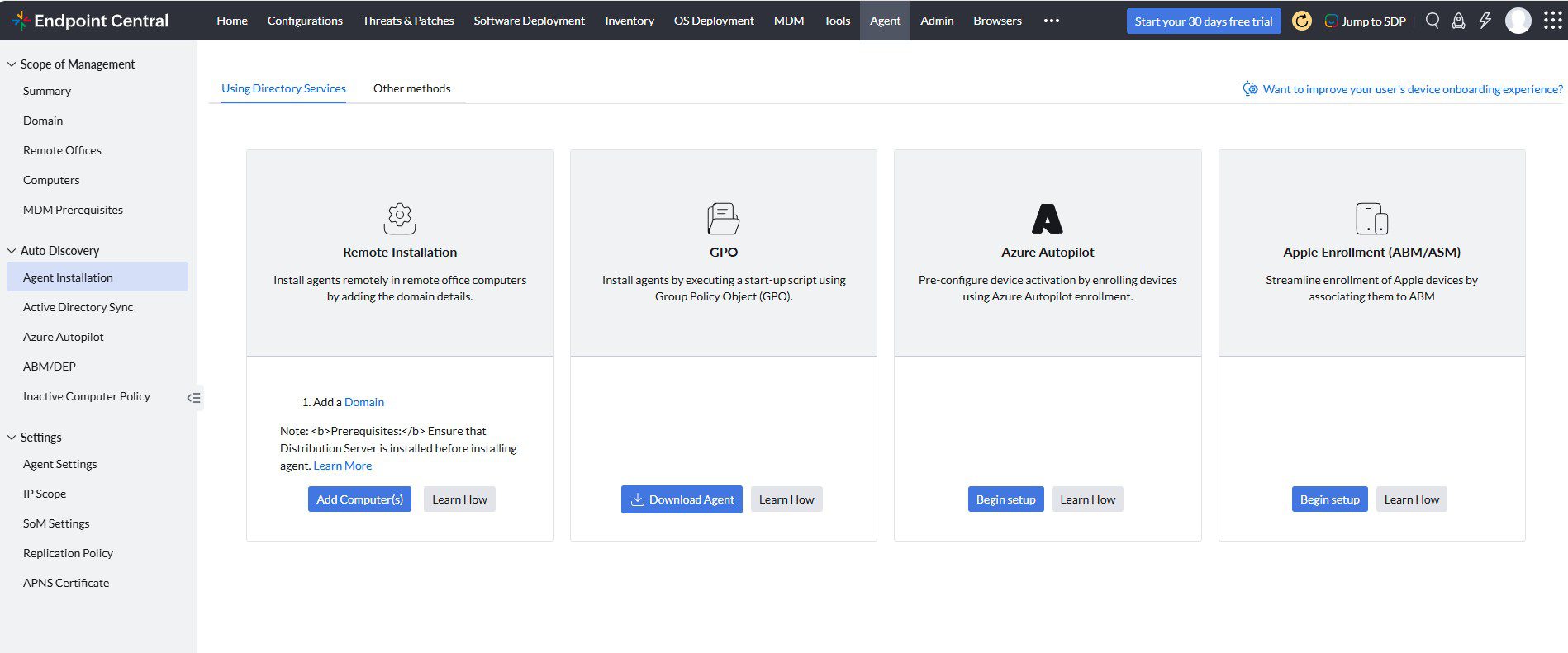
Endpoint Central agent deployment settings screen
Agents can be pushed via Group Policy, a login script, or manual installation. For domain-joined servers and workstations, GPO-based deployment is generally the fastest option since it requires no end-user interaction.
Step-by-Step: Patching Windows Server
- Open the Endpoint Central console and go to Patch Management → Patches.
- Filter the view by operating system to show only Windows Server machines.
- Review the list of missing patches, sorted by severity (Critical, Important, Moderate, Low).
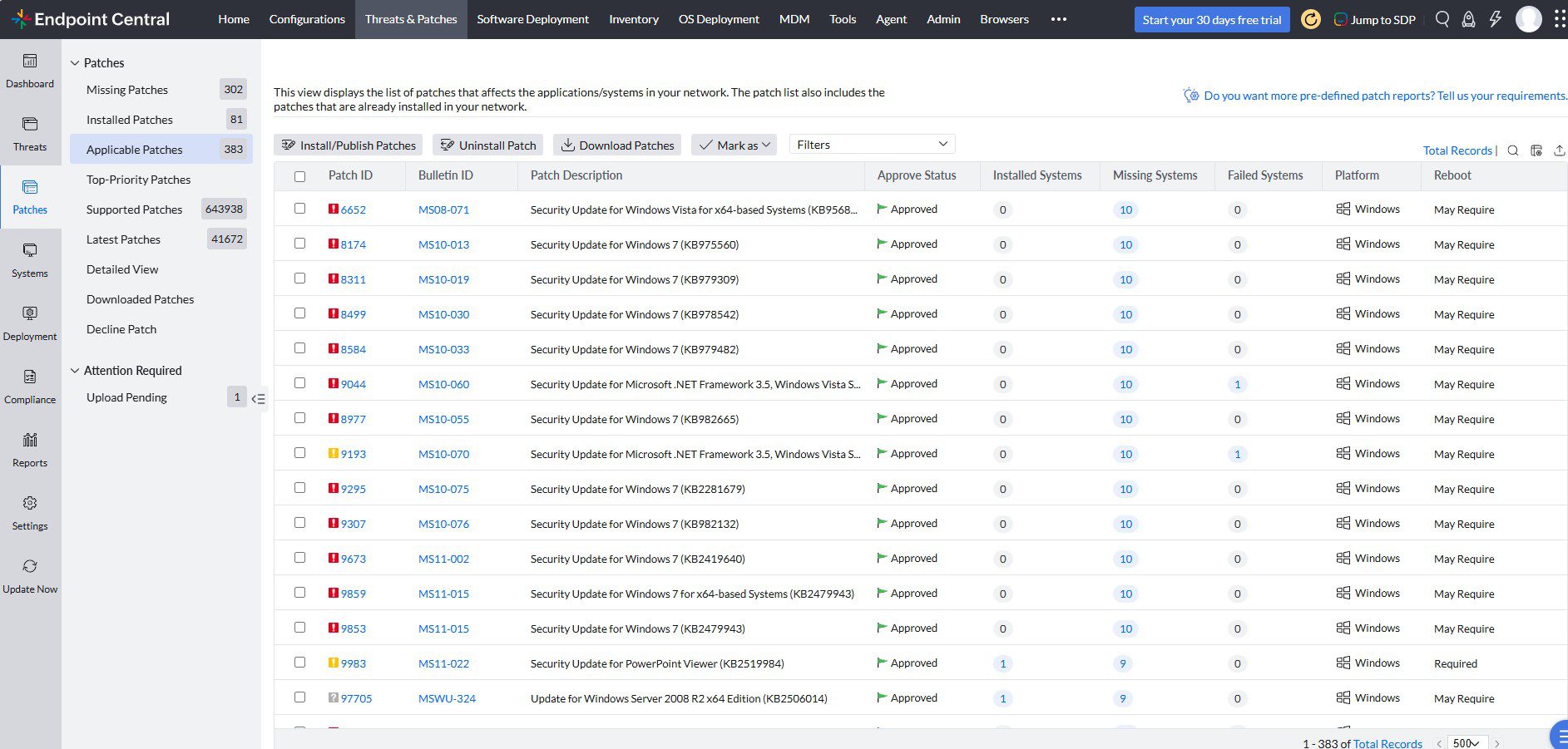
Endpoint Central missing patches list for Windows Server
- Select the patches you want to approve, or use “Approve All Critical/Important” for a faster baseline.
- Go to Patch Management → Deployment Policies → Create New Policy.
- Choose your target server group, set a deployment window (for example, a Sunday 2 AM maintenance window), and configure the reboot behavior.
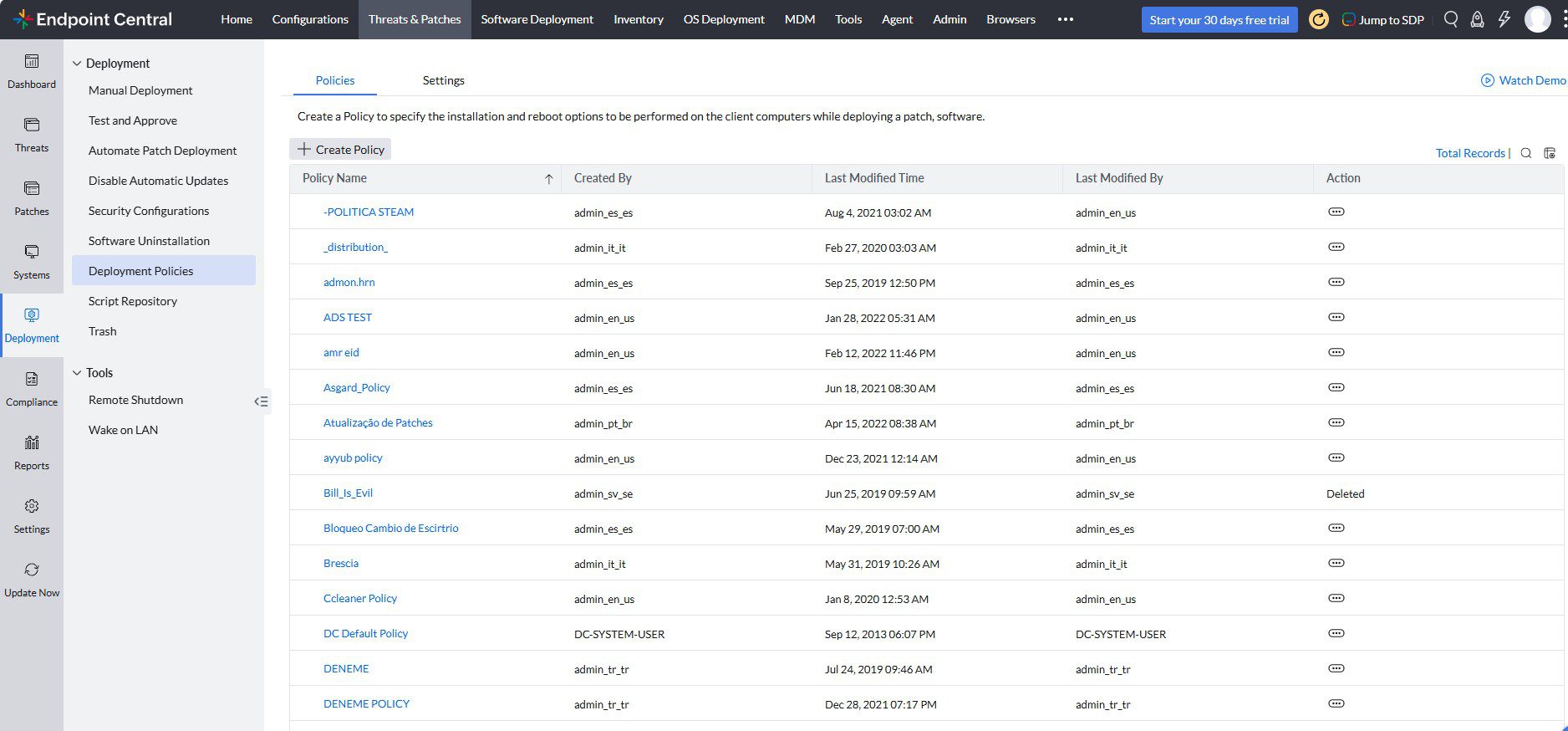
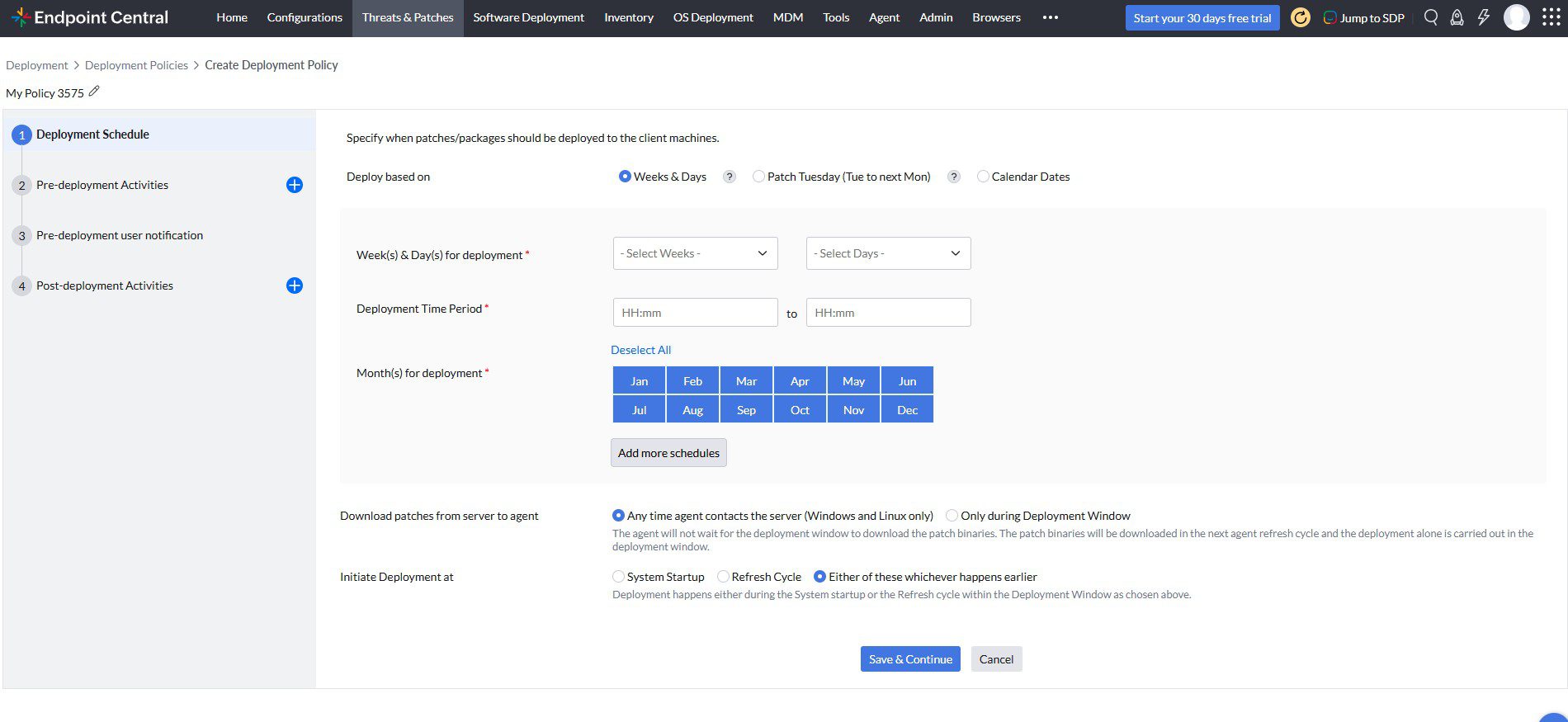
Endpoint Central deployment policy scheduling wizard
- Save and enable the policy. Endpoint Central will now scan, download, and install approved patches during the defined window.
For a broader walkthrough of manual server patching steps, see our Windows Server 2025 patching step-by-step guide, which is useful context if you’re migrating from manual WSUS-based patching to an automated tool.
Step-by-Step: Patching Windows Clients
Client patching follows a similar flow to server patching, but with a few important differences. Client machines are typically grouped by department, location, or risk tier so that rollouts can be staggered.
- Create logical device groups (for example, “Finance – Pilot Group” or “Sales – Wave 2”).
- Assign a deployment policy per group, with staggered schedules so not all client machines reboot at once.
- Enable end-user notifications so employees can save their work before a scheduled reboot.
- Monitor the deployment status dashboard to catch failed installs quickly.
Consequently, client patching becomes far less disruptive than a blanket “patch everything tonight” approach, which often causes help-desk tickets the next morning.
Patching Third-Party Applications
One of the biggest advantages Endpoint Central has over WSUS is native support for third-party application patching. Browsers, PDF readers, compression tools, and video conferencing apps are frequent attack targets, yet WSUS cannot patch any of them.
To patch third-party software, navigate to Patch Management → Third-Party Patches, review the available application updates, approve the relevant versions, and add them to your existing deployment policies alongside Windows updates.
Best Practices for Patch Management
- Patch in waves. Start with a test group, move to a pilot group, then roll out broadly.
- Prioritize by severity and exploitability, not just by patch age. Critical, actively exploited CVEs should jump the queue.
- Set maintenance windows outside business hours for servers, and use flexible windows with user notifications for laptops.
- Keep a rollback plan. Snapshot or back up critical servers before major patch cycles.
- Review compliance reports weekly instead of only during audits.
- Document exceptions. If a server must skip a patch due to an application conflict, record why and set a review date.
Additionally, cross-reference Microsoft’s own guidance on update management via Microsoft Learn’s Windows update documentation to stay aligned with Microsoft’s recommended servicing cadence.
How to Test Patches Before Deployment
Testing is where most patch management programs fail. Without it, a single bad patch can cause application crashes or boot failures across dozens of machines simultaneously.
1. Create a Dedicated Test Group
Build a small group of non-critical machines that mirror your production environment’s OS builds and key applications. This group should never include your only domain controller or a production database server.
2. Run a Pilot Rollout
After patches pass in the test group, deploy them to a slightly larger pilot group — for example, 5–10% of client machines or one non-critical server. Monitor for 24–48 hours before continuing.
3. Stage the Full Rollout
Once the pilot group is stable, deploy in waves across the remaining environment, monitoring the Endpoint Central dashboard between waves for failed installs, reboot loops, or application error spikes.
4. Use Automated Health Checks
Endpoint Central can trigger post-deployment scripts to verify that key services (IIS, SQL Server, print spooler, and so on) restart correctly after a patch and reboot. This automated verification step catches problems before end users do.
Generating Patch Compliance Reports
Reporting is essential both for internal visibility and for audits. Endpoint Central includes built-in report templates that summarize patch compliance at the organization, group, or individual device level.
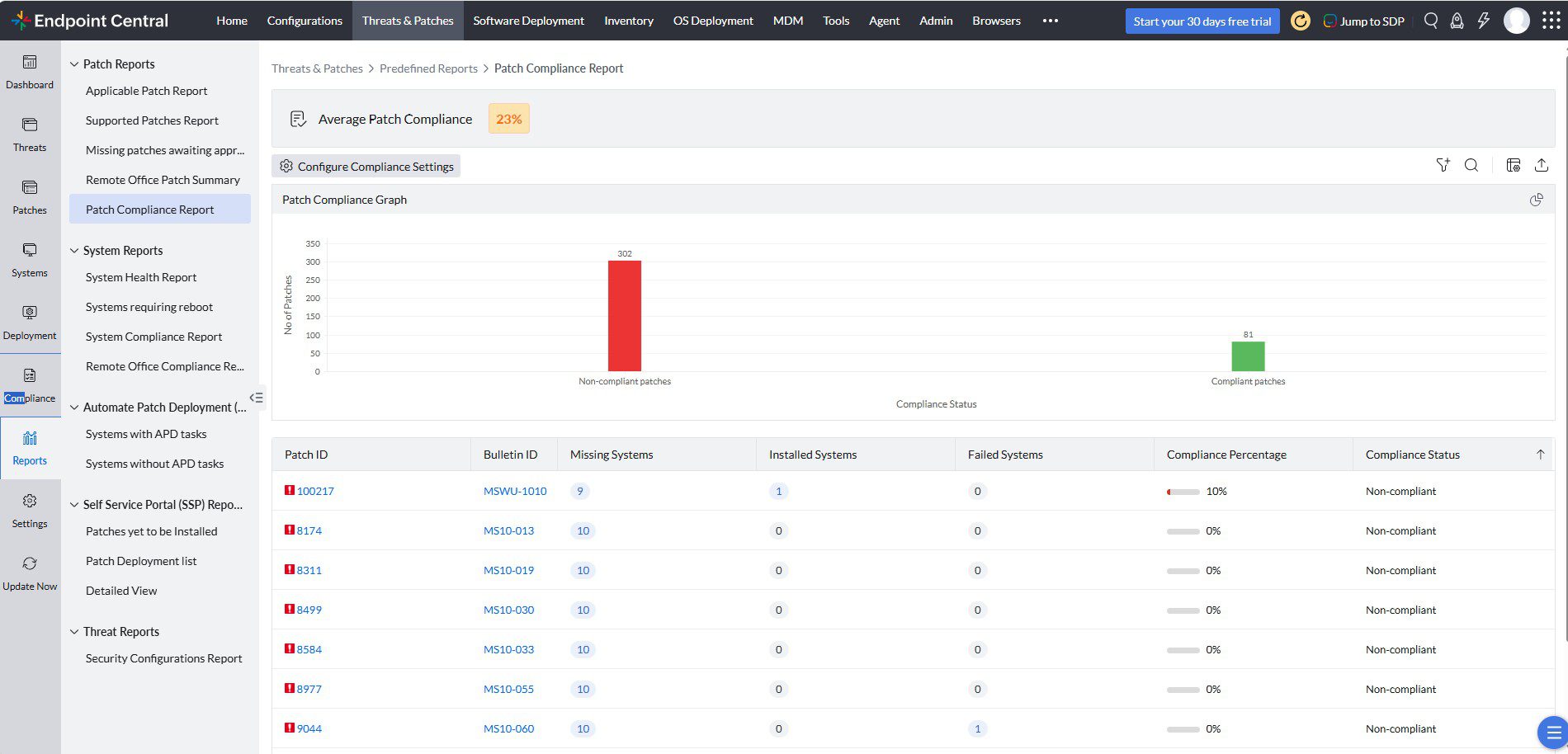
Endpoint Central patch compliance report chart
- Go to Reports → Patch Management Reports → Compliance Report.
- Select the device group and date range you want to report on.
- Review the compliant vs non-compliant breakdown chart, along with the device-level detail table.
- Export the report as PDF or CSV, or schedule it to be emailed automatically on a weekly or monthly basis.
For example, many IT teams schedule a Monday-morning compliance report to leadership, which keeps patch management visible without requiring a manual check-in every week.
Endpoint Central vs WSUS: Pros and Cons
WSUS (Windows Server Update Services) is a free Microsoft role that many organizations already use. However, it has real limitations compared to a dedicated platform like Endpoint Central.
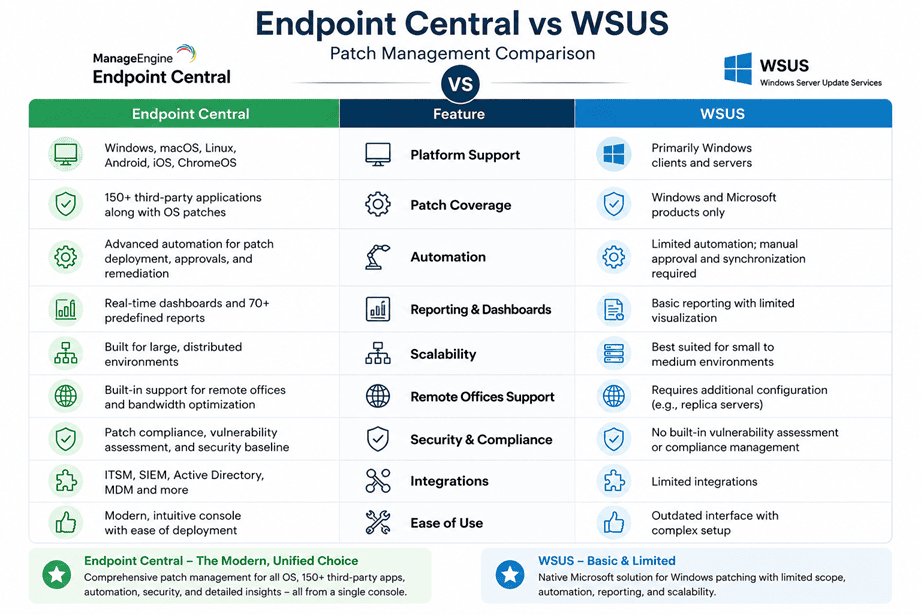
Endpoint Central vs WSUS patch management comparison
ManageEngine Endpoint Central — Pros
- Patches Windows OS and hundreds of third-party applications
- Built-in test group, pilot, and staged rollout workflows
- Rich, exportable, and schedulable compliance reporting
- Supports remote/roaming devices outside the corporate network
- Includes broader endpoint management features (asset tracking, remote control, software deployment)
ManageEngine Endpoint Central — Cons
- Requires a paid license based on endpoint count
- Additional infrastructure/agent to deploy and maintain
- Slightly steeper learning curve than a simple WSUS console
WSUS — Pros
- Free, built into Windows Server as a role
- Familiar to most Windows administrators
- Tight, native integration with Group Policy
WSUS — Cons
- Only patches Microsoft products — no third-party application support
- Limited, dated reporting interface
- No built-in staged rollout or pilot-group workflow
- Poor support for remote or roaming devices outside the corporate network
- Microsoft has signaled long-term WSUS deprecation plans, making its future support uncertain
Therefore, organizations with only Windows Server patching needs and no budget may still choose WSUS. However, teams that need third-party patching, better reporting, and safer rollout controls generally find Endpoint Central’s licensing cost worthwhile.
Frequently Asked Questions
1. What is ManageEngine Endpoint Central patch management?
It’s the patch management module within Endpoint Central that scans, tests, approves, and deploys operating system and third-party application updates across your managed devices.
2. Does Endpoint Central replace WSUS entirely?
Yes, in most environments Endpoint Central can fully replace WSUS since it covers Windows updates plus third-party application patching in one console.
3. Can Endpoint Central patch remote or work-from-home laptops?
Yes. As long as the agent is installed and can reach the Endpoint Central server (directly or through a DMZ/roaming agent setup), remote laptops receive patches without needing a VPN in most configurations.
4. How do I test a patch before deploying it broadly?
Create a small test group of representative machines, deploy the patch there first, monitor for 24–48 hours, then expand to a pilot group before a full rollout, as described earlier in this guide.
5. How often should patches be deployed?
Most organizations follow a monthly cadence aligned with Microsoft’s Patch Tuesday, with an expedited out-of-band process for critical, actively exploited vulnerabilities.
6. Can I roll back a patch if something breaks?
Yes, Endpoint Central supports uninstalling deployed patches from the console, though a proper backup or snapshot strategy is still recommended for critical servers.
7. What operating systems does Endpoint Central support?
It supports Windows Server, Windows client OS versions, macOS, and Linux, in addition to a wide catalog of third-party applications across those platforms.
8. How does Endpoint Central generate compliance reports?
Through the Reports module, where you can generate, export, and schedule patch compliance reports at the organization, group, or device level.
9. Is Endpoint Central suitable for small businesses?
Yes, ManageEngine offers licensing tiers based on endpoint count, so smaller environments aren’t forced into enterprise-scale pricing.
10. Does Endpoint Central require agents on every device?
Yes, an agent must be installed on each managed server and client device to enable scanning, deployment, and reporting.
11. What happens if a device misses its patch window?
Endpoint Central retries the deployment during the next scheduled window or on next check-in, and flags the device as non-compliant in reporting until it’s patched.
12. Can Endpoint Central patch third-party apps like Chrome and Adobe Reader?
Yes, this is one of its core advantages over WSUS — third-party patches are maintained in a built-in catalog you can approve and deploy the same way as Windows updates.
13. Is Endpoint Central cloud-based or on-premises?
ManageEngine offers both on-premises and cloud-hosted deployment options, so you can choose based on your infrastructure and compliance requirements.
Conclusion
Effective ManageEngine Endpoint Central patch management combines automated scanning, staged testing, and clear compliance reporting into one workflow. As a result, IT teams spend less time chasing missing updates manually and more time focused on higher-value work.
While WSUS remains a viable free option for basic Windows-only patching, Endpoint Central’s third-party application support, staged rollout controls, and reporting make it a stronger choice for teams managing mixed environments at scale. For further reference on Microsoft’s own update servicing model, see Microsoft Learn’s WSUS documentation, and for third-party vulnerability tracking, tools like MXToolbox can complement your broader security monitoring stack.
Looking to strengthen your broader Microsoft 365 and Windows Server operations? Explore more guides on the Core365 Cloud Blog.

Antonio Rennvick is an IT Infrastructure Manager with 15+ years running enterprise Active Directory, Microsoft 365, and Azure environments. He’s Microsoft certified (AZ-104, MS-102) and writes Core365 Cloud to share what actually works in production—PowerShell automation, AD deep dives, and security hardening drawn from real-world work, not test labs.