
If you have ever sent an email and received a confusing automated reply filled with error codes, you have already experienced Exchange NDR messages. NDR stands for Non-Delivery Report, and these messages are Exchange Online’s way of telling you — or your IT admin — that something went wrong during email delivery. Understanding what these codes mean can save hours of troubleshooting and help you get email flowing again quickly.
This guide covers everything you need to know: what NDRs are, how to read them, the most common error codes, and step-by-step fixes for each. Whether you are a seasoned Exchange admin or just getting started with Microsoft 365, this article has you covered.
- What Are Exchange NDR Messages?
- How to Read an NDR Message
- 4.x.x vs 5.x.x — Temporary vs Permanent Errors
- Most Common NDR Error Codes and How to Fix Them
- 5.1.1 – Bad Destination Mailbox Address
- 5.1.8 – Bad Outbound Sender / Blocked Account
- 5.7.1 – Delivery Not Authorized or Unable to Relay
- 5.7.23 – SPF Violation
- 5.7.509 – DMARC Rejection
- 4.4.7 – Message Expired
- 5.4.1 – Relay Access Denied
- 5.4.6 / 5.4.14 – Routing Loop Detected
- 5.2.2 – Submission Quota Exceeded
- 5.7.57 – Client Not Authenticated (SMTP Relay)
- Using Message Trace to Diagnose NDR Errors
- Running NDR Diagnostics in Microsoft 365 Admin Center
- NDR Errors for High Volume Email (HVE)
- Best Practices to Prevent NDR Errors
- Frequently Asked Questions
What Are Exchange NDR Messages?
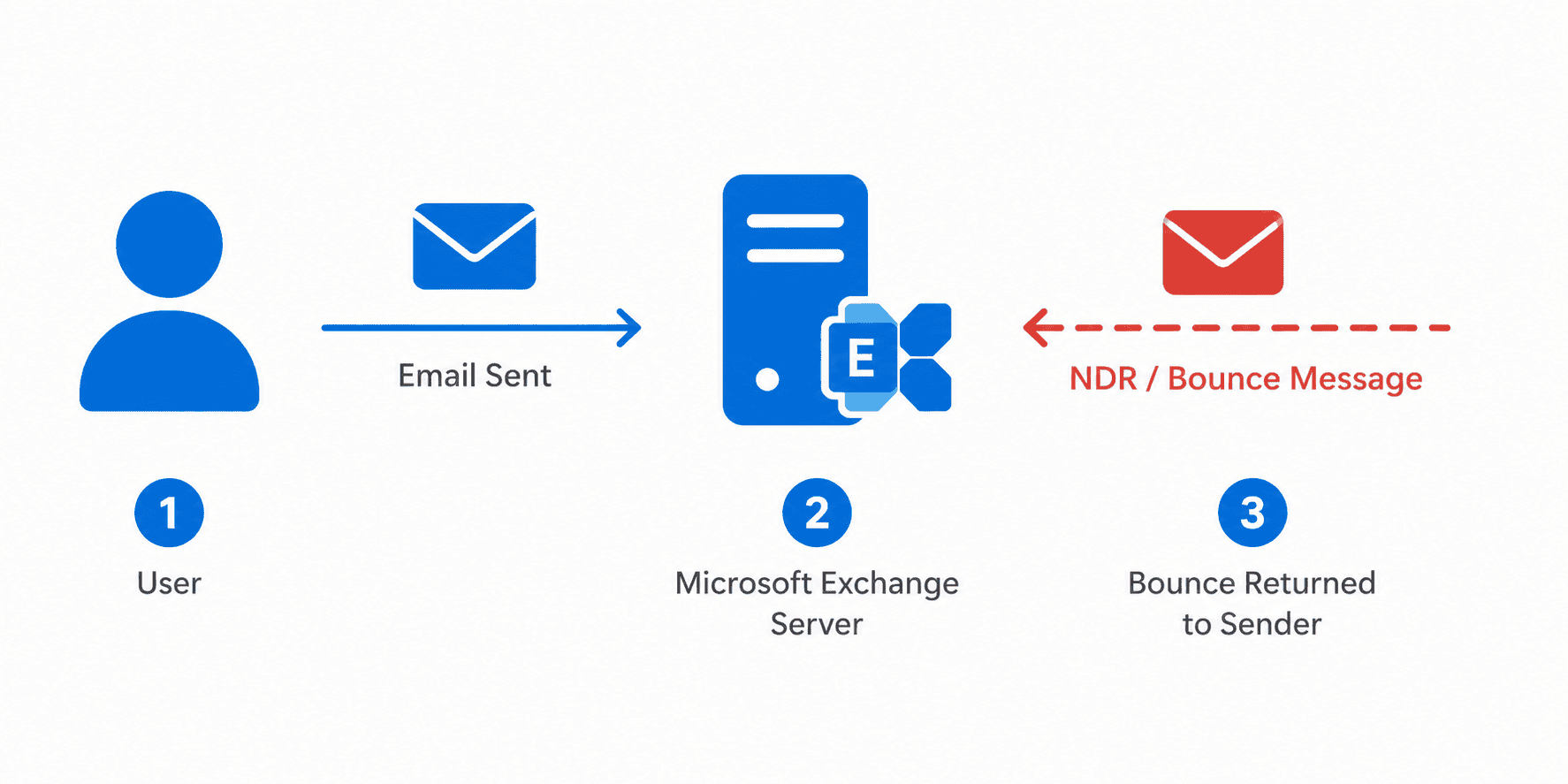
An NDR (Non-Delivery Report) is an automated email generated by Microsoft Exchange or Exchange Online when a message cannot be delivered to the intended recipient. You may also hear these called bounce messages, bounce-backs, or delivery status notifications (DSNs). They all refer to the same thing.
When Exchange encounters a delivery problem, it does two things simultaneously. First, it stops the message from being delivered. Second, it sends a structured notification back to the original sender explaining what went wrong. This notification contains an error code, a plain-English explanation, and technical details intended for IT administrators.
NDRs are not just for end users. They are a diagnostic tool. The error codes inside them point to specific failures — a typo in an email address, a misconfigured DNS record, a blocked sender account, or a server connectivity issue. Reading an NDR correctly is the first step to fixing the underlying problem.
💡 Quick Tip: You do not need to be a technical expert to read an NDR. Microsoft designed modern NDRs with plain-language explanations that both end users and admins can understand.
How to Read an NDR Message
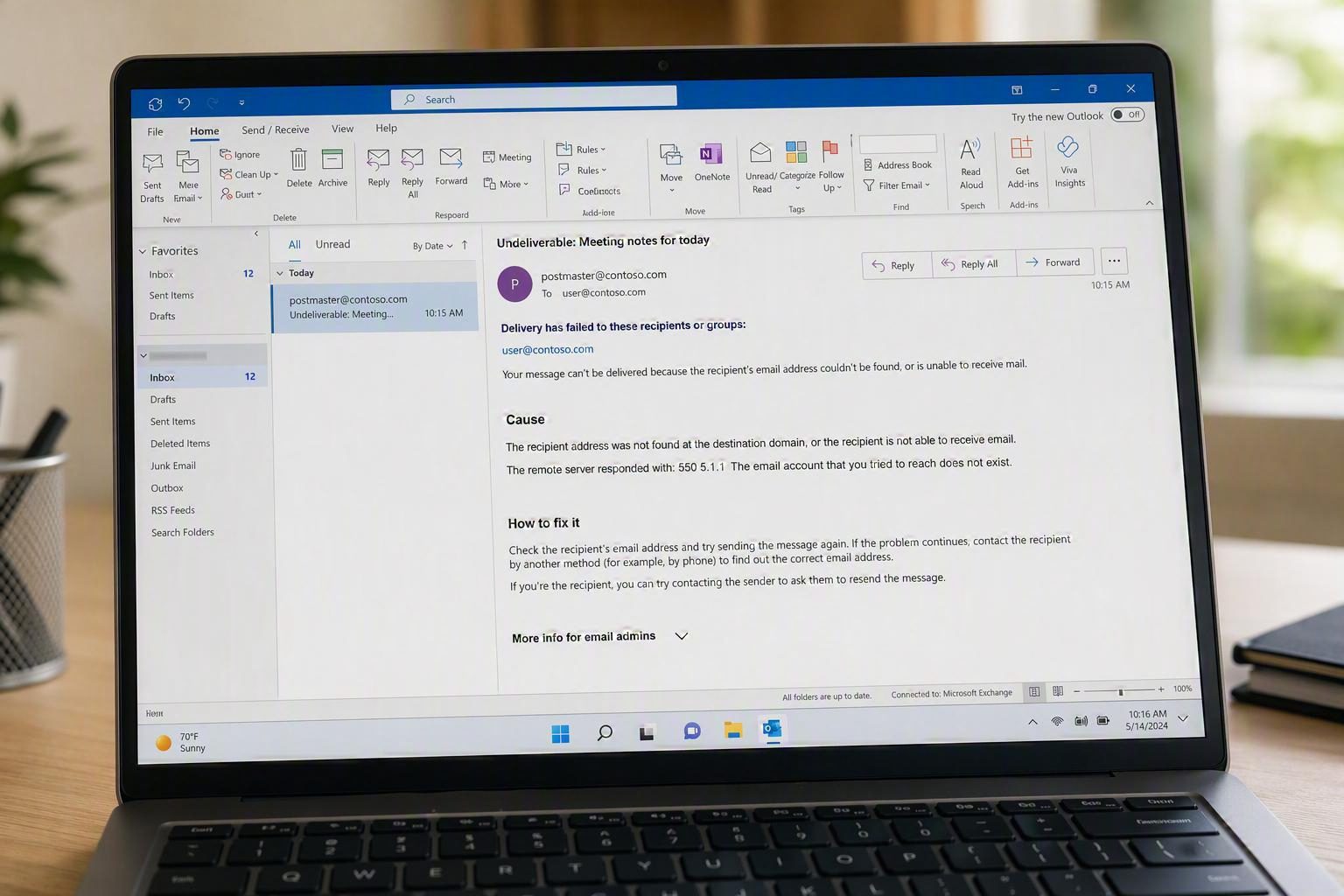
Modern Exchange Online NDRs are split into two main areas. The first part is written for the email sender — it uses everyday language to describe what happened and what you can try. The second part is written for IT administrators and contains deeper technical information.
Here is what each section of an NDR typically contains:
| Section | What It Tells You |
|---|---|
| Cause | A plain-English reason the message was not delivered. |
| Fix-it owner indicator | A visual showing whether the problem sits with the sender, Microsoft 365, or the recipient’s server. |
| How to fix it | Suggested steps the sender can take right now to resolve the issue. |
| More info for email admins | Technical explanation, enhanced status code, generating server name, and a link to Microsoft documentation. |
| Message hops | A server-to-server path showing where the message travelled before it failed. |
| Original message headers | Raw SMTP header data for advanced troubleshooting, including SPF, DKIM, and DMARC results. |
Additionally, older-format NDRs separate content into a User Information block and a Diagnostic Information for Administrators block. The diagnostic block includes the generating server name, rejected recipient address, remote server name, enhanced status code, and the SMTP response text. When troubleshooting, always start with the enhanced status code — this is the specific error code like 5.1.1 or 5.7.23 that tells you exactly what went wrong.
For more context on how email flows through your tenant, see our guide on configuring Exchange Online mail flow connectors.
4.x.x vs 5.x.x — Temporary vs Permanent Errors
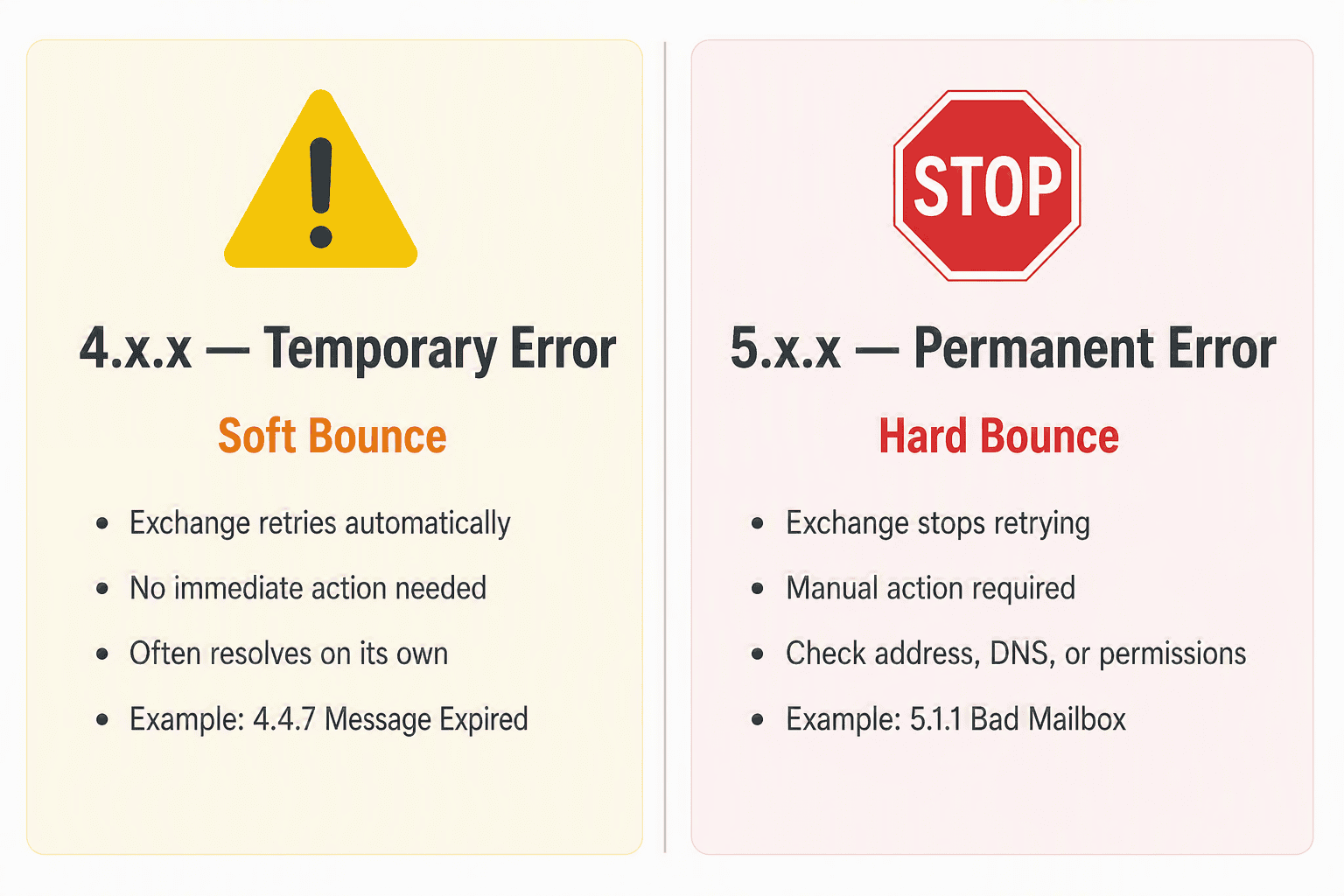
Before diving into specific codes, it helps to understand the fundamental difference between the two families of NDR error codes. This distinction alone will save you a lot of guesswork.
4.x.x — Temporary Errors (Soft Bounces)
A code beginning with 4 means the delivery attempt failed temporarily. Exchange will keep trying to resend the message for a period of time (typically up to two days) without any action required from you. These errors are often caused by a busy recipient server, a transient network issue, or a message queue backlog. If the receiving server comes back online, your message will be delivered automatically.
5.x.x — Permanent Errors (Hard Bounces)
A code beginning with 5 means the delivery has permanently failed. Exchange will not retry. You will receive an NDR immediately, and the message is not in any queue waiting for delivery. Permanent failures require action — either from the sender, the recipient’s admin, or both — before the message can be sent successfully.
- Exchange retries automatically
- No immediate action needed
- Often resolves on its own
- Example: 4.4.7 Message Expired
- Exchange stops retrying immediately
- Manual action required
- Check address, permissions, or DNS
- Example: 5.1.1 Bad Mailbox Address
Most Common NDR Error Codes and How to Fix Them
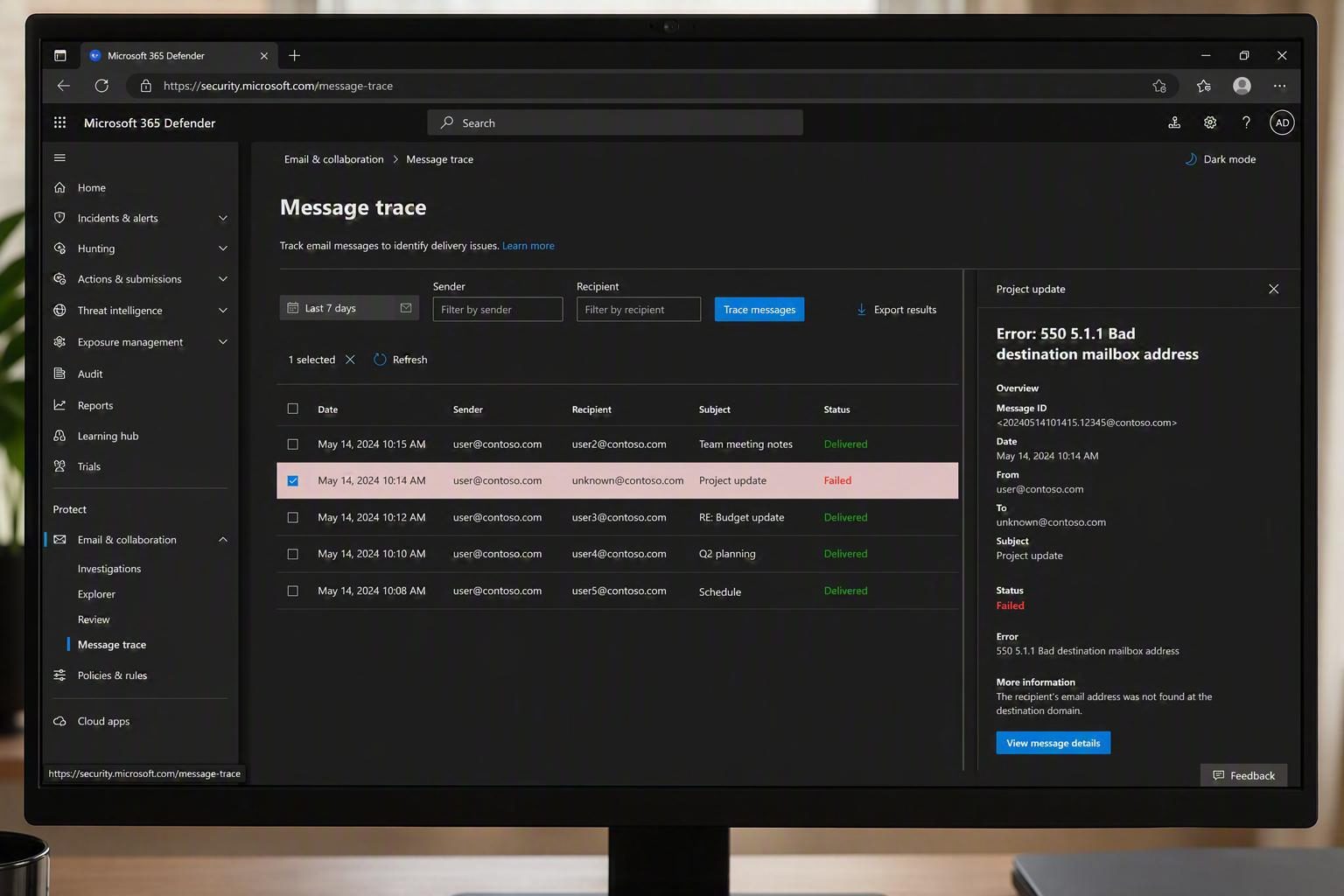
Below are the most frequently encountered Exchange NDR error codes, what causes them, and how to resolve each one. These cover both Exchange Online (Microsoft 365) and hybrid Exchange environments.
NDR 5.1.1 — Bad Destination Mailbox Address
What it means: Exchange cannot find the recipient’s mailbox. This is one of the most common NDRs you will encounter.
Why it happens: The most frequent cause is a typo in the recipient’s email address. However, it can also occur when a mailbox has been deleted, when a user’s email address changed and the sender’s Outlook auto-complete cache still holds the old address, or when an invalid legacy Exchange DN (distinguished name) exists in Active Directory.
How to fix it:
- Double-check the recipient’s email address for typos.
- In Outlook, clear the auto-complete suggestion: start typing the name → hover over the wrong suggestion → click the X to remove it → re-type the correct address.
- If the address looks correct, ask the recipient to confirm their current email address — it may have changed.
- If you are the admin and this is an internal user, verify the mailbox exists in the Microsoft 365 admin center under Users > Active users.
NDR 5.1.8 — Bad Outbound Sender / Blocked Account
What it means: The sending account has been blocked from sending email because it was flagged for sending spam or was identified as compromised.
Why it happens: This almost always means the sender’s account was hacked — typically via a phishing email or malware — and was used to send bulk spam. Microsoft’s automated systems detected the unusual sending behaviour and blocked the account.
How to fix it:
- Immediately reset the compromised user’s password and enable multi-factor authentication (MFA).
- Review the account for suspicious inbox rules (forwarding rules created by attackers).
- In the Microsoft 365 Defender portal, navigate to Email & Collaboration > Review > Restricted entities and remove the user from the blocked list once the account is secured.
- Review our post on responding to a compromised Microsoft 365 account for a complete remediation checklist.
NDR 5.7.1 — Delivery Not Authorized / Unable to Relay
What it means: This code covers three different scenarios that all result in the same NDR code. The underlying issue differs depending on the context.
| Scenario | Cause | Fix |
|---|---|---|
| Delivery not authorized | Sender is not permitted to send to a distribution group or mailbox with restricted membership. | Admin adds the sender to the group’s allowed-senders list. |
| Unable to relay | An MX record misconfiguration or unauthenticated relay attempt. | Verify MX records in DNS and check relay permissions on the sending connector. |
| Client not authenticated | A sending server tried to submit messages without authenticating first. | Configure SMTP authentication on the sending application or device. |
NDR 5.7.23 — SPF Violation
What it means: The receiving mail server checked your domain’s SPF (Sender Policy Framework) DNS record and determined that the sending server is not authorised to send on behalf of your domain.
Why it happens: Your SPF record does not include the IP address or service that is sending on your behalf. This commonly occurs when a third-party tool (like a CRM, marketing platform, or shared hosting provider) sends email using your domain name but is not listed in your SPF record.
How to fix it:
- Look up your current SPF record using a tool like MXToolbox SPF Lookup.
- Identify which sending service is missing from the record.
- Update your SPF TXT record in DNS to include the missing service’s mail servers. Example:
v=spf1 include:spf.protection.outlook.com include:sendgrid.net -all - For Microsoft 365 tenants, ensure your SPF record always includes
include:spf.protection.outlook.com. - Read our detailed walkthrough on setting up SPF, DKIM, and DMARC for Microsoft 365.
NDR 5.7.509 — DMARC Rejection
What it means: The recipient’s domain has a DMARC policy set to reject, and your message failed DMARC validation. As a result, it was permanently blocked.
Why it happens: DMARC failure typically occurs for one of three reasons:
- Your SPF record is missing or incorrectly configured.
- DKIM signing is not set up for your domain, or the signature is broken during forwarding.
- The From address domain (visible to the recipient) does not align with either the SPF or DKIM authenticated domain.
How to fix it:
- Check your DMARC record:
_dmarc.yourdomain.com— ensure it is published and syntactically correct. - Verify your SPF and DKIM records are properly configured and passing for your domain.
- If you use email forwarding services, be aware that forwarding often breaks SPF. Consider implementing ARC (Authenticated Received Chain) sealing.
- Use the Microsoft Header Analyzer to inspect the authentication results in the message headers.
NDR 4.4.7 — Message Expired
What it means: Exchange tried repeatedly to deliver the message to the recipient’s server over a period of time, but the server never accepted it before the message’s queue expiry time was reached.
Why it happens: The recipient’s mail server was unreachable, unresponsive, or returned persistent temporary errors during every delivery attempt. This can also happen if the recipient server has a message header limit that was exceeded.
How to fix it:
- Verify the recipient’s email address is correct.
- Check whether the recipient’s mail server is online by running an MX lookup for their domain.
- Ask the recipient to confirm their mail server is functioning correctly.
- If the issue is with an external domain, the recipient’s IT team needs to address the server availability problem.
- Try resending — if the recipient’s server was temporarily down, it may now be available.
NDR 5.4.1 — Relay Access Denied
What it means: The mail server receiving the message does not accept email for the recipient’s domain. The receiving server is configured to only accept messages for specific domains, and the recipient’s domain is not one of them.
Why it happens: This is usually a DNS or mail server configuration issue. The domain’s MX record may point to the wrong server, or the receiving server is not configured to accept mail for that domain.
How to fix it:
- Verify the MX record for the recipient’s domain — it should point to the correct mail server.
- If you manage the receiving server, confirm the domain is listed in the server’s accepted domains configuration.
- In Exchange Online hybrid environments, check the receive connector settings and ensure the domain is added as an accepted domain in the Exchange Admin Center.
NDR 5.4.6 / 5.4.14 — Routing Loop Detected
What it means: Exchange detected that a message was looping — being sent back and forth between servers indefinitely. To protect system resources, Exchange breaks the loop after 20 iterations and sends this NDR.
Why it happens: Mail loops are almost always caused by a misconfiguration. Common culprits include inbox forwarding rules that create circular paths (User A forwards to User B, who forwards back to User A), or incorrect transport rules that re-route messages into the same flow repeatedly. In hybrid Exchange environments (on-premises + Exchange Online), a misconfigured connector is a frequent cause.
How to fix it:
- Check the sender’s and recipient’s mailbox rules for forwarding loops.
- In the Exchange Admin Center, review transport/mail flow rules for any circular redirections.
- In hybrid environments, inspect inbound and outbound connectors for routing mismatches.
- Use the message trace tool (covered below) to follow the exact path the message took.
NDR 5.2.2 — Submission Quota Exceeded
What it means: The sending account has exceeded Exchange Online’s sending limits. This can be the per-day recipient rate limit or the message rate limit.
Why it happens: Legitimate bulk sending occasionally triggers this, but it is more commonly associated with compromised accounts that are being used to send spam at scale. Exchange Online enforces a daily limit of 10,000 recipients per user account.
How to fix it:
- If the account may be compromised, follow the same remediation steps as for error 5.1.8 above.
- If this is a legitimate bulk-sending scenario, consider using Microsoft’s High Volume Email (HVE) service, which is designed for high-throughput sending.
- Review Exchange Online sending limits in the Microsoft documentation on Exchange Online limits.
NDR 5.7.57 — Client Not Authenticated (SMTP Relay)
What it means: An application, device (like a printer or scanner), or service tried to send email through the smtp.office365.com endpoint without proper authentication.
Why it happens: This is extremely common when setting up SMTP relay for devices like multifunction printers, line-of-business applications, or monitoring tools. The configuration is usually missing valid credentials, the wrong port, or TLS is not enabled.
How to fix it:
- Ensure the device or application is configured to authenticate with a valid Microsoft 365 account username and password (or modern auth token).
- Use port 587 with STARTTLS, not port 25.
- Verify the account used for SMTP authentication has a valid Exchange Online mailbox and is licensed.
- Alternatively, set up a Direct Send or SMTP Client Submission connector in Exchange Online for your specific device type.
- See our guide on setting up SMTP relay in Microsoft 365 for printers and apps for a full walkthrough.
Using Message Trace to Diagnose NDR Errors
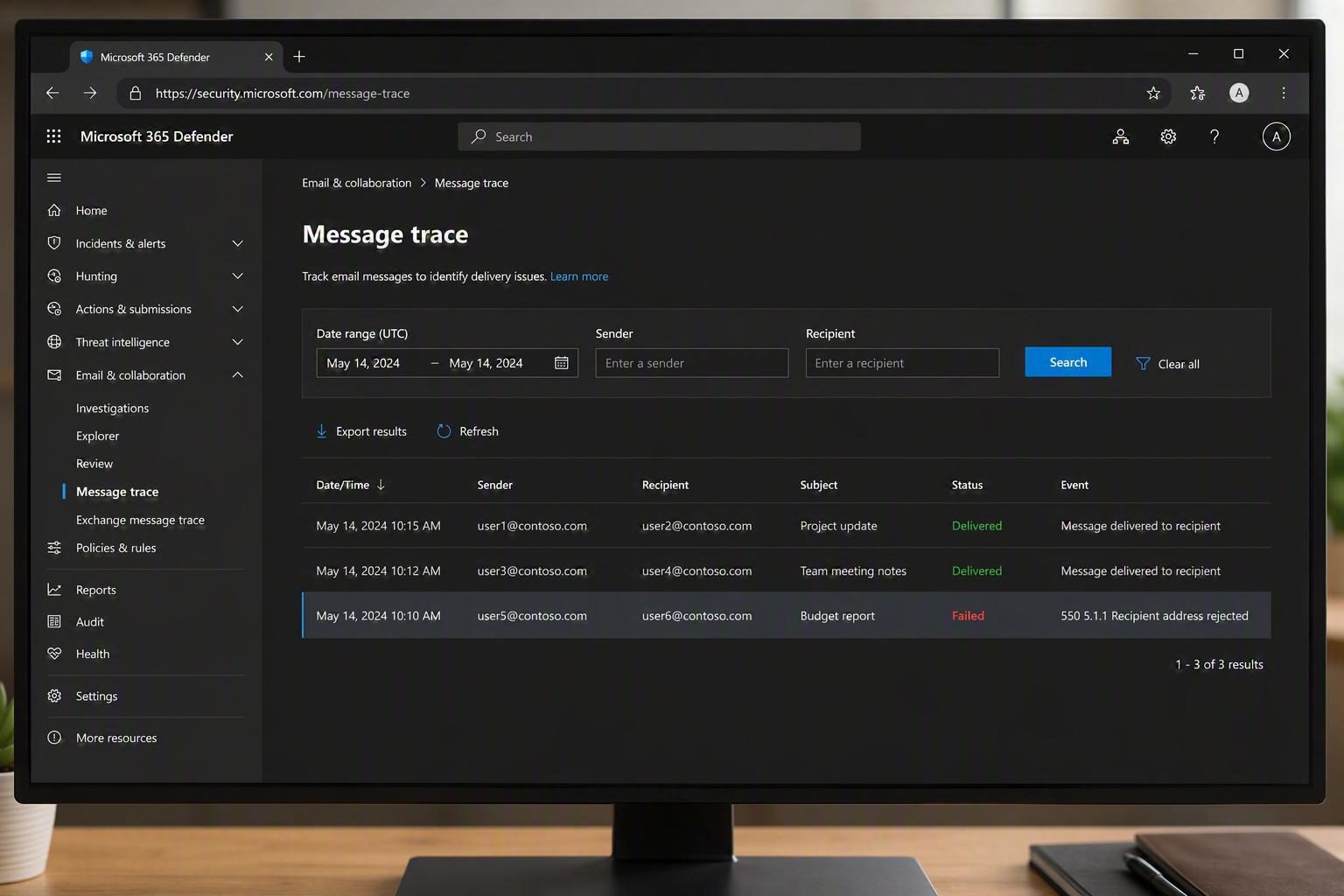
Message Trace is one of the most powerful built-in tools for diagnosing email delivery failures in Exchange Online. It shows the exact path a message took through Microsoft’s servers, the status at each step, and the precise error code that caused the failure.
How to Run a Message Trace
- Go to the Microsoft 365 Defender portal at security.microsoft.com.
- In the left menu, navigate to Email & Collaboration → Exchange message trace.
- Click Start a trace.
- Enter the sender’s email address, recipient’s email address, and the approximate date range.
- Click Search.
- In the results, look for messages with a status of Failed.
- Click a failed message to open the detail pane — this shows the full delivery route and the specific error code that triggered the NDR.
What to Look For in Message Trace Results
Once you open a failed trace result, pay attention to these key fields:
- Status: Should say Failed for NDR-related events.
- To: Confirms the intended recipient address (useful for catching typos).
- Event: Look for RECEIVE, FAIL, or NDR event types.
- Detail: Contains the SMTP response and enhanced status code — this is the core diagnostic information.
Additionally, Message Trace stores results for 30 days by default. For older traces, use the Extended report feature, which lets you search up to 90 days of history. Results for extended reports are emailed to you rather than shown immediately in the portal.
Running NDR Diagnostics in Microsoft 365 Admin Center
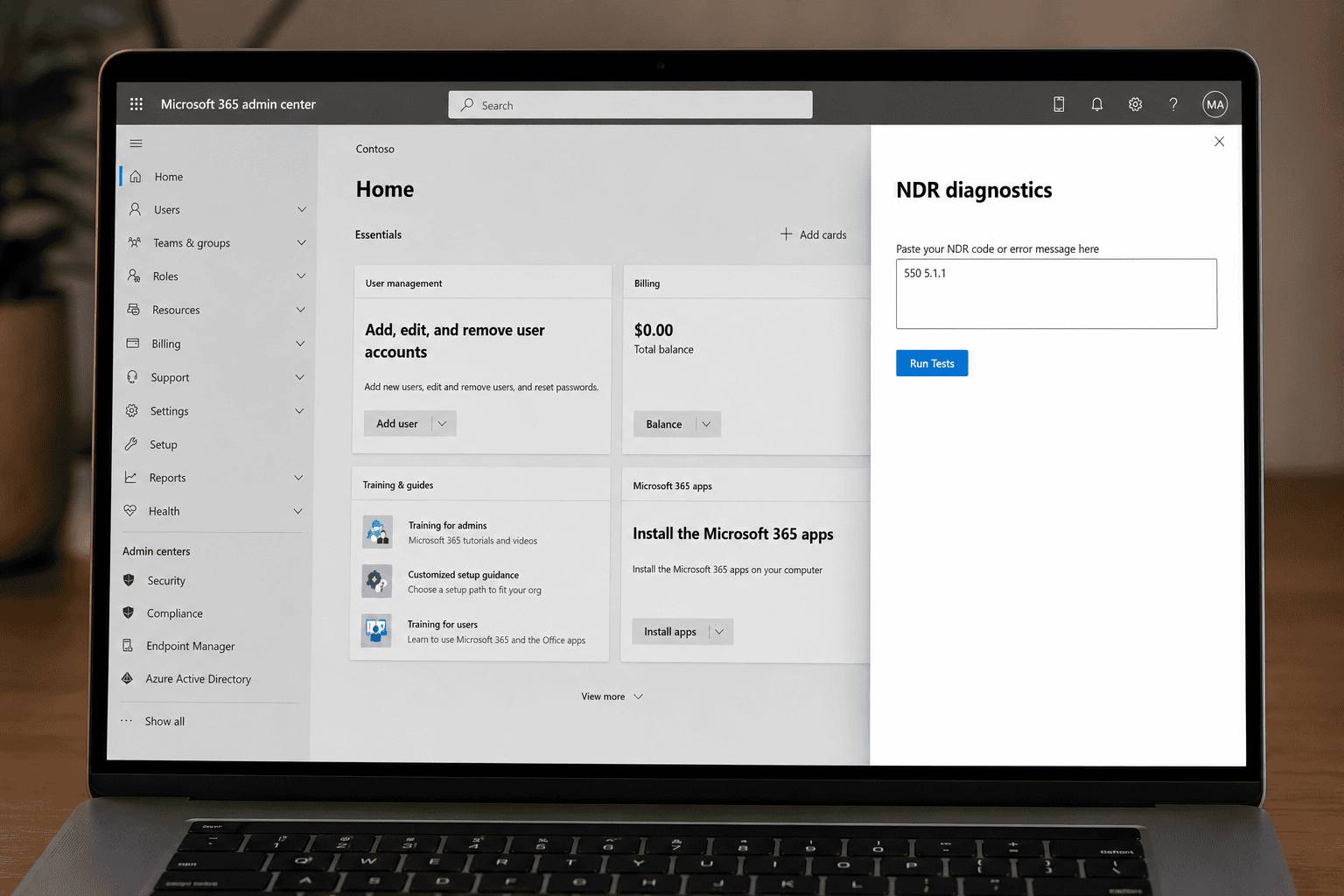
Microsoft has built an automated diagnostic tool directly into the Microsoft 365 Admin Center that helps admins quickly understand and resolve common NDR errors. This tool is available to Microsoft 365 administrator accounts.
How to Use the NDR Diagnostic Tool
- Sign in to the Microsoft 365 Admin Center at
admin.microsoft.com. - In the left navigation, go to Support → Help & support.
- In the search box, type Email NDR or paste the exact NDR error code (e.g.
550 5.1.1). - Select the Run Tests: NDR diagnostics option.
- A flyout panel will open. Paste the NDR code or full error message into the input box.
- Click Run Tests.
The diagnostic tool analyses the error and provides a specific cause and recommended remediation steps. For many common errors, this alone is enough to resolve the issue without needing to open a support ticket.
📌 Note: The NDR Diagnostics tool is not available for Microsoft 365 Government tenants, Microsoft 365 operated by 21Vianet, or Microsoft 365 Germany.
NDR Errors for High Volume Email (HVE)
If your organisation uses Microsoft’s High Volume Email (HVE) service for sending transactional or bulk emails at scale, you may encounter a separate set of NDR codes specific to HVE accounts. These are different from standard Exchange NDR error codes and relate to HVE configuration, billing, and permission issues.
Here are the most important HVE-specific error codes to know:
| Error Code | Description | Fix |
|---|---|---|
535 5.7.142 | OAuth token is about to expire. | Request a new OAuth token before the current one expires. |
535 5.7.143 | OAuth token has already expired. | Regenerate a valid user token immediately. |
550 5.1.241 | Message sent to an HVE account, which cannot receive mail. | Configure a ReplyTo address so replies go to a regular mailbox. |
550 5.2.240 | HVE account not properly configured. | Verify HVE account setup in the Exchange Admin Center. |
550 5.7.244 | HVE accounts cannot send to external recipients. | Remove external recipients from the HVE send list. |
550.5.2.241 | HVE billing not configured properly. | Set up a billing policy for the HVE account in the Admin Center. |
421 4.3.240 | Too many simultaneous authenticated connections (over 250). | Reduce concurrent connections from the sending application. |
For complete HVE setup guidance, check out our post on configuring High Volume Email in Exchange Online.
Best Practices to Prevent NDR Errors
Many NDR errors are avoidable with the right configuration in place from the start. Here are the most impactful steps you can take to reduce bounce rates and keep your email flowing reliably.
1. Configure SPF, DKIM, and DMARC Correctly
These three DNS-based authentication standards work together to prove that your email is legitimate. Without them, external mail servers may reject your messages or send them to spam. Ensure all three are configured for every domain you send email from, not just your primary domain.
2. Keep Your Sender Reputation Clean
Microsoft and other email providers track the reputation of your sending IP addresses and domains. Sending to invalid addresses, receiving high bounce rates, or having users mark your email as spam all damage your reputation. Regularly clean your mailing lists and remove invalid addresses.
3. Enable Multi-Factor Authentication for All Users
Account compromise is the leading cause of NDR 5.1.8 and 5.2.2 errors. Enforcing MFA across all Microsoft 365 accounts dramatically reduces the risk of accounts being hijacked and used for spam. Learn how to implement this through our guide on setting up MFA in Microsoft 365.
4. Monitor the Restricted Entities Report
In the Microsoft 365 Defender portal, the Restricted Entities page shows any users or connectors that have been blocked from sending due to suspicious activity. Check this regularly, especially after any security incidents.
5. Use Message Trace Proactively
Do not wait for user complaints before checking mail flow. Schedule periodic message trace reviews for key internal users or service accounts, particularly those that send time-sensitive or business-critical communications.
6. Review and Audit Forwarding Rules
Inbox forwarding rules are a leading cause of mail loops and DMARC failures. Regularly audit user mailbox rules and transport rules in the Exchange Admin Center. Look for rules that forward externally — these are also a common sign of account compromise.
7. Validate DNS Records After Any Changes
After updating MX records, SPF records, or any mail-related DNS entry, always validate the changes using tools like MXToolbox. DNS changes can take time to propagate and mistakes can cause widespread delivery failures.
Frequently Asked Questions

What does NDR mean in Exchange?
NDR stands for Non-Delivery Report. It is an automated email sent by Exchange or Exchange Online when a message cannot be delivered to the intended recipient. NDRs contain an error code and an explanation of why the delivery failed.
What is the difference between an NDR and a bounce message?
They are the same thing. NDR, bounce message, bounce-back, and DSN (Delivery Status Notification) are all terms used to describe the automated notification sent to a sender when their email cannot be delivered. Microsoft’s official terminology is NDR or DSN, but all terms are used interchangeably in the industry.
How do I find the NDR error code in the bounce email?
Look in the Diagnostic information for administrators section of the NDR email. The error code appears next to the enhanced status code field and typically looks like 5.1.1 or 5.7.23. In newer-format NDRs, it is also shown in the user-facing section as a clear error reference.
What causes most Exchange NDR messages?
The most common causes are: incorrect or non-existent recipient email addresses (5.1.1), misconfigured SPF/DKIM/DMARC DNS records (5.7.23, 5.7.509), blocked or compromised sender accounts (5.1.8, 5.7.501), recipient server issues (4.4.7), and incorrect relay configurations (5.7.1, 5.7.57).
How long does Exchange retry before sending an NDR for temporary errors?
For 4.x.x temporary errors, Exchange Online typically retries message delivery for up to two days (48 hours). If the receiving server remains unavailable for that entire period, Exchange gives up and sends an NDR to the original sender.
What should I do if I receive NDR 5.7.509 (DMARC rejection)?
This means your message failed DMARC validation on the recipient’s side. Check that your SPF and DKIM records are correctly configured and passing for your domain. Verify that the From header domain aligns with your authenticated SPF or DKIM domain. If you use email forwarding, this can break SPF — consult your mail provider about ARC sealing support.
Can end users fix NDR errors, or does it require an admin?
It depends on the error type. Some NDRs — such as 5.1.1 (wrong email address) — can be resolved by the end user simply correcting the typo and resending. However, most NDRs involving DNS misconfigurations, blocked accounts, relay permissions, or security policies require IT administrator access to resolve.
How do I remove a blocked sender account in Microsoft 365?
Go to the Microsoft 365 Defender portal (security.microsoft.com) → Email & Collaboration → Review → Restricted entities. Find the blocked user and click Unblock. Before unblocking, ensure the account’s password has been reset and MFA has been enabled to prevent re-compromise.
What does NDR code 5.7.1 “Unable to relay” mean?
This means the sending server tried to route an email through a receiving server, but the receiving server is not configured to accept and forward (relay) messages for the recipient’s domain. This is often caused by an incorrect MX record pointing to the wrong server, or a server that is not set up to relay for external domains. Verify MX records and the receive connector configuration.
How do I prevent mail loops (NDR 5.4.6 / 5.4.14)?
Audit all mailbox forwarding rules in your organisation — go to the Exchange Admin Center and check for inbox rules that forward to addresses that could create circular loops. Also review transport/mail flow rules for any that redirect messages back into the same processing path. In hybrid Exchange deployments, double-check connector routing to ensure on-premises and cloud servers are not routing messages back and forth indefinitely.
What is the Microsoft 365 NDR Diagnostic tool and how do I access it?
The NDR Diagnostic tool is a built-in automated troubleshooting feature available in the Microsoft 365 Admin Center. Sign in at admin.microsoft.com, go to Support → Help & support, search for Email NDR, and run the diagnostic with your specific error code. The tool analyses the code and provides a plain-English explanation along with recommended steps.
Do NDR errors affect my sender reputation?
High bounce rates can negatively affect your domain’s sending reputation over time, particularly if you are sending to many invalid addresses. This may result in your messages being filtered to spam or outright rejected by external mail servers. To protect your reputation, regularly clean your contact lists and investigate recurring NDR patterns promptly.
What is the difference between NDR 5.7.124 and 5.7.133?
Both relate to distribution group restrictions, but the scope differs. NDR 5.7.124 means the sender is not in the group’s allowed-senders list — an admin needs to add them. NDR 5.7.133 means the group is set to only accept messages from within the organisation — an external sender cannot send to this group unless the restriction is lifted by the group owner or admin.
Further Reading and Official Resources
For the full official list of Exchange Online NDR error codes and detailed fix articles, refer to the Microsoft Learn NDR Reference for Exchange Online. This page is maintained by Microsoft and updated regularly with new error codes and resolution guidance.
Additionally, if your sending IP address has been added to a blocked senders list and you believe this was done in error, you can request removal using Microsoft’s self-service delist portal by emailing delist@microsoft.com with your full NDR code and IP address.

Antonio Rennvick is an IT Infrastructure Manager with 15+ years running enterprise Active Directory, Microsoft 365, and Azure environments. He’s Microsoft certified (AZ-104, MS-102) and writes Core365 Cloud to share what actually works in production—PowerShell automation, AD deep dives, and security hardening drawn from real-world work, not test labs.