Home ›
Microsoft Intune ›
Intune Auto-Enrollment for Hybrid Azure AD Join
Last Updated: July 2026
Quick answer: To enable Intune auto-enrollment for hybrid Azure AD join, configure device sync in Microsoft Entra Connect, then enable the “Enable automatic MDM enrollment using default Azure AD credentials” Group Policy on your domain-joined OU. As a result, devices register with Microsoft Entra ID and enroll into Intune automatically at the next sign-in, with no user action required. In our testing, the most common blocker isn’t the GPO at all — it’s a UPN suffix that doesn’t match a verified Entra ID domain, which breaks token acquisition before enrollment can even start.
On this page
- Prerequisites
- Step 1: Configure Microsoft Entra Connect for Device Sync
- Step 2: Enable Auto-Enrollment via Group Policy
- Step 3: Configure Intune Enrollment Restrictions
- Step 4: Verify Hybrid Join with dsregcmd /status
- Fixing AADSTS90002: Tenant Not Found
- The Manual “Connect” Dialog Trap
- Step 5: Confirm the GPO Applied
- Step 6: Verify the Enrollment Task in Task Scheduler
- Step 7: Confirm Enrollment in Entra ID and Intune
- Troubleshooting Summary Table
- Frequently Asked Questions
Prerequisites for Hybrid Azure AD Join and Intune Auto-Enrollment
Before you start, confirm your environment meets these requirements. Otherwise, the GPO will apply cleanly but enrollment will silently fail later.
- An on-premises Active Directory Domain Services (AD DS) forest
- Microsoft Entra Connect (formerly Azure AD Connect) installed and syncing to Microsoft Entra ID
- Windows 10 or Windows 11 devices, domain-joined to on-premises AD
- A Microsoft Intune license included in your Microsoft 365 or Entra ID plan
- Network line of sight from clients to on-premises AD, plus internet access to Microsoft endpoints
Because Microsoft Entra hybrid join has its own set of join-specific error codes and Event IDs, we cover that layer separately in our Entra Hybrid Join Troubleshooting guide. This article assumes the device already reaches DomainJoined: YES and focuses on getting it from there to a fully compliant, Intune-managed endpoint.
How the end-to-end flow fits together
Before diving into steps, it helps to see the whole chain in one picture. Each stage depends on the one before it, so a failure early on (for example, a bad UPN suffix) blocks everything downstream, even though the error message shows up much later at the enrollment stage.
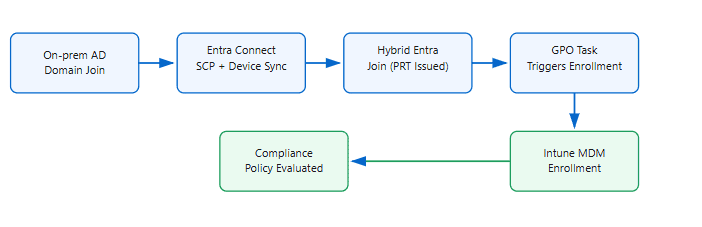
Figure 1: The complete hybrid join → Intune auto-enrollment chain. Core365 Cloud.
Step 1: Configure Microsoft Entra Connect for Device Sync
Everything downstream depends on this step. Without a working Service Connection Point (SCP), devices will never show as hybrid joined, and Intune enrollment will never trigger.
- On the Microsoft Entra Connect server, launch the Microsoft Entra Connect wizard.
- Select Configure → Configure device options.
- Choose Configure Hybrid Azure AD join.
- Select your Windows device OS type (Windows 10 or later, or down-level if applicable).
- Select your on-premises AD forest and provide Enterprise Admin credentials.
- Complete the wizard. This creates the SCP object under
CN=Device Registration Configuration,CN=Services,CN=Configurationand configures the sync engine.
After the wizard finishes, run a delta sync so newly eligible computer objects pick up the change immediately, rather than waiting for the next scheduled cycle:
Step 2: Enable Auto-Enrollment via Group Policy
Hybrid-joined devices don’t auto-enroll into Intune the same way Microsoft Entra-joined devices do. Consequently, you need a dedicated GPO to trigger it.
- Open Group Policy Management on a domain controller or management workstation.
- Create a new GPO, for example “Intune Auto-Enrollment.”
- Edit it and navigate to:
Computer Configuration → Policies → Administrative Templates → Windows Components → MDM - Enable “Enable automatic MDM enrollment using default Azure AD credentials.”
- Link the GPO to the OU containing your domain-joined computer objects.
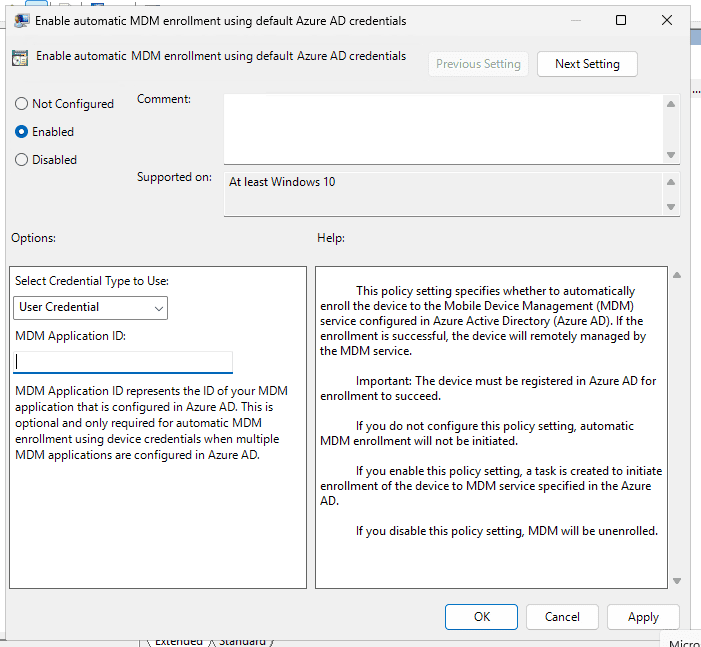
Figure 2: The auto-enrollment GPO setting, with MDM Application ID left blank. Core365 Cloud.
Do you need to fill in the MDM Application ID?
For most environments, no. Leave the MDM Application ID field blank. This field only matters when a tenant has multiple MDM providers configured in Entra ID and Windows needs to disambiguate between them. Since Intune is the only MDM in a standard setup, Windows automatically enrolls into whatever MDM is configured under the Entra ID Mobility (MDM) blade. If you do need to specify it explicitly, Intune’s fixed, tenant-independent application ID is 0000000a-0000-0000-c000-000000000000.
Step 3: Configure Intune Enrollment Restrictions
Next, confirm the Intune side isn’t silently blocking Windows enrollment for your target group.
- Go to the Intune admin center → Devices → Enrollment.
- Select Device platform restriction (this is the current name for what older documentation calls “enrollment device platform restrictions”).
- Open the default or targeted restriction, go to the Windows tab, and confirm Windows (MDM) is set to Allow.
- Verify your target user or device group isn’t excluded from that restriction.
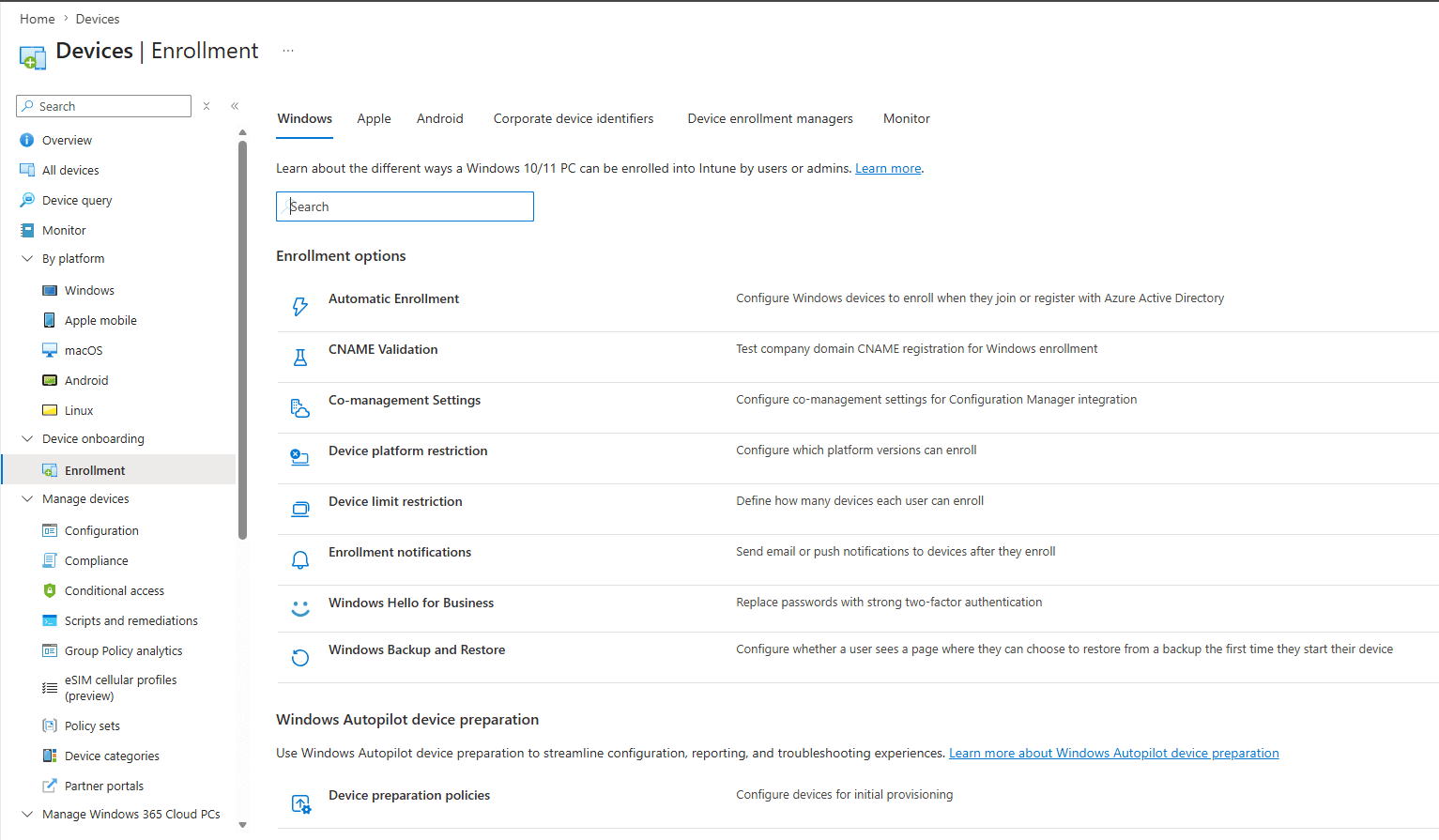
Figure 3: The Windows enrollment options list in Intune. Core365 Cloud.
Step 4: Verify Hybrid Join with dsregcmd /status
On the client, run this command to check the device’s registration state before you troubleshoot enrollment:
Look for these three fields first. If any show unexpected values, stop here and fix them before moving on — enrollment cannot succeed without a valid PRT.
| Field | Expected value | What it confirms |
|---|---|---|
AzureAdJoined | YES | Device object exists in Entra ID |
DomainJoined | YES | On-premises AD join is intact |
AzureAdPrt | YES | A Primary Refresh Token was issued — required for enrollment |
Fixing AADSTS90002: Tenant Not Found (PRT Failure)
In our testing, this is the single most common blocker, and it has nothing to do with the GPO. If AzureAdPrt shows NO, check the SSO State section of the output for an error like this:
Attempt Status : 0xc00000d0
Server Error Code : invalid_request
Server Error Description : AADSTS90002: Tenant ‘fabrikam.local’ not found. Check to make sure you have the correct tenant ID and are signing into the correct cloud.
Here’s what’s actually happening. Windows tries to authenticate using the user’s UPN (for example, user@fabrikam.local), and it uses everything after the @ sign to work out which Entra ID tenant to contact. Because fabrikam.local is only an internal AD domain and was never added and verified in Entra ID, the token request fails before it can even reach the tenant.
How to fix it
The cleanest fix is to align the UPN suffix with a verified, routable Entra ID domain. Here’s how:
- First, confirm which domains are actually verified: Entra admin center → Identity → Settings → Domain names.
- In Active Directory Domains and Trusts, right-click the root, choose Properties, and add a UPN suffix matching your verified domain (for example,
fabrikam.comor your.onmicrosoft.comdomain). - In Active Directory Users and Computers, open the affected user’s Account tab and change the UPN suffix from the dropdown, so
user@fabrikam.localbecomesuser@fabrikam.com. - Run a delta sync so Entra Connect pushes the updated UPN:
Start-ADSyncSyncCycle -PolicyType Delta - On the client, run
gpupdate /force, then sign out and back in (or reboot) so Windows re-acquires the PRT against the corrected UPN.
If you can’t change UPNs organization-wide, the alternative is configuring Alternate Login ID in Entra Connect so a different attribute (such as mail) is used for sign-in instead. This is more complex to maintain, so changing the UPN suffix is the simpler path whenever it’s feasible.
After the fix, re-run dsregcmd /status. You should now see AzureAdPrt: YES, along with a valid AzureAdPrtExpiryTime, and the MdmUrl, MdmTouUrl, and MdmComplianceUrl fields should all populate under Tenant Details. Populated MDM URLs confirm enrollment discovery succeeded — not that enrollment itself has completed yet.
The Manual “Connect” Dialog Trap
At this point, it’s tempting to check enrollment status through Settings → Accounts → Access work or school → + Connect. Don’t. This manual dialog is designed for BYOD-style MDM-only enrollment and tries to auto-discover a management endpoint directly from the UPN domain, which is a completely separate code path from hybrid-join auto-enrollment.
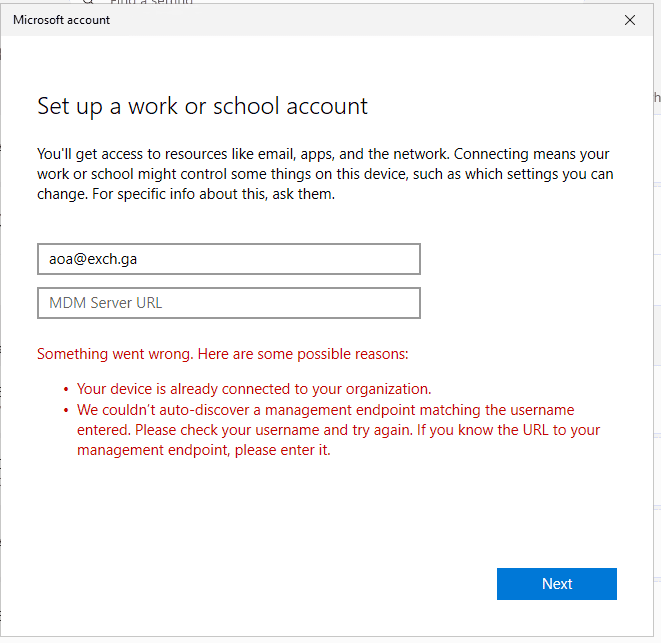
Figure 4: This error is expected on hybrid-joined devices and is not a sign of a real problem. Core365 Cloud.
On a hybrid-joined device, this error is expected and safe to ignore. As a result, close the dialog and verify enrollment the correct way instead: through the existing connected account’s Info page, Task Scheduler, or the Intune admin center — covered next.
Step 5: Confirm the GPO Applied
Before assuming enrollment is stuck, confirm the auto-enrollment GPO actually landed on the computer object. Run:
Under COMPUTER SETTINGS → Applied Group Policy Objects, you should see your auto-enrollment GPO listed by name (for example, “Intune Auto-Enrollment”). If it isn’t there, check OU linking and security filtering before looking anywhere else, since a policy that hasn’t applied can’t trigger anything downstream.
Step 6: Verify the Enrollment Task in Task Scheduler
Once the GPO is confirmed applied, the actual proof of enrollment activity lives in Task Scheduler:
Inside, you should find a subfolder named with a GUID, containing tasks such as “Schedule #1 created by enrollment client.” Open the History tab (enable “All Tasks History” from the Actions pane if it’s hidden) and look for Task completed events.
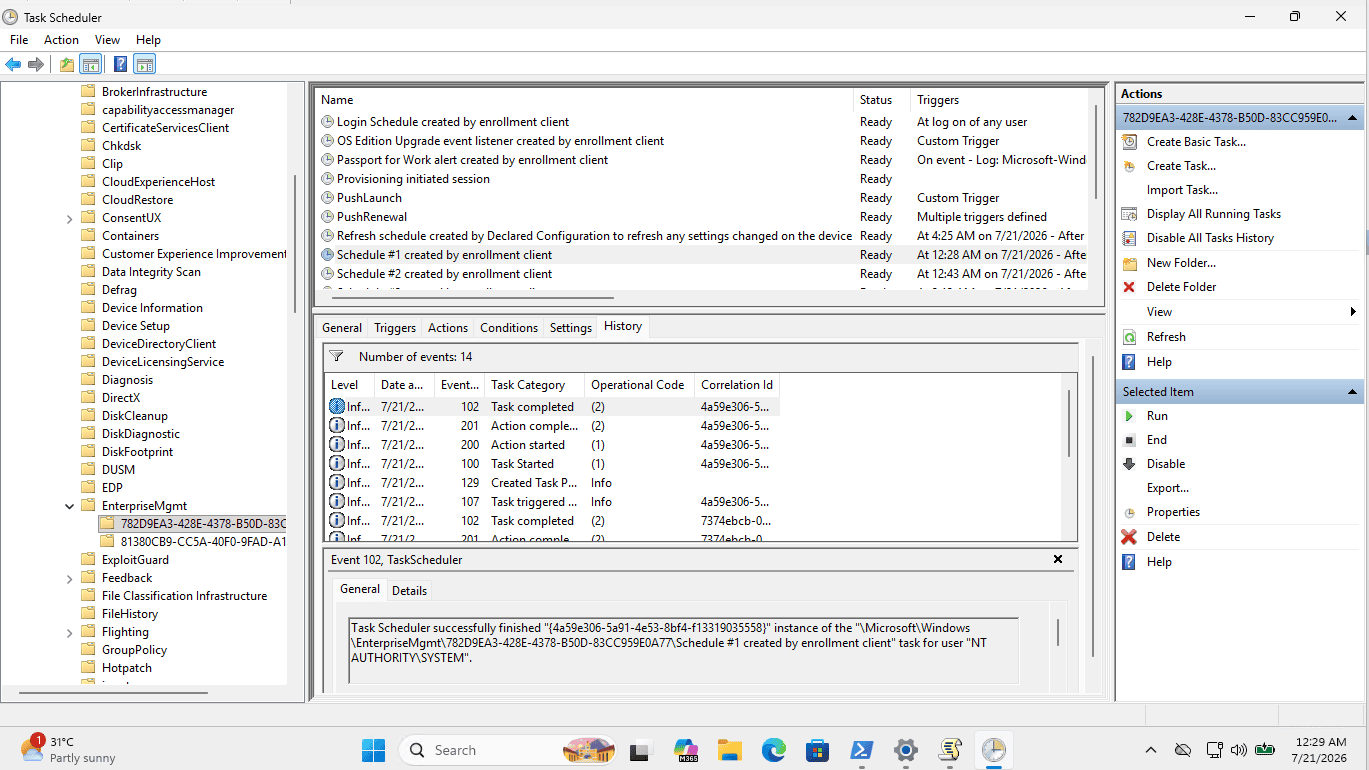
Figure 5: A completed enrollment client task is strong evidence enrollment succeeded. Core365 Cloud.
If the EnterpriseMgmt folder doesn’t exist at all, the enrollment task hasn’t triggered yet, even though the GPO applied. In that case, restart the device (the task typically fires at logon or startup) or manually force a sync from Settings → Accounts → Access work or school → Info → Sync under the existing connected account.
Step 7: Confirm Enrollment in Entra ID and Intune
Finally, confirm enrollment from the portal side, which is the most authoritative source of truth.
Check Microsoft Entra ID
Go to Entra admin center → Devices → All devices and search for your device name. Confirm the Join type reads Microsoft Entra hybrid joined and the MDM column shows Microsoft Intune.
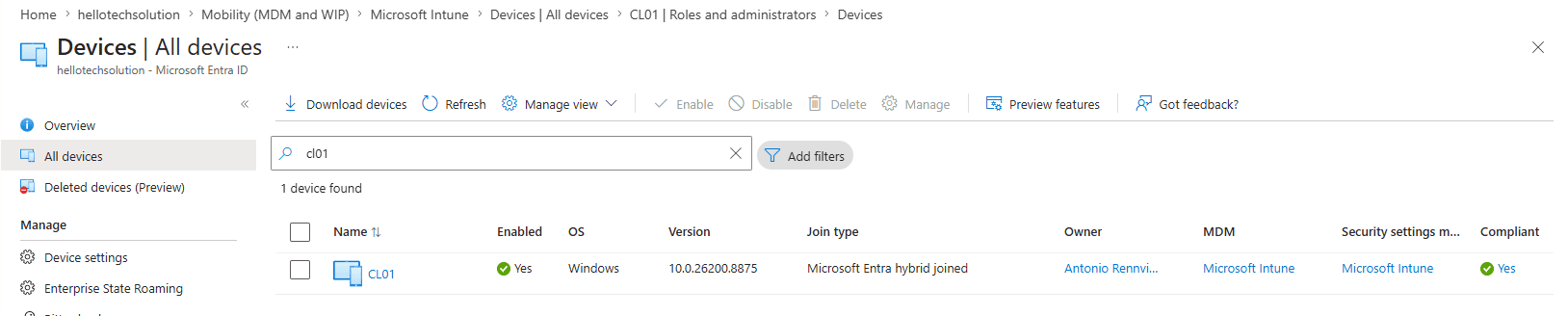
Figure 6: A confirmed hybrid-joined, Intune-managed, compliant device in Entra ID. Core365 Cloud.
Check the Intune admin center
Go to Intune admin center → Devices → Windows devices and search for the device name. Confirm Managed by reads Intune, Compliance reads Compliant, and there’s a recent Last check-in timestamp.
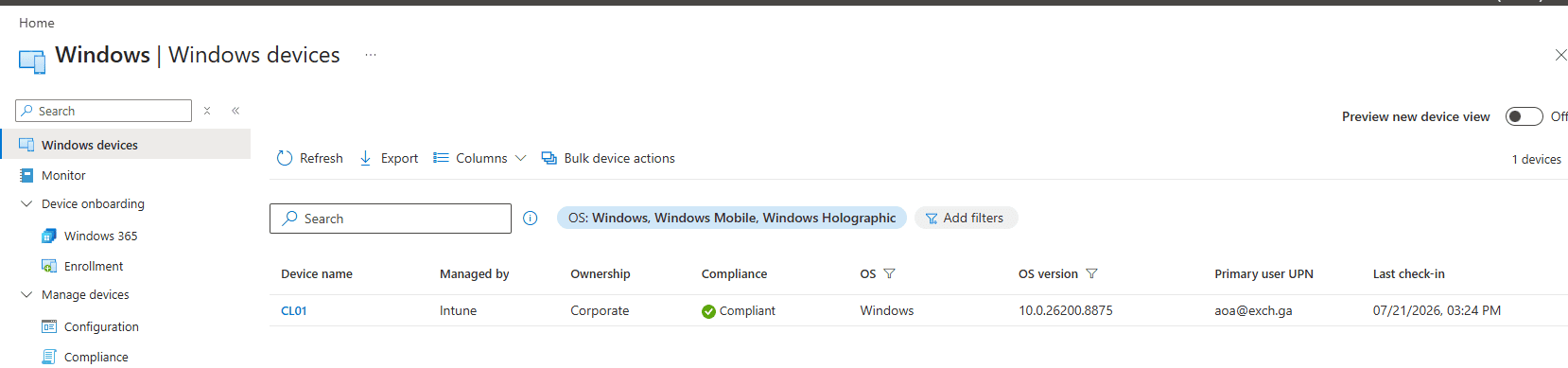
Figure 7: End-to-end confirmation in the Intune admin center. Core365 Cloud.
If both of these match, enrollment is complete. There’s no further action needed on this device. If you want an on-device confirmation as well, open Settings → Accounts → Access work or school, click the connected account, and expand Info — a “Managed by [organization]” section with a Sync button confirms the same thing locally.
Troubleshooting Summary Table
| Symptom | Root cause | Fix |
|---|---|---|
AzureAdPrt: NO, AADSTS90002 | UPN suffix isn’t a verified Entra ID domain | Add a matching UPN suffix, update the user, delta sync, refresh PRT |
MdmUrl blank | Enrollment discovery hasn’t run, usually because PRT is missing | Fix PRT first; MDM URLs populate automatically once it succeeds |
| Manual “Connect” dialog error | Wrong enrollment path for a hybrid-joined device | Ignore it; verify via Task Scheduler or the Intune admin center instead |
No EnterpriseMgmt folder | Enrollment task hasn’t fired yet | Restart the device, or force a manual Sync from the connected account |
PreReqResult: WillNotProvision | Windows Hello for Business prerequisite check, unrelated to Intune | Ignore unless you’re separately deploying WHfB |
Frequently Asked Questions
What is Hybrid Azure AD Join?
Hybrid Azure AD Join, now called Microsoft Entra hybrid join, is a device state where a Windows PC is joined to on-premises Active Directory and also registered as a device object in Microsoft Entra ID, enabling both on-prem GPOs and cloud identity features.
What’s the difference between hybrid join and Intune auto-enrollment?
Hybrid join registers the device with Entra ID. Intune auto-enrollment is a separate step that manages the device with Intune. A device can be hybrid joined without ever enrolling in Intune if auto-enrollment isn’t configured.
Do I need Microsoft Entra Connect for hybrid join?
Yes. Microsoft Entra Connect creates the Service Connection Point and syncs computer objects to Entra ID. Without it, devices never appear as hybrid joined, regardless of any GPO configuration.
Which GPO enables automatic MDM enrollment for hybrid-joined devices?
“Enable automatic MDM enrollment using default Azure AD credentials,” found under Computer Configuration > Administrative Templates > Windows Components > MDM in Group Policy Management.
What does the MDM Application ID field do?
It disambiguates between multiple MDM providers configured in the same tenant. If Intune is your only MDM, leave it blank; Windows will use the MDM configured in Entra ID automatically.
Why does dsregcmd /status show AzureAdPrt: NO?
Most often this means the user’s UPN domain isn’t a verified Entra ID domain, so token acquisition fails before a Primary Refresh Token can be issued.
What causes AADSTS90002 “Tenant not found” during hybrid join?
Windows uses the UPN suffix to locate the Entra ID tenant. If that suffix (for example, an internal “.local” domain) was never added and verified in Entra ID, the lookup fails with this error.
How do I fix a UPN suffix mismatch?
Add a UPN suffix matching a verified Entra ID domain in Active Directory Domains and Trusts, update affected users in ADUC, run a delta sync, then refresh the PRT with gpupdate and a sign-out or reboot.
Why does the “Set up a work or school account” dialog show an auto-discovery error?
That manual dialog is meant for MDM-only, BYOD-style enrollment and uses a different discovery path. On a hybrid-joined device, this error is expected and doesn’t indicate a real problem.
How long does Intune auto-enrollment take after hybrid join?
Typically minutes to a few hours for the first enrollment, though it can take longer depending on sync timing. Restarting the device or forcing a Sync from the connected account often speeds this up.
How can I verify a device actually enrolled in Intune?
Check Intune admin center > Devices > Windows devices for “Managed by: Intune” and a recent check-in, or confirm a completed task under Task Scheduler’s EnterpriseMgmt folder.
What does PreReqResult: WillNotProvision mean?
It relates to Windows Hello for Business prerequisites, not Intune enrollment. It’s safe to ignore unless you’re separately configuring passwordless sign-in.
Can I use Entra ID Mobility settings instead of GPO for auto-enrollment?
Yes, configuring MDM user scope under Entra admin center > Mobility (MDM and MAM) works for Entra-joined devices, but GPO is the recommended and more reliable method specifically for hybrid-joined devices.

Antonio Rennvick is an IT Infrastructure Manager with 15+ years running enterprise Active Directory, Microsoft 365, and Azure environments. He’s Microsoft certified (AZ-104, MS-102) and writes Core365 Cloud to share what actually works in production—PowerShell automation, AD deep dives, and security hardening drawn from real-world work, not test labs.