

Last Updated: July 2026
A Hyper-V checkpoint failed error with a missing AVHDX file happens when the VM’s configuration still
points to a differencing disk (checkpoint) that no longer exists on disk. The fix is to remove the
broken hard disk attachment with Remove-VMHardDiskDrive and reattach the real, standalone
VHDX file with Add-VMHardDiskDrive. In our environment, this restored the VM in under
ten minutes with zero data loss.
The Symptom: “Taking the Checkpoint Failed”
Hyper-V Manager throws a “Taking the checkpoint failed” dialog whenever you try to change VM settings,
start the VM, or apply an update. As a result, the VM appears stuck, even though the base virtual disk
is healthy.
The full error usually reads something like this:
‘CL01’ cannot create the storage required for the checkpoint using disk
C:\Hyper-V\CL01\CL01_B1C47CF0-FED0-477B-925E-1D3872FD15F4.avhdx:
The system cannot find the file specified. (0x80070002)
Because the message mentions a checkpoint, it’s tempting to assume Hyper-V is trying to create a new
snapshot. In reality, the operation is failing because the VM’s existing configuration already references
a checkpoint disk that was deleted or lost.

Root Cause: A VM Still Pointing to a Deleted Checkpoint
Every Hyper-V checkpoint creates a new AVHDX (differencing disk) file and repoints the
VM’s virtual hard disk setting to that new file. Therefore, if the AVHDX file is later deleted, merged
incorrectly, or lost during a backup job, the VM configuration is left pointing at a file path that no
longer exists.
In this case, Get-VMHardDiskDrive confirmed the VM was still attached to:
However, a Test-Path check on that exact file returned False. Meanwhile, the
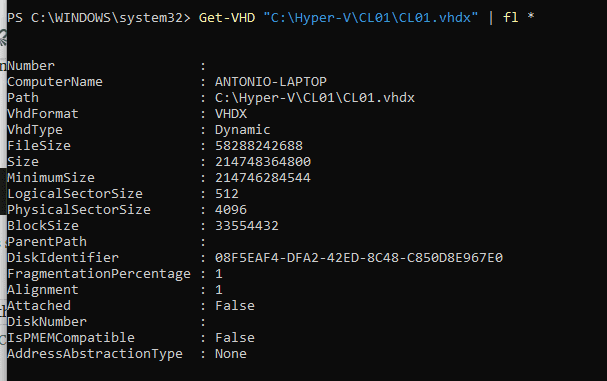
real disk — C:\Hyper-V\CL01\CL01.vhdx — was present and healthy, with an emptyParentPath, confirming it was a standalone disk with no checkpoint dependency. Consequently,
Hyper-V had a configuration/storage mismatch: metadata said “checkpoint disk,” but the filesystem said
“standalone disk.”
VHDX vs AVHDX: What’s the Difference?
Understanding this distinction is what makes the diagnosis click. So, here’s a side-by-side comparison:
| Attribute | .VHDX | .AVHDX |
|---|---|---|
| Purpose | Standalone or parent virtual disk | Differencing disk created by a checkpoint |
| Created by | VM creation, disk creation wizard | Checkpoint / snapshot operation |
| ParentPath | Empty (if standalone) | Points to the parent VHDX/AVHDX |
| Risk if deleted manually | VM loses its disk entirely | VM configuration becomes orphaned/broken |
Diagram: how the VM configuration became orphaned from its real disk. Paste this SVG into a WordPress Custom HTML block, not a Paragraph block.
Step 1: Confirm the Diagnosis
Before changing anything, verify exactly what the VM configuration believes versus what actually exists
on disk. Run the following three commands.
1. Check what disk the VM thinks it has

2. Verify whether the file actually exists
A result of False confirms the AVHDX file genuinely no longer exists — it isn’t a
permissions or path-typo issue.
3. Inspect the real VHDX
Look specifically at ParentPath. If it’s empty, the VHDX is standalone and safe to attach
directly — no checkpoint chain to worry about.
4. Check for orphaned snapshots
If this returns results, remove them first and wait for the merge to finish before continuing. In our
case, it returned nothing — which is common once a checkpoint has been externally deleted rather than
merged properly.
Step 2: Fix the Broken Disk Attachment
Once the diagnosis is confirmed, the fix is straightforward: detach the broken reference, then reattach
the correct, healthy VHDX.
1. Stop the VM and disable automatic checkpoints
Set-VM -Name CL01 -AutomaticCheckpointsEnabled $false
2. Get the exact controller details
Note the exact ControllerType, ControllerNumber, andControllerLocation values — you’ll need them for the next two commands.
3. Remove the broken disk reference
-VMName CL01 `
-ControllerType SCSI `
-ControllerNumber 0 `
-ControllerLocation 0
4. Reattach the correct, healthy VHDX
-VMName CL01 `
-ControllerType SCSI `
-ControllerNumber 0 `
-ControllerLocation 0 `
-Path “C:\Hyper-V\CL01\CL01.vhdx”
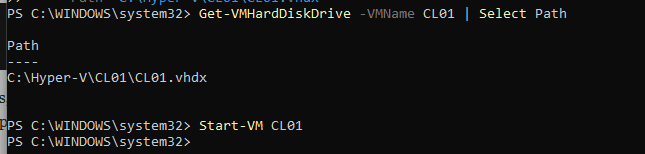
5. Verify and start the VM
Start-VM CL01
In our environment, the VM booted normally within seconds, with no data loss — since the underlying
VHDX had been healthy the entire time. Only the metadata pointer was broken.
Remove-VMHardDiskDrive, back up the VMfolder (or at minimum the healthy VHDX file). Because the removal only detaches the reference and
doesn’t touch the file on disk, this step is mainly a safety net in case of a typo in the controller
values.
How to Prevent This From Happening Again
This failure mode is almost always caused by deleting or moving an AVHDX file outside of Hyper-V’s own
checkpoint-merge process. Therefore, follow these practices going forward:
- Never delete .avhdx files manually. Always use “Delete Checkpoint” from Hyper-V
Manager, orRemove-VMSnapshot, so Hyper-V can merge the chain correctly. - Disable automatic checkpoints on lab/test VMs with
Set-VM -AutomaticCheckpointsEnabled $false
if you don’t actively use them. - Audit backup software behavior. Some backup tools create and remove checkpoints
during backup jobs — a failed job can leave an orphaned reference. - Check snapshot state regularly with
Get-VMSnapshoton VMs you suspect
might have lingering checkpoints.
Frequently Asked Questions
What does “Taking the checkpoint failed” mean in Hyper-V?
It means Hyper-V tried to access a virtual hard disk file linked to a checkpoint, but that file
couldn’t be found or accessed on disk.
What does error 0x80070002 mean in Hyper-V?
0x80070002 is a Windows system error meaning “the system cannot find the file specified.” In Hyper-V,
it usually points to a missing VHDX or AVHDX file.
What is an AVHDX file?
An AVHDX is a differencing disk created automatically whenever you take a Hyper-V checkpoint. It stores
only the changes made after the checkpoint.
Is it safe to delete an AVHDX file manually?
No. Manually deleting an AVHDX breaks the checkpoint chain and leaves the VM configuration pointing to
a file that no longer exists.
How do I check which disk a Hyper-V VM is actually using?
Run Get-VMHardDiskDrive -VMName <name> | Select-Object Path to see the exact file
path the VM configuration references.
How do I know if a VHDX is standalone or part of a checkpoint chain?
Run Get-VHD <path> | fl ParentPath. An empty ParentPath means the disk is
standalone.
Will removing a broken hard disk drive delete my data?
No. Remove-VMHardDiskDrive only detaches the reference in the VM configuration; it does
not delete any files on disk.
Do I lose data if the AVHDX file is truly gone?
If the parent VHDX is intact and standalone, you keep all data up to the last checkpoint. Any changes
made only inside the missing AVHDX are lost.
Why does Hyper-V still reference a checkpoint I never created?
Automatic checkpoints, backup software, or a prior admin action can silently create one. CheckAutomaticCheckpointsEnabled and your backup job logs.
How do I disable automatic checkpoints in Hyper-V?
Run Set-VM -Name <VMName> -AutomaticCheckpointsEnabled $false on the VM.
What controller values do I need for Remove-VMHardDiskDrive?
Run Get-VMHardDiskDrive -VMName <name> | fl ControllerType,ControllerNumber,ControllerLocation
to get the exact values for your VM.
Can this issue happen with IDE controllers instead of SCSI?
Yes. The same fix applies — just use -ControllerType IDE with the correct controller
number and location shown by Get-VMHardDiskDrive.
Should I back up the VM before running these fix commands?
Yes. Back up the VM folder or at least the healthy VHDX before runningRemove-VMHardDiskDrive, in case the controller values are entered incorrectly.
For deeper background on Hyper-V patching schedules and host maintenance,
see our Windows Server 2025
Hotpatch guide. If you’re also dealing with session host stability issues on the same hosts, check
out Windows Server 2022 RDS Session Host Disconnecting After
60 Minutes. And if this incident got you thinking about backup strategy, our
MTBF vs MTTR vs RTO vs RPO guide
is a good next read. For related file-replication resilience, see our
DFS Replication guide.
According to Microsoft Learn’s checkpoint management documentation,
checkpoints should always be removed through Hyper-V’s own tooling to preserve the differencing disk
chain. For a deeper technical breakdown of VHDX internals, Microsoft’s
virtual hard disk format overview is also worth reading.

Antonio Rennvick is an IT Infrastructure Manager with 15+ years running enterprise Active Directory, Microsoft 365, and Azure environments. He’s Microsoft certified (AZ-104, MS-102) and writes Core365 Cloud to share what actually works in production—PowerShell automation, AD deep dives, and security hardening drawn from real-world work, not test labs.