Overview
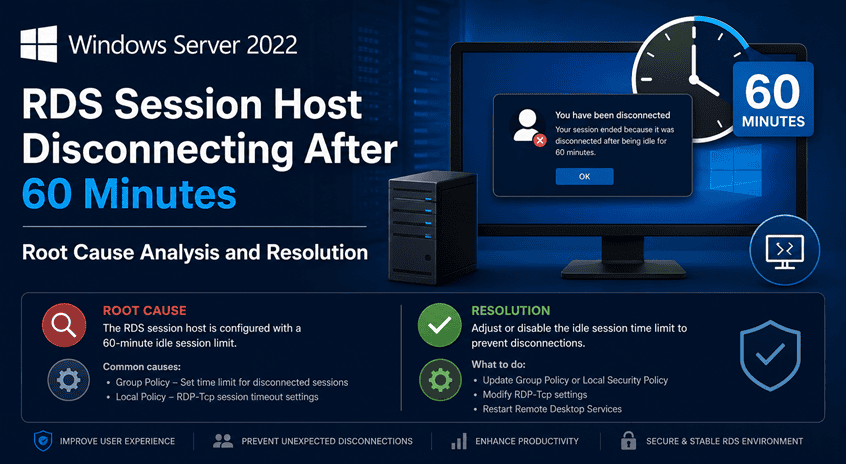
A Windows Server 2022 Remote Desktop Session Host (RDSH) was experiencing a recurring issue where users received Remote Desktop licensing warnings and were forcibly disconnected approximately 60 minutes after login.
During troubleshooting, it was discovered that:
- The affected server was running Windows Server 2022.
- The Remote Desktop Session Host role was installed.
- The RD Licensing Server was running Windows Server 2019.
- The Licensing Server was issuing only Temporary Per-Device RDS CALs.
- Installed RDS CALs were Windows Server 2019 Per Device CALs.
- Users were disconnected after 60 minutes with licensing-related messages.
The root cause was determined to be a Remote Desktop Services license version mismatch.
Symptoms
Users connecting to the Session Host received warnings similar to:
Remote Desktop License Issue

There is a problem with your Remote Desktop license,
and your session will be disconnected in 60 minutes.
Shortly before disconnect:
You've been connected for the maximum amount of time
allowed for users with Remote Desktop license issues.
Finally:
The remote session was ended because the total logon
time limit was reached.
Environment
RD Session Host
Server Name: core365-rds-cal

Operating System: Windows Server 2022

Role: Remote Desktop Session Host
Verification:
Get-WindowsFeature RDS-RD-ServerOutput:
[X] Remote Desktop Session Host
Installed
RD Licensing Server
Operating System: Windows Server 2019
Role: Remote Desktop Licensing Server
Installed CALs: Windows Server 2019 RDS Per Device CALs
Investigation
Confirming Session Host Configuration
The Session Host role was confirmed to be installed:
Get-WindowsFeature RDS-RD-ServerBecause the server is acting as an RDS Session Host, Microsoft requires valid RDS licensing for users or devices connecting to it. [learn.microsoft.com]
Checking Licensing Configuration
Running:
Get-RDLicenseConfigurationreturned:
A Remote Desktop Services deployment does not existThis result is expected when the server is not part of a full RDS deployment managed through RD Connection Broker and does not necessarily indicate a fault. [learn.microsoft.com]
Examining License Server Activity
The critical clue came from the RD Licensing Server.
The affected Session Host/device was visible within the Licensing Manager but was assigned:
Temporary RDS Per Device CALinstead of a permanent license.
According to Microsoft, temporary licenses are commonly issued during the initial licensing process, but a valid permanent RDS CAL must eventually be available and assigned. [learn.microsoft.com]
Understanding RDS CAL Version Compatibility
Microsoft Remote Desktop Services licensing follows strict version compatibility rules.
Important Rule
RDS CALs are:
Backward Compatiblebut are not Forward Compatible. [learn.microsoft.com], [learn.microsoft.com]
That means:
| RD Session Host | RDS CAL Version | Supported |
|---|---|---|
| Windows Server 2019 | 2019 RDS CAL | ✅ Yes |
| Windows Server 2016 | 2019 RDS CAL | ✅ Yes |
| Windows Server 2022 | 2022 RDS CAL | ✅ Yes |
| Windows Server 2022 | 2019 RDS CAL | ❌ No |
Microsoft requires a Windows Server 2022 RD Session Host to be licensed using Windows Server 2022 RDS CALs (or newer). Windows Server 2019 RDS CALs cannot permanently license a Windows Server 2022 Session Host. [learn.microsoft.com], [learn.microsoft.com]
Can a Windows Server 2019 RD License Server Host Windows Server 2022 CALs?
Yes
This is a common point of confusion.
The operating system of the Licensing Server and the version of the installed CALs are two separate things.
Supported Configuration
RD Licensing Server OS:
Windows Server 2019

Installed CALs:
Windows Server 2022 RDS CALs

Session Host:
Windows Server 2022
This configuration is supported. Microsoft recommends keeping licensing infrastructure current, but a Windows Server 2019 Licensing Server can issue newer CAL packs when properly installed and activated. [learn.microsoft.com], [learn.microsoft.com]
Therefore:
✅ Windows Server 2019 Licensing Server
✅ Windows Server 2022 RDS CAL Pack
✅ Windows Server 2022 Session Host
is a valid deployment.
Why Temporary CALs Were Being Issued
The licensing process looked like this:
Windows Server 2019 RDS Per Device
Windows Server 2019 RDS Per Device
The Session Host successfully contacted the Licensing Server.
Because communication was working:
✅ DNS was working.
✅ Network connectivity was working.
✅ Group Policy was likely working.
✅ License Server discovery was working.
However:
❌ No compatible Windows Server 2022 CALs existed.
As a result:
This behavior is consistent with Microsoft’s documented RDS licensing enforcement mechanisms. [learn.microsoft.com]
Verifying the Issue
Administrators can use the following tools.
Check Installed Session Host Role
Get-WindowsFeature RDS-RD-ServerGenerate Group Policy Results
gpresult /h C:\Temp\gp.htmlVerify:
Computer Configuration
  Administrative Templates
    Windows Components
      Remote Desktop Services
        Remote Desktop Session Host
          Licensing
Review:
Use the specified Remote Desktop license servers

Set the Remote Desktop licensing mode
Open RD Licensing Diagnoser
Server Manager
→ Tools
→ Remote Desktop Services
→ RD Licensing Diagnoser
The Diagnoser often identifies:
License version mismatch
No licenses available
License server unavailable
Licensing mode not configured
Review Installed CAL Packs
Open:
Remote Desktop Licensing ManagerCheck whether the license pack displays:
Windows Server 2019 RDS Per Device CALor
Windows Server 2022 RDS Per Device CALResolution
Recommended Solution
Purchase and install:
Windows Server 2022 RDS Per Device CALson the existing Windows Server 2019 Licensing Server.
Installation Process
After installation:
gpupdate /forceThen reboot the Session Host.
Expected Result After Fix
The Licensing Server should show:
Issued Per Device Licenseinstead of:
Temporary Per Device LicenseUsers should:
✅ Receive permanent RDS licenses
✅ No longer receive licensing warnings
✅ No longer be disconnected after 60 minutes
Conclusion
The issue was not caused by network connectivity, DNS, Group Policy, or a malfunctioning License Server.
The root cause was a licensing mismatch:
❌ Root Cause
Windows Server 2022 RD Session Host was attempting to use Windows Server 2019 RDS CALs.
Because RDS CALs are not forward compatible, Windows could only issue temporary licenses and eventually enforced a 60-minute session limit.
✅ Resolution
Install Windows Server 2022 RDS CALs on the existing Windows Server 2019 RD Licensing Server.
Permanent licenses will be issued and the 60-minute disconnects will stop.
Although the Windows Server 2019 Licensing Server could communicate with the Session Host and issue temporary licenses, it could not provide a permanent license because Windows Server 2019 RDS CALs are not valid for a Windows Server 2022 Session Host. Microsoft requires matching or newer RDS CAL versions for Session Hosts. Installing Windows Server 2022 RDS CALs on the existing Windows Server 2019 Licensing Server resolves the issue and removes the 60-minute session restriction. [learn.microsoft.com], [learn.microsoft.com]
References
- Microsoft Learn – License Remote Desktop Services with Client Access Licenses (CALs) – https://learn.microsoft.com/windows-server/remote/remote-desktop-services/rds-client-access-license [learn.microsoft.com]
- Microsoft Learn – Supported Configurations for Remote Desktop Services – https://learn.microsoft.com/windows-server/remote/remote-desktop-services/rds-supported-config [learn.microsoft.com]

Antonio Rennvick is an IT Infrastructure Manager with 15+ years running enterprise Active Directory, Microsoft 365, and Azure environments. He’s Microsoft certified (AZ-104, MS-102) and writes Core365 Cloud to share what actually works in production—PowerShell automation, AD deep dives, and security hardening drawn from real-world work, not test labs.