

Last Updated: July 2026
Answer Capsule: Most Microsoft Entra Connect installation problems trace back to three things: a domain controller that shouldn’t be hosting the sync engine, a SQL Server running out of headroom, or an unverified UPN suffix blocking the sign-in configuration step. In my lab run-through below, I hit real versions of these errors and documented the exact fix for each, along with the Event IDs to check when something looks broken.
Table of Contents
- What Microsoft Entra Connect Actually Does
- Server & Hardware Requirements Before You Install
- Can You Install Entra Connect on a Domain Controller?
- SQL Server: LocalDB vs Full SQL Server
- Step-by-Step Installation Walkthrough (Real Errors, Real Fixes)
- Where Entra Connect Logs Actually Live
- Common Event IDs and What They Really Mean
- Step-by-Step Troubleshooting Workflow
- Verifying Sync Health After Installation
- Prevention Checklist for Long-Term Stability
- Frequently Asked Questions
What Microsoft Entra Connect Actually Does
Microsoft Entra Connect is the synchronization engine that copies objects from on-premises Active Directory into Microsoft Entra ID (formerly Azure AD). It runs as the ADSync service on a Windows Server and stores its configuration in a SQL Server database. Because of this, most installation problems are really one of two things: the sync engine can’t reach Active Directory, or it can’t reach Microsoft Entra ID.
As a result, troubleshooting almost always starts in the same two places: Event Viewer and the Synchronization Service Manager. This guide walks through a real install end-to-end, including two errors we actually hit along the way, rather than just repeating the click-by-click wizard steps.
Diagram: simplified Entra Connect sync flow between on-premises AD, the sync server, and Microsoft Entra ID.
Server & Hardware Requirements Before You Install
Before touching the installer, confirm the server meets baseline requirements. Microsoft requires .NET Framework 4.7.2 and TLS 1.2 as a minimum for the Entra Connect Sync computer. Skipping the TLS check is one of the most common causes of authentication failures during and after setup.
Sizing depends entirely on object count. Therefore, use this table as a starting point, then adjust based on your actual directory size.
| Environment Size | Approx. Objects | Recommended Setup |
|---|---|---|
| Small | Under 100,000 | SQL Server Express LocalDB (installed automatically) |
| Medium/Large | 100,000+ | Full SQL Server, ideally installed locally on the sync server |
| Any size | N/A | Dedicated member server, not a shared workstation or app server |
Since Entra Connect only supports installation through the setup wizard, and an unattended, silent install isn’t supported, plan for a maintenance window rather than a scripted rollout.
Can You Install Entra Connect on a Domain Controller?
This is one of the most common questions I get from admins moving to hybrid identity for the first time. The short answer: it depends on which sync tool you mean.
Entra Connect Sync (the classic sync engine)
Microsoft doesn’t publish a hard block against installing the Entra Connect Sync engine on a domain controller in current versions. However, doing so is generally discouraged. A domain controller already runs Tier 0 services, and stacking the ADSync service and a local SQL instance on top of it increases the attack surface and creates resource contention during large sync cycles.
Microsoft Entra Cloud Sync (the lightweight provisioning agent)
For Cloud Sync specifically, installing the provisioning agent on a domain controller is explicitly supported, and Microsoft documents hardening steps for that scenario. Either way, the server hosting the sync agent should be treated as a Tier 0 asset under the Active Directory administrative tier model, with access restricted to a small, tightly controlled group.
In my testing, a dedicated member server is still the cleanest option for full Entra Connect Sync. It isolates patching cycles from your domain controllers and avoids any question marks during a security audit.
SQL Server: LocalDB vs Full SQL Server
By default, Entra Connect installs a SQL Server 2019 Express LocalDB instance, a lightweight version of SQL Server Express with a 10 GB size limit, which comfortably covers around 100,000 objects. Beyond that, you need a full SQL Server instance instead.
| Consideration | SQL Express LocalDB | Full SQL Server |
|---|---|---|
| Object limit | ~100,000 objects (10 GB) | Limited by licensed edition, not size |
| Location | Local to the sync server only | Local or remote SQL instance |
| Backup/HA options | Limited | Standard SQL backup/HA tooling |
| Collation requirement | Case-insensitive (default) | Must be explicitly case-insensitive |
A few hard constraints to know before you pick remote SQL: SQL Server 2012 is no longer supported, and Azure SQL Database and Azure SQL Managed Instance aren’t supported as the Entra Connect database. Additionally, if the sync server and SQL Server are on separate machines, TLS 1.2 must be enabled between them or the installation wizard will fail at the database connection step.
Step-by-Step Installation Walkthrough (Real Errors, Real Fixes)
This is a real install from our lab, documented step by step, including two genuine errors we hit and how each one was resolved. Wherever we broke something intentionally to show you the failure mode, it’s labeled as a simulated error instead.
Step 1: Confirm the Server Meets Prerequisites
Before launching the installer, confirm .NET Framework 4.7.2 is present, TLS 1.2 is enabled, and the server is domain-joined but not overloaded with conflicting Group Policy.
Simulated Error: TLS 1.2 Disabled
We disabled TLS 1.2 in the registry, then ran the wizard. Sign-in appeared to succeed, but the first sync attempt failed with an error resembling “Authenticate-MSAL: unexpected exception [Unspecified-Authentication-Failure].” Event Viewer showed Event ID 906/106 under Directory Synchronization and 6804/6401/6005/6110 under ADSync.
Fix: Run Microsoft’s TLS 1.2 enablement script on the server, reboot, and retry.
Step 2: Download the Installer From the Correct Source
The Entra Connect installer is only distributed through the Microsoft Entra admin center now, not a generic public download page. Downloading an outdated copy from a third-party mirror is a common source of version mismatches.
Step 3: Sign In With the Right Entra Role
The wizard needs a Hybrid Identity Administrator or Global Administrator account for the cloud side of the setup. This is the step where a permissions mismatch actually broke our install.
Real Error: AccessDeniedException on the “Connect to Microsoft Entra ID” Page
Our sync account didn’t yet hold the Hybrid Identity Administrator role. The wizard stopped with an AccessDeniedException, listing a long set of missing resource actions (application creation, synchronization job management, federation configuration, and more) tied specifically to that role.

The trace log referenced at the bottom of the error screen pointed to the exact log file for a deeper look:

Fix: We assigned the Hybrid Identity Administrator role directly to the account (active, not PIM-eligible, not scoped to an administrative unit), waited a few minutes for propagation, and re-ran the step.

Once the role was active, the wizard proceeded past this step without any further changes.
Step 4: Connect Your Directories and Create the AD DS Connector Account
With sign-in resolved, the next step connects the wizard to your on-premises forest and creates (or selects) the AD DS connector account used to read Active Directory.
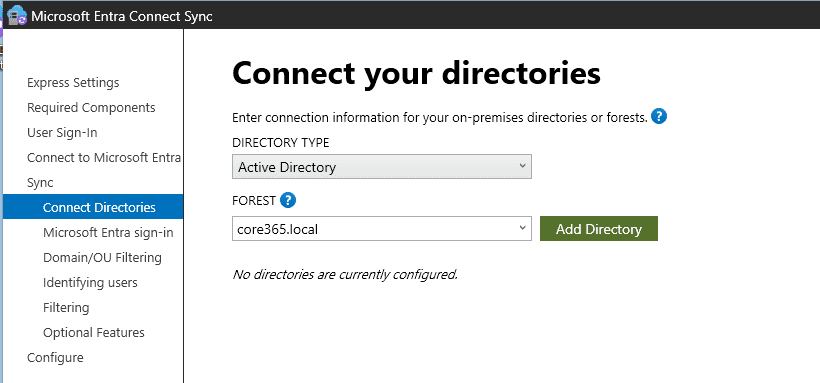
After adding the forest, the wizard prompts for an AD forest account. You can let Entra Connect create the account automatically using Enterprise Admin credentials, or supply an existing account with the required permissions pre-delegated.

Real Error: “The user name or password is incorrect”
Entering the Enterprise Admin username without a fully qualified domain produced an immediate rejection.

Fix: Re-enter the credentials using the fully qualified domain format (DOMAIN\username or username@domain.suffix) instead of just the account name. This is a formatting issue, not a wrong-password issue, so double-check the format before resetting anything.
Step 5: Microsoft Entra Sign-In Configuration and UPN Suffix Verification
This step maps your on-premises UPN suffixes to a verified domain in Microsoft Entra ID. A non-routable suffix like .local can never be verified directly, since Microsoft Entra ID only accepts publicly registered, verifiable domains.

Real Error: Internal UPN Suffix Shows “Not Added”
Our internal AD domain used a non-routable suffix, so it could never be added as a verified Microsoft Entra ID domain. Left as-is, this would prevent users with that UPN suffix from signing in to Microsoft Entra ID using their on-premises credentials.
Fix: We added an alternative UPN suffix in Active Directory Domains and Trusts, matching a domain already verified in Microsoft Entra ID.
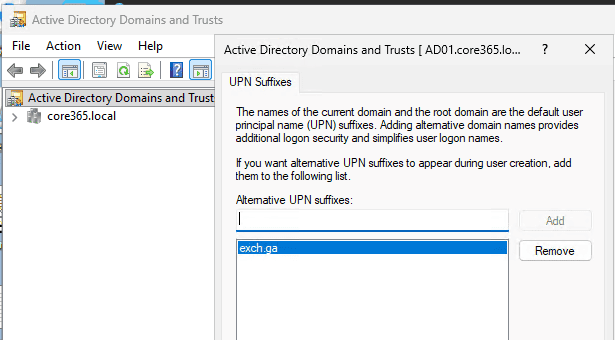
Back in the wizard, the alternative suffix now showed as Verified, and the Next button became available.

If you’d rather not restructure UPNs right away, the wizard also offers a “Continue without matching all UPN suffixes to verified domains” checkbox. However, users under the unverified suffix won’t be able to sign in with on-premises credentials until this is resolved, so treat that checkbox as a temporary bridge, not a permanent fix.
Step 6: Choose Optional Features
Enable only what you actually need. Every optional feature is one more thing to troubleshoot later, so keep this list lean.
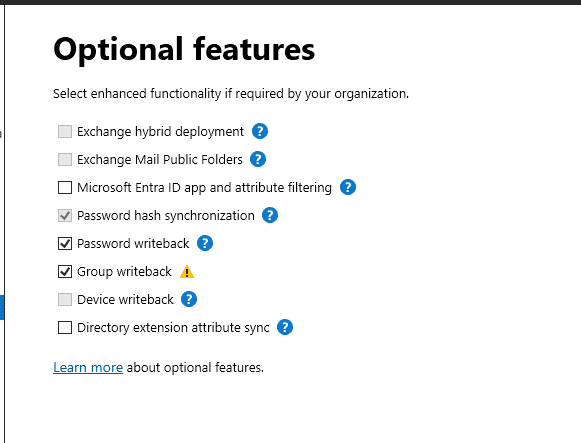
In our lab, we enabled password hash synchronization and password writeback for standard hybrid authentication, plus group writeback. Note the warning icon next to group writeback — review Microsoft’s current guidance on supported group types before enabling it in a production tenant, since coverage varies by group type and licensing.
Step 7: Complete the Configuration
Once the wizard finishes, it reports configuration success and flags a few post-install recommendations worth acting on immediately.

In this run, the wizard flagged three things: the Active Directory Recycle Bin wasn’t enabled, TPM wasn’t configured on the server, and the source anchor attribute was set to mS-DS-ConsistencyGuid. Address the first two before moving to production; the source anchor is informational and shouldn’t be changed after the fact.
Step 8: Verify the First Sync Actually Worked
Don’t just trust the success screen. Open Synchronization Service Manager and confirm the connector operations completed cleanly.

In our run, Full Import, Full Synchronization, and Export all completed with a Success status, and the Export step added six new objects with zero errors. From there, confirm the same objects appear correctly in the Microsoft Entra admin center with an on-premises sync indicator.

Step 9: Trigger a Manual Sync When You Don’t Want to Wait
Entra Connect runs on a schedule, typically every 30 minutes. When you’re validating a fix, though, waiting for the next cycle wastes time. Instead, trigger a delta sync manually from PowerShell on the sync server.
The command is simply:
A delta cycle only processes changes since the last run, so it’s safe to trigger repeatedly while you’re validating a fix. Use -PolicyType Initial only when you need a full re-sync, since that’s a heavier operation.
Where Entra Connect Logs Actually Live
All directory synchronization logging is viewable in Event Viewer, under Windows Logs and then Application. Two event sources matter most:
- Directory Synchronization — connectivity, authentication, and export/import errors.
- ADSync — service-level events, including database and configuration issues.
Beyond Event Viewer, the wizard itself points to a detailed trace log any time it hits a fatal error during setup, typically at a path similar to C:\ProgramData\AADConnect\trace-[timestamp].log. This file often contains more context than the on-screen error, including the full stack trace behind an AccessDeniedException or connection failure.
One easy win before you start troubleshooting: increase the size of the Application log, since password hash sync and directory sync events can otherwise be overwritten before you get to review them.
Common Event IDs and What They Really Mean
Rather than guessing from a vague error dialog, filter Event Viewer by source and match against this table.
| Event ID | Source | What It Usually Means |
|---|---|---|
| 0, 611, 652, 655 | Directory Synchronization | Connectivity problems affecting password hash synchronization |
| 654 | Directory Synchronization | Healthy heartbeat, logged every 30 minutes when the password sync channel is active |
| 904 / 906 | Directory Synchronization | Authentication attempts are blocked, often by a Conditional Access policy applied to the sync account |
| 0 / 107 | Directory Synchronization | Export failures such as “Request Entity Too Large,” typically pointing to a proxy or firewall rewriting requests |
| 6401, 6005, 6110, 6803, 6804 | ADSync | Service-level authentication or connectivity failures, frequently tied to TLS or the sync account’s ability to reach Entra ID |
Because these event IDs overlap in cause, always read the full event description rather than acting on the ID number alone. The description almost always names the failing action (Import, Export, or Provision).
Step-by-Step Troubleshooting Workflow
When an install or sync run fails, work through these checks in order instead of jumping straight to a reinstall.
1. Confirm the service account is healthy
Verify that the admin account used for directory synchronization still exists and is allowed to sign in. A disabled or expired sync account is one of the most frequent root causes of a stalled install.
2. Check the account’s Entra ID role assignment
If you hit an AccessDeniedException, confirm Hybrid Identity Administrator is assigned directly and actively, not through PIM eligibility or an administrative-unit scope.
3. Check TLS 1.2
Run Microsoft’s TLS 1.2 verification script on the Entra Connect server. A common fix for authentication errors during sync is simply enabling TLS 1.2 on the server before retrying the wizard.
4. Confirm UPN suffixes are verified
If the sign-in configuration step shows a suffix as “Not Added,” add a matching alternative UPN suffix in Active Directory Domains and Trusts that lines up with a domain already verified in Microsoft Entra ID.
5. Rule out Conditional Access
If you see Event IDs 904/906, check the sign-in logs for the sync account. Conditional Access policies can silently block the sync service account, causing sync to appear stalled for days. Exclude the service account from MFA-based policies as a targeted fix, not a blanket exemption.
6. Validate object data quality
Use the IdFix tool to identify duplicate usernames, invalid characters, or malformed attributes before running a full sync. Dirty source data causes export errors that look like installation problems but aren’t.
Verifying Sync Health After Installation
Once the install completes, don’t assume it’s healthy just because the wizard finished without an error. Check these things:
- Application log shows heartbeat Event ID 654 roughly every 30 minutes for each connector.
- Synchronization Service Manager shows a “success” status on Full Import, Full Synchronization, and Export for both AD and Entra ID connectors.
- Microsoft Entra admin center shows the expected on-premises accounts with a sync status icon, not just cloud-only accounts.
- A manual delta sync via
Start-ADSyncSyncCycle -PolicyType Deltareturns a Success result.
Prevention Checklist for Long-Term Stability
A clean install today doesn’t guarantee a stable sync engine in six months. Consequently, build these habits into your operations routine:
- Track the mandatory upgrade deadline of September 30, 2026, and stay on at least version 2.5.79.0 to avoid a hard service stop.
- Enable the Active Directory Recycle Bin and configure TPM on the sync server if the post-install summary flags either as missing.
- Increase the Application log size so heartbeat and error events aren’t overwritten before review.
- Disable Hard Match Takeover to reduce the risk of an attacker taking control of a cloud-managed object.
- Deploy a staging server for disaster recovery rather than relying only on configuration backups.
- Treat the Entra Connect server as a Tier 0 asset, regardless of whether it’s a member server or a domain controller.
Frequently Asked Questions
Can Microsoft Entra Connect be installed on a domain controller?
Technically yes for Cloud Sync, and it isn’t explicitly blocked for the full sync engine either. However, a dedicated member server is the recommended practice to reduce security and resource risk.
What SQL Server does Microsoft Entra Connect use by default?
By default, it installs SQL Server 2019 Express LocalDB, a lightweight instance with a 10 GB size limit suitable for around 100,000 objects.
When do I need a full SQL Server instead of SQL Express LocalDB?
Once your directory exceeds roughly 100,000 objects, or if you need standard SQL backup and high-availability options, install a full SQL Server instance instead.
What are the minimum hardware requirements for Entra Connect?
At minimum, .NET Framework 4.7.2 and TLS 1.2 must be present. Actual CPU, RAM, and disk needs scale with object count, so size to your directory rather than a fixed number.
Where do I find Entra Connect error and trace logs?
Check Event Viewer under Windows Logs, then Application, filtering by source “Directory Synchronization” or “ADSync.” For fatal install errors, the wizard also points to a detailed trace log under C:\ProgramData\AADConnect.
What does Event ID 611 mean in directory synchronization?
Event ID 611, along with 0, 652, and 655, typically indicates a connectivity problem affecting password hash synchronization.
What does Event ID 654 mean?
Event ID 654 is a healthy heartbeat, logged roughly every 30 minutes when the password sync channel is active and working correctly.
Why do I see Event ID 904 and 906 in the Application log?
These usually indicate an authentication attempt was blocked, often by a Conditional Access policy applied to the sync service account.
Why does my on-premises UPN suffix show “Not Added” during setup?
Non-routable suffixes like .local can’t be verified as a Microsoft Entra ID domain. Add a matching alternative UPN suffix in Active Directory Domains and Trusts instead.
Why is my Entra Connect sync stuck in “stopped-extension-dll-exception”?
This status in Synchronization Service Manager almost always traces back to an authentication, TLS, or Conditional Access issue rather than a corrupted installation.
What is the Entra Connect mandatory upgrade deadline?
All synchronization services stop working on September 30, 2026, unless you’re running at least version 2.5.79.0, released in May 2025.
Should I use a staging server instead of just backing up the configuration?
Yes. A staging server gives you a ready failover if the primary sync server fails, while a configuration backup alone still requires a full reinstall.
How do I manually trigger a sync without waiting for the schedule?
Run Start-ADSyncSyncCycle -PolicyType Delta in PowerShell on the sync server. Use the Initial policy type only when a full re-sync is actually needed.

Antonio Rennvick is an IT Infrastructure Manager with 15+ years running enterprise Active Directory, Microsoft 365, and Azure environments. He’s Microsoft certified (AZ-104, MS-102) and writes Core365 Cloud to share what actually works in production—PowerShell automation, AD deep dives, and security hardening drawn from real-world work, not test labs.