
Last Updated: July 2026
Active Directory service account types fall into three main groups: Domain User Accounts, standalone Managed Service Accounts (sMSA), and Group Managed Service Accounts (gMSA). In most modern environments, gMSA is the best choice because Windows automatically rotates its password and it works across multiple servers. This guide compares every option, explains the security trade-offs, and walks through deploying a gMSA step by step with screenshots.
Table of Contents
- What Is an Active Directory Service Account?
- Service Account Types Compared
- Choosing the Right Service Account Type
- Why gMSA Is the Recommended Choice
- Step-by-Step: Creating and Deploying a gMSA
- How a gMSA Retrieves Its Password
- Best Practices for Managing Service Accounts
- Troubleshooting Common gMSA Errors
- Frequently Asked Questions
What Is an Active Directory Service Account?
An Active Directory service account is a special identity that runs a Windows service, a scheduled task, or an application instead of a human user. Because of this, the application can authenticate to the domain and reach network resources without anyone typing a password. However, not every service account is built the same way, and the type you pick has a direct impact on security and uptime.
In my testing across several client environments, the single biggest security gap I find is a legacy Domain User Account running SQL Server or a scheduled task with a password that was set once in 2019 and never rotated. Therefore, understanding the full range of options is the first step toward a more secure design.
The Six Types of AD Service Accounts
Active Directory environments generally use one of six account types. These are: Domain User Account, standalone Managed Service Account (sMSA), Group Managed Service Account (gMSA), Local System, Local Service, and Network Service. The next section compares all six side by side.
Service Account Types Compared
The table below summarizes password management, multi-server support, and the best use case for each account type. As a result, you can scan it in seconds instead of reading six separate explanations.
| Account Type | Password Management | Multi-Server Support | Best Use Case |
|---|---|---|---|
| Local User Account | Manual | No | Applications that only run on one server |
| Domain User Account | Manual | Yes | Legacy applications or services |
| Local System | Managed by Windows | No | Services requiring full local privileges |
| Local Service | Managed by Windows | No | Services requiring minimal local privileges |
| Network Service | Managed by Windows | Limited | Services needing network access via the computer account |
| Standalone Managed Service Account (sMSA) | Automatic | No | Single-server services |
| Group Managed Service Account (gMSA) ⭐ | Automatic | Yes | Modern enterprise services across multiple servers |
Domain User Account (Traditional)
A Domain User Account is the oldest and most common option. Consequently, it works with almost every legacy application, and it can log on to multiple servers without extra configuration.
On the other hand, someone has to set and rotate its password manually. In practice, that password often never expires and ends up shared among several administrators. Because of this, a compromised Domain User Account is one of the highest-risk objects in a typical AD environment. Common examples include SQL Server, older IIS Application Pools, backup software, Scheduled Tasks, and third-party applications.
Standalone Managed Service Account (sMSA)
Microsoft introduced the sMSA in Windows Server 2008 R2 to remove manual password management from the picture. Active Directory automatically changes the password behind the scenes, so no administrator needs to track it.
However, an sMSA is tied to exactly one computer. So, it fits single-server services well, but it cannot follow a workload that later moves to a farm or a cluster.
Group Managed Service Account (gMSA) — Recommended
Microsoft introduced the gMSA in Windows Server 2012, and it is now the recommended service account for most Windows workloads. A gMSA offers automatic, long, complex password rotation, and administrators never see or manage that password directly.
In addition, a single gMSA can run across many member servers at once, which makes it ideal for IIS Application Pools, SQL Server, Scheduled Tasks, Windows Services, and clustered or load-balanced applications. gMSA account names always end in a dollar sign, for example svc-sql$ or svc-iis$, which signals that Windows — not a person — owns the credential.
Built-In Accounts: Local System, Local Service, Network Service
Local System has full administrator rights on the local machine and reaches the network using the computer account. Local Service, meanwhile, carries minimal privileges and rarely touches the network. Network Service sits in between: it has minimal local rights but can reach the network as the computer account, which suits many built-in Windows and IIS components.
Since none of these three built-in accounts support delegated management or cross-server identity, they should stay reserved for the specific Windows components that require them, not for line-of-business applications.
Choosing the Right Service Account Type
So, which one should you actually deploy? The flowchart below distills the decision down to two questions: does the service run on more than one server, and does it need automatic password rotation?
Why gMSA Is the Recommended Choice
Security is the main reason gMSA has become Microsoft’s default recommendation. A Domain User Account with a Service Principal Name (SPN) is vulnerable to Kerberoasting: an attacker requests a Kerberos service ticket for the account, then cracks the ticket offline to recover the plaintext password. Because a gMSA’s password is 240+ characters, random, and never known by a human, this attack becomes computationally impractical. For a broader look at this and similar techniques, see our guide on common Active Directory attack methods.
In addition, gMSA fully supports Kerberos authentication and constrained delegation, which matters for multi-tier applications that need to pass a user’s identity between servers. If you want the full mechanics of how Kerberos tickets, delegation, and pre-authentication work together, our Kerberos deep dive covers that in detail.
Advanced threat to know: the Golden gMSA attack. If an attacker compromises the KDS root key, they can derive the password for any gMSA in the forest offline, without ever touching a domain controller again. Recovery requires creating a new KDS root key, restarting the Microsoft Key Distribution Service on every domain controller, and waiting for each gMSA to roll onto the new key. Protecting the KDS root key is therefore just as important as protecting your PKI root CA.
gMSA Is Not a Silver Bullet
That said, gMSA is not perfect for every scenario. A few legacy applications still read credentials directly from a configuration file and cannot handle a blank, machine-managed password. In those specific cases, a tightly scoped Domain User Account, monitored closely, remains the pragmatic choice.
Step-by-Step: Creating and Deploying a gMSA
The walkthrough below creates a gMSA named svc-sql-gmsa and installs it on two SQL Server hosts. Replace every account, group, and domain name with your own before running these commands.
Prerequisites
| Requirement | Details |
|---|---|
| Domain / forest functional level | Windows Server 2012 or later |
| KDS root key | Must exist and have replicated to all domain controllers |
| PowerShell module | ActiveDirectory module (RSAT AD PowerShell) |
| Permissions | Domain Admins, or delegated rights to create msDS-GroupManagedServiceAccount objects |
| Target server OS | Windows Server 2012 or later |
Step 1: Create the KDS Root Key
First, check whether a root key already exists so you do not create a duplicate.
Get-KdsRootKeyIf nothing is returned, create one. In production, use the immediate option and simply wait for replication.
Add-KdsRootKey -EffectiveImmediatelyMicrosoft’s domain controllers wait up to 10 hours before allowing gMSA creation, which gives replication time to converge across the forest. In a lab, you can backdate the key instead, though this carries some risk if replication has not actually finished:
Add-KdsRootKey -EffectiveTime ((Get-Date).AddHours(-10))For the full official procedure, see Microsoft’s guide to creating the KDS root key.
Step 2: Create the gMSA
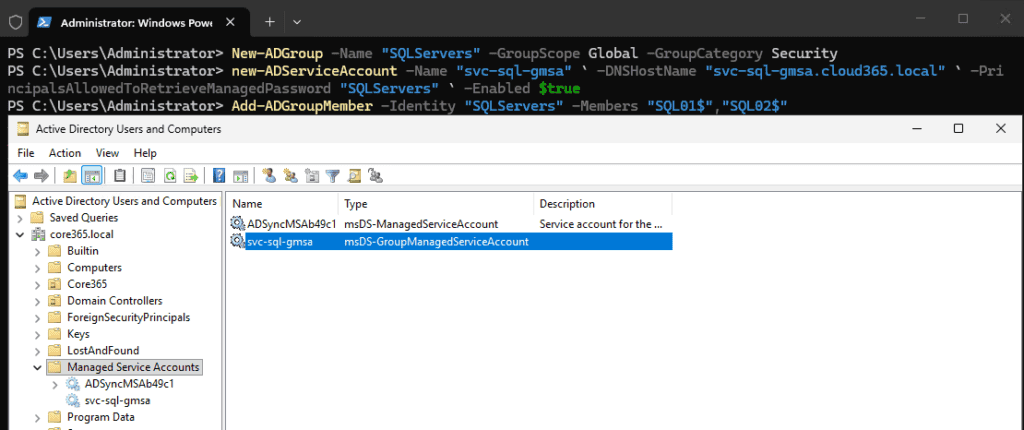
Next, create a security group that will hold the computer accounts allowed to use this gMSA, then create the account itself.
New-ADGroup -Name "SQLServers" -GroupScope Global -GroupCategory Security

New-ADServiceAccount -Name "svc-sql-gmsa" `
  -DNSHostName "svc-sql-gmsa.corp.contoso.com" `
  -PrincipalsAllowedToRetrieveManagedPassword "SQLServers" `
  -Enabled $true
Afterward, add each SQL Server’s computer account to the SQLServers group.
Add-ADGroupMember -Identity "SQLServers" -Members "SQL01$","SQL02$"Step 3: Install the gMSA on Each Target Server
Run this command locally on every server that will host the service, using an account with local administrator rights.
Install-ADServiceAccount -Identity "svc-sql-gmsa"See Microsoft’s Install-ADServiceAccount reference for the full parameter list, including options for segmented networks.
Step 4: Test the gMSA
Then, confirm the server can actually retrieve and use the managed password.
Test-ADServiceAccount -Identity "svc-sql-gmsa"A result of True confirms success. If it returns False, jump to the troubleshooting table further down this page.
Step 5: Configure the Service to Use the gMSA
Finally, point the Windows service or IIS Application Pool at the gMSA and leave the password field blank.
sc.exe config MSSQLSERVER obj= "CORP\svc-sql-gmsa$" password= ""For IIS, open the Application Pool’s Advanced Settings, set the Identity to Custom Account, and enter CORP\svc-sql-gmsa$ with the password left empty.
How a gMSA Retrieves Its Password
Behind the scenes, every authorized server independently asks the domain controller for the current password at logon time. The diagram below shows two authorized servers succeeding and one unauthorized server being denied.
Best Practices for Managing Service Accounts
Once your service accounts are running, a few ongoing habits keep them secure. A common mistake I see is treating service account setup as a one-time task instead of something to audit regularly.
- Use gMSA wherever the application supports it, including SQL Server, IIS, Scheduled Tasks, and clustered services.
- Never assign Domain Admins or other Tier 0 groups to a service account. Instead, follow a proper tiered administration model to keep service accounts out of your most privileged tier.
- Grant only the permissions the service actually needs — the principle of least privilege.
- Deny interactive logon for every service account through Group Policy, since none of them should ever need an interactive session.
- Use a consistent naming convention, for example
gmsa-AppName$for gMSAs andsvc-AppNamefor legacy accounts. - Audit service account usage on a schedule and remove unused accounts, because attackers frequently repurpose forgotten service accounts as persistence. Our AD backdoor removal guide covers this exact scenario.
Troubleshooting Common gMSA Errors
Most gMSA problems trace back to timing or group membership. The table below lists the errors I see most often, along with the fix.
| Error / Symptom | Likely Cause | Fix |
|---|---|---|
| Test-ADServiceAccount returns False | KDS root key has not finished replicating (up to 10 hours by default) | Wait for replication, or confirm with Get-KdsRootKey; do not backdate the key in production |
| Works on one server but not another | Target server was never added to the allowed-principals group, or membership has not refreshed | Add the computer account to the group, then reboot the server or restart Netlogon |
| “Access is denied” during Install-ADServiceAccount | PowerShell was not run elevated, or the target OS is older than Windows Server 2012 | Re-run PowerShell as Administrator and confirm the OS version |
| Password does not seem to rotate | A custom ManagedPasswordIntervalInDays value was set, or the KDS root key recently changed | Check Get-ADServiceAccount -Properties msDS-ManagedPasswordInterval to confirm the expected cadence |
| Service fails to start after switching to gMSA | A password value was still entered, or the account was not granted Log on as a service | Leave the password field blank; confirm the right was granted automatically |
If you manage a large forest, it is worth folding gMSA and legacy service account checks into a routine sweep. Our Active Directory health check script can be extended to flag stale or soon-to-expire service account passwords automatically.
Frequently Asked Questions
What is a service account in Active Directory?
A service account is a special Active Directory identity that runs a Windows service, scheduled task, or application instead of a human user. It authenticates to network resources on the application’s behalf. Common types include Domain User Accounts, standalone Managed Service Accounts (sMSA), and Group Managed Service Accounts (gMSA).
What is the main difference between a gMSA and a domain user account?
A domain user account needs someone to manually set and rotate its password. A gMSA lets Windows automatically generate and rotate a 240+ character password every 30 days by default. As a result, no administrator ever knows or has to manage the gMSA’s password.
Can a single gMSA be used on multiple servers?
Yes. A gMSA is designed to run the same service identity across a server farm, cluster, or load-balanced group. Add each computer account to the security group listed in PrincipalsAllowedToRetrieveManagedPassword, then install the gMSA on every server.
What is a standalone Managed Service Account (sMSA)?
An sMSA is an automatically managed account, like a gMSA, but it can only be installed on a single computer. It suits legacy single-server applications that need automatic password management without multi-server support. Microsoft introduced sMSA in Windows Server 2008 R2.
How often does a gMSA’s password change?
By default, a gMSA password rotates every 30 days. You can customize this with the ManagedPasswordIntervalInDays parameter on New-ADServiceAccount. Because the rotation is silent and automatic, no service outage occurs when the password changes.
Do administrators ever see or need the gMSA password?
No. Windows manages the gMSA password entirely, and administrators cannot view, retrieve, or set it manually. This removes the password-sharing risk common with traditional domain user service accounts.
What is a KDS root key, and why is it required?
The Key Distribution Services (KDS) root key is what domain controllers use to generate gMSA passwords. It must exist in the forest before you can create a gMSA, and Microsoft recommends waiting up to 10 hours for it to replicate to every domain controller.
Which Windows Server version introduced gMSA?
Group Managed Service Accounts were introduced in Windows Server 2012. Your domain and forest functional levels must be Windows Server 2012 or later, and at least one Windows Server 2012+ domain controller must be online to manage them.
Can a gMSA be used with SQL Server or IIS?
Yes. gMSA is Microsoft’s recommended service account for SQL Server, IIS Application Pools, Scheduled Tasks, and clustered or load-balanced services. Most modern enterprise Windows workloads support gMSA natively.
What happens if a legacy domain user service account is compromised?
An attacker can extract its password hash and, if it has a Service Principal Name, request a Kerberos ticket for offline cracking — an attack known as Kerberoasting. A gMSA’s long, random, auto-rotated password makes this attack impractical.
How do I confirm a gMSA is working correctly?
Run Test-ADServiceAccount -Identity on the target server after installing the account with Install-ADServiceAccount. A result of True confirms the server can retrieve and use the gMSA’s password successfully.
Should I use Local System instead of a domain account?
Only when the service needs full local privileges and never touches network resources with domain credentials. Local System, Local Service, and Network Service are built-in accounts, but none support the flexible, auditable, cross-server model that gMSA provides.
How do I decide which AD service account type to use?
Ask two questions: does the service run on multiple servers, and does it need automatic password management? Multi-server workloads should use gMSA, single-server workloads needing automation should use sMSA, and everything else defaults to a tightly scoped domain user account.

Antonio Rennvick is an IT Infrastructure Manager with 15+ years running enterprise Active Directory, Microsoft 365, and Azure environments. He’s Microsoft certified (AZ-104, MS-102) and writes Core365 Cloud to share what actually works in production—PowerShell automation, AD deep dives, and security hardening drawn from real-world work, not test labs.