
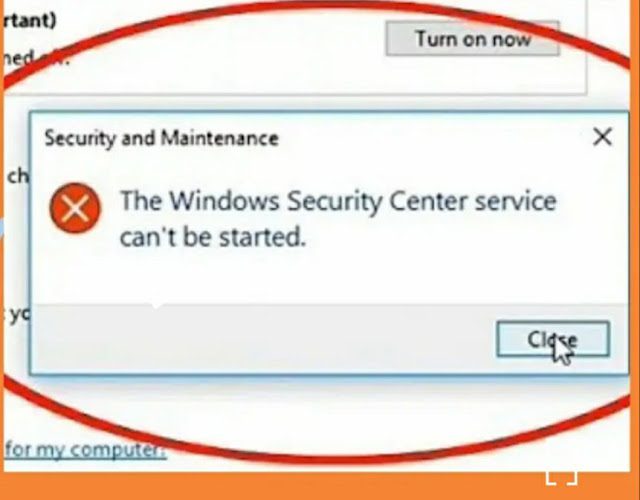

If you’re seeing the ❌ “Windows Security Center service can’t be started”, it means your 💻 system can’t activate the 🛡️ Security Center service, which 📊 monitors and reports 🔐 settings. This can leave your PC 🛑 vulnerable to threats, so fixing it should be a 🔝 priority.
❓ Causes of the Issue
Some common reasons why the Windows Security Center service fails to start include:
- 🚫 Disabled or corrupted service
- 🦠 Malware infection
- 🔄 Conflicting third-party software
- 🛠️ Corrupt system files
- 📝 Windows Registry issues
✅ Solutions to Fix the Issue
1️⃣ Restart the Security Center Service
- Press
Win + R⌨️, typeservices.msc, and press Enter 🔎. - Scroll 🔽 and find Security Center 🔍.
- Right-click 🖱️ and select Properties ⚙️.
- Set Startup type to
Automatic (Delayed Start)🔄. - Click Start ▶️ to manually start the service.
- Click Apply ✅ and OK, then restart 🔄 your 💻.
If the service won’t start and you get an ❌ error, proceed to the next method. ⏭️
2️⃣ Check Dependencies
- In Services (
services.msc), right-click 🖱️ Security Center and choose Properties ⚙️. - Go to the Dependencies 🔗 tab.
- Check if the following services are running:
- Remote Procedure Call (RPC) 🔄
- Windows Management Instrumentation 🖥️
- If any are stopped, start them ▶️ and set their startup type to Automatic 🔁.
3️⃣ Scan for Malware 🦠
Since some malware can disable 🔧 Windows 🛡️ security features, perform a full system scan 🧐:
- Open Windows Security (
Win + S), then type “Windows Security” 🔍. - Go to Virus & threat protection 🦠 > Scan options 📑.
- Choose Full scan 📂 and click Scan now 🕵️.
- Remove any detected threats 🚮 and restart 🔄 your 💻.
4️⃣ Use SFC & DISM to Repair System Files 🛠️
- Open Command Prompt (
Win + X> Command Prompt (Admin)) ⚙️. - Type the following command and press Enter ⌨️:
sfc /scannow - Wait ⏳ for the scan to complete ✅ and restart 🔄 your PC.
- If the issue persists, run:
DISM /Online /Cleanup-Image /RestoreHealthRestart your PC 🔄 after the process completes ✅.
5️⃣ Reset the Security Center Service in Registry 📝
- Press
Win + R, typeregedit, and press Enter ⌨️. - Navigate to:
HKEY_LOCAL_MACHINE\SYSTEM\CurrentControlSet\Services\wscsvc - Double-click 🖱️ Start and set its value to
2(Automatic Start) 🔄. - Close Registry Editor 📑 and restart 🔄 your 💻.
6️⃣ Perform a Clean Boot 🚀
If third-party software is causing conflicts ⚠️:
- Press
Win + R, typemsconfig, and press Enter ⌨️. - Go to the Services 🛠️ tab and check Hide all Microsoft services 👀.
- Click Disable all 🚫, then go to the Startup tab and click Open Task Manager 📊.
- Disable unnecessary startup items 🚀.
- Restart 🔄 your 💻 and check if the issue persists ❓.
🎯 Conclusion
If none of these methods work ❌, you might need to consider System Restore 🕒 or Windows Reset 🔄 as a last resort. Keeping your system updated 🔄 and using reliable antivirus software 🦠 can prevent such issues in the future.

Antonio Rennvick is an IT Infrastructure Manager with 15+ years running enterprise Active Directory, Microsoft 365, and Azure environments. He’s Microsoft certified (AZ-104, MS-102) and writes Core365 Cloud to share what actually works in production—PowerShell automation, AD deep dives, and security hardening drawn from real-world work, not test labs.