

Microsoft Entra Cloud Sync vs Entra ID Connect: The Complete IT Admin Guide (2026)
- What is hybrid identity synchronization?
- Entra ID Connect — deep dive
- Microsoft Entra Cloud Sync — deep dive
- How Cloud Sync works (step by step)
- Architecture comparison
- Full feature comparison table
- Prerequisites for each tool
- Installing Entra ID Connect
- Installing Microsoft Entra Cloud Sync
- Authentication methods: PHS, PTA, federation
- When to use which tool
- The 2026 transition — what’s changing
- Migrating from Connect Sync to Cloud Sync
- Troubleshooting common issues
- Conclusion & recommendations
1 What is hybrid identity synchronization?
Most enterprise environments still run on-premises Active Directory (AD DS) alongside cloud services like Microsoft 365 and Azure. Hybrid identity synchronization bridges these two worlds — replicating user accounts, groups, and contacts from your on-prem AD forest into Microsoft Entra ID (formerly Azure Active Directory), so users get a single identity for both environments.
Without sync, users need separate credentials for on-prem resources and cloud apps. With sync in place, they authenticate once and access everything — from SharePoint Online to on-prem file servers — seamlessly.
Microsoft offers two tools for this job:
- Microsoft Entra ID Connect (Connect Sync) — the traditional on-premises sync engine, formerly Azure AD Connect
- Microsoft Entra Cloud Sync — the modern, cloud-managed, lightweight agent-based approach and Microsoft’s strategic direction going forward
Microsoft began transitioning customers from Connect Sync to Entra Cloud Sync in July 2026. All Connect Sync installations must also be on version 2.5.79.0 or later by September 30, 2026 — or synchronization will stop entirely.
2 Entra ID Connect (Connect Sync) — deep dive
Microsoft Entra ID Connect — still widely called Azure AD Connect in the field — is a full synchronization engine installed on a dedicated Windows Server in your on-premises environment. Every 30 minutes (default delta sync interval), it gathers all AD changes, reconciles them against Entra ID, and exports the differences.
Core architecture components
Sync engine (metadirectory)
Maintains a local SQL database with two key structures: the Connector Space (staging area for objects from each connected directory) and the Metaverse (unified view of all identities across all connected sources).
Synchronization rules engine
A powerful rules engine letting admins define exactly how attributes flow from AD to Entra ID. Supports custom inbound/outbound rules, attribute remapping, and complex scripted transformations — something Cloud Sync currently cannot match.
SQL LocalDB / SQL Server
SQL LocalDB is included for environments under ~100,000 objects. Larger deployments should use a full SQL Server instance for performance and reliability.
Scheduler
Runs delta syncs every 30 minutes. Admins can trigger manual syncs on demand via PowerShell at any time.
Supported sign-in methods
- Password Hash Synchronization (PHS) — simplest and most resilient; users can sign in even if on-prem is down
- Pass-Through Authentication (PTA) — authentication validated against on-prem AD in real time; password never leaves your network
- Federation (AD FS) — fully delegates authentication to a federation service; required for smart card auth and complex claims
- Seamless SSO — layered on top of PHS or PTA for automatic sign-in on domain-joined machines
Supported topologies
- Single forest, single tenant — most common deployment
- Multiple forests, single tenant — all forests sync to one Entra ID tenant
- Staging mode — passive secondary server for DR; imports and syncs but doesn’t export
- Hybrid Exchange — required for on-prem Exchange coexistence with Exchange Online
Enable staging mode on a secondary Connect Sync server. It keeps its local database current by reading from AD — so if your primary fails, you can promote the standby with minimal disruption and zero data loss.
3 Microsoft Entra Cloud Sync — deep dive
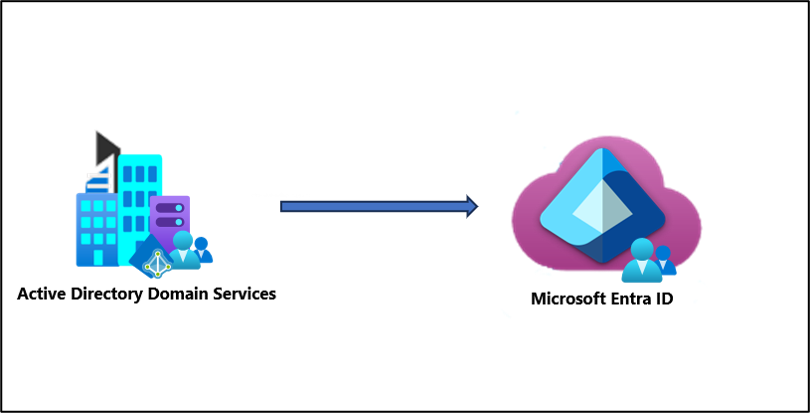
Microsoft Entra Cloud Sync uses a lightweight provisioning agent installed on Windows Server. All the heavy lifting — sync engine, scheduling, configuration, and monitoring — lives in Microsoft’s cloud, not on your server. It syncs changes every 2 minutes, uses the SCIM standard, and is fully managed through the Entra admin center in any browser.
Core architecture components
Microsoft Entra provisioning agent
A lightweight Windows service that uses the same technology as Microsoft Entra Application Proxy. Requires outbound connections only — no inbound firewall rules. Runs under a group Managed Service Account (gMSA) and auto-updates from the cloud.
Microsoft Entra provisioning service (cloud)
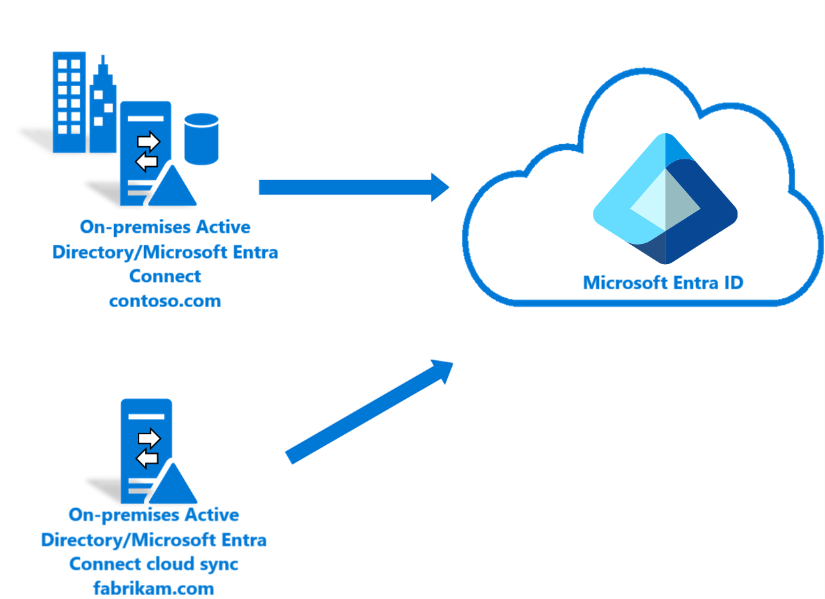
The cloud-side orchestration engine — the same service used for HR-driven provisioning (Workday to Entra ID). Manages sync scheduling, configuration storage, and processes all SCIM requests.
Key advantages over Connect Sync
Active/Active high availability
Multiple active agents run simultaneously. If one goes offline, the cloud service automatically routes to another — no manual promotion required. Microsoft recommends three active agents across different servers for production HA.
Disconnected forest synchronization
Cloud Sync can sync from multiple disconnected AD forests (no trust relationship) into a single Entra ID tenant — its most significant architectural advantage over Connect Sync.
Cloud-to-AD provisioning
Uniquely supports provisioning groups from Entra ID back into on-premises Active Directory — useful for governing on-prem application access via cloud-managed groups.
Faster sync cycle
Incremental cycles run every 2 minutes vs. Connect Sync’s 30-minute default. Identity changes propagate to the cloud much faster.
4 How Cloud Sync works — step by step
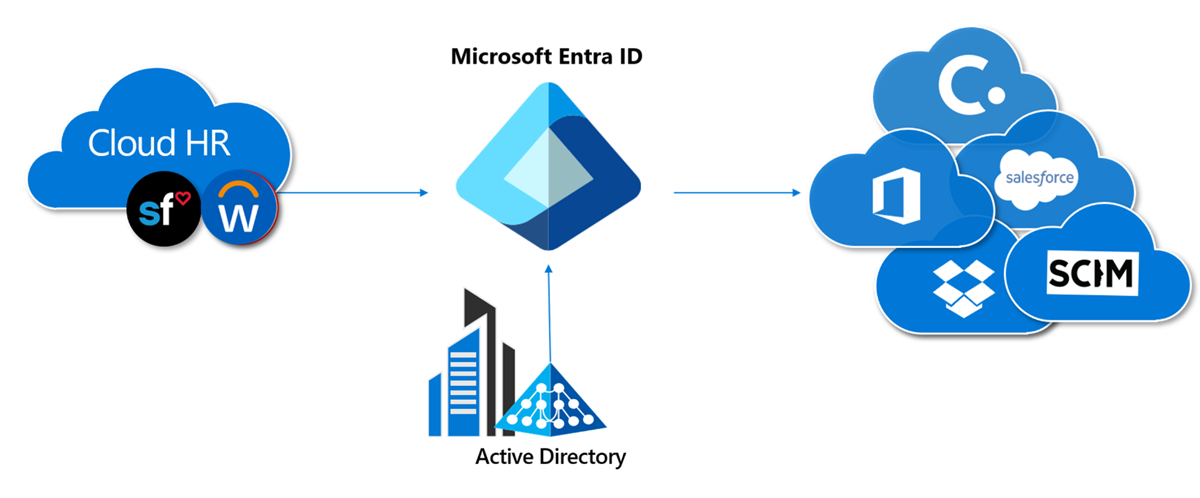
- The provisioning agent establishes a persistent outbound connection to Azure Service Bus, registering configured AD domains with the Hybrid Identity Service.
- The Entra provisioning service sends SCIM requests to the agent every 2 minutes (incremental) or on a full-sync schedule.
- The agent queries your on-premises AD domain controllers via LDAP (TCP 389) or Global Catalog (TCP 3268).
- The agent filters and transforms results based on your OU/group scoping rules and attribute mappings.
- Transformed identity data is returned to the cloud, which commits changes to Entra ID and updates watermarks for incremental tracking.
- On the next delta sync, only objects changed since the last watermark/cookie are queried — keeping sync efficient in large environments.
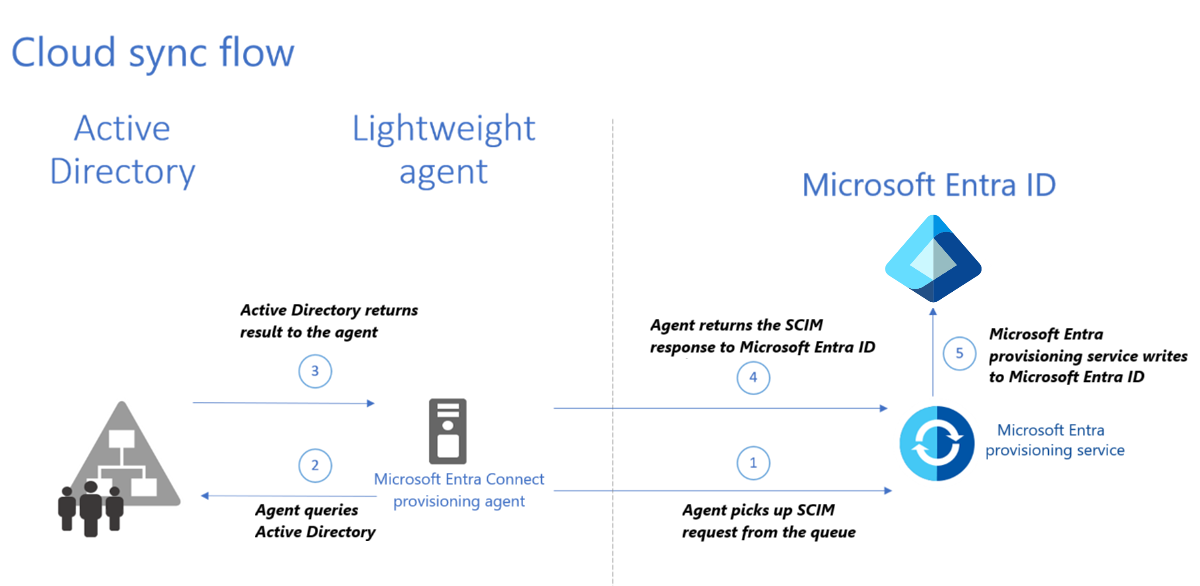
Multi-forest deployment scenario
5 Architecture comparison
| Aspect | Entra ID Connect | Entra Cloud Sync |
|---|---|---|
| Engine location | On-premises Windows Server | Microsoft cloud (Azure) |
| On-prem footprint | Full app + SQL DB + service accounts | Lightweight agent only |
| Management interface | Local wizard + Sync Rules Editor | Entra admin center (browser) |
| Sync interval | 30 minutes (delta) | 2 minutes (delta) |
| High availability | Active/Passive (staging mode) | Active/Active (multi-agent) |
| Multi-forest, no trust | Not supported | Natively supported |
| Auto-update | Manual upgrade required | Automatic from cloud |
| Inbound firewall rules | Required | Not required (outbound only) |
| Attribute customization | Deep (custom rules, scripted transforms) | Basic (preset attribute maps) |
| Hybrid Exchange support | Supported | Not supported |
| Cloud-to-AD provisioning | Limited (group writeback) | Full support |
| Microsoft’s direction | Legacy (transition 2026) | Strategic platform |
6 Full feature comparison table
| Feature | Connect Sync | Cloud Sync |
|---|---|---|
| User sync (AD → Entra ID) | ✓ | ✓ |
| Group sync | ✓ | ✓ |
| Contact sync | ✓ | ✓ |
| Password Hash Sync (PHS) | ✓ | ✓ |
| Pass-Through Authentication (PTA) | ✓ | ✗ |
| Seamless SSO | ✓ | ✓ |
| AD FS / federation | ✓ | ✗ |
| SSPR writeback | ✓ | ✓ |
| Group writeback (Entra → AD) | ✓ (v2) | ✓ |
| Device writeback | ✓ | ✗ |
| Hybrid Exchange | ✓ | ✗ |
| Multi-forest with trust | ✓ | ✓ |
| Multi-forest without trust | ✗ | ✓ |
| Multiple Entra ID tenants | ✗ | ✓ |
| Attribute-value filtering | ✓ | ✗ |
| Custom sync rules | ✓ | ✗ |
| Entra ID Governance integration | Partial | ✓ |
| Cloud-to-AD group provisioning | ✗ | ✓ |
| Active/Active HA | ✗ | ✓ |
| Web-based management (no VPN) | ✗ | ✓ |
| Max objects per domain | Unlimited | 150,000 |
7 Prerequisites for each tool
Entra ID Connect prerequisites
- OS: Windows Server 2016, 2019, or 2022
- RAM: Minimum 4 GB (8 GB+ for production)
- Storage: Minimum 70 GB free disk
- SQL: SQL LocalDB included for <100K objects; SQL Server 2012+ for larger deployments
- .NET Framework: 4.6.2 or later
- TLS: TLS 1.2 must be enabled on the server
- AD functional level: Windows Server 2003 or later
- Entra ID account: Global Administrator or Hybrid Identity Administrator
- AD account: Enterprise Admin credentials during setup
Microsoft Entra Cloud Sync prerequisites
- OS: Windows Server 2016, 2019, or 2022 (domain-joined). WS2025 requires KB5070773 first
- RAM: Minimum 4 GB
- .NET Framework: 4.7.1 or later
- AD schema: Must include
msDS-ExternalDirectoryObjectId(WS2016 schema+) - Service account: gMSA created automatically as
domain\provAgentgMSA$ - VaultSvc: Windows Credential Manager service must NOT be disabled
- Network (agent → DC): TCP 389 (LDAP) and TCP 3268 (Global Catalog)
- Network (agent → cloud): Outbound HTTPS 443 only — no inbound rules needed
- HA recommendation: 3 active agents across different servers
The Cloud Sync provisioning agent requires a full GUI-capable Windows Server installation. Server Core is not supported.
8 Installing Entra ID Connect
All Entra Connect Sync installations must be running version 2.5.79.0 or later. Older versions will stop syncing on that date.
Step 1 — Download and launch
Download the latest Entra Connect from the Microsoft Download Center. Always install the latest version — Microsoft retires older 2.x versions 12 months after a newer version ships.
Step 2 — Express vs custom setup
Express settings suit single-forest environments — automatically configures PHS, Seamless SSO, and syncs all users and groups. Custom settings let you choose sign-in methods, configure multi-forest, apply OU filtering, and enable staging mode.
Step 3 — Connect to Entra ID and Active Directory
Provide your Global Administrator credentials for Entra ID, then Enterprise Admin credentials for your AD forest. The wizard creates the MSOL_xxxxxxxx service account in AD automatically.
Step 4 — Verify with PowerShell
# Force a delta sync immediately
Start-ADSyncSyncCycle -PolicyType Delta

# Check for sync errors
Get-ADSyncRunStepResult | Where-Object {$_.StepResult -ne "success"} | Select-Object *

# View scheduler and last sync time
Get-ADSyncScheduler

# Check installed version (must be 2.5.79.0+ by Sept 30, 2026)
(Get-ItemProperty "HKLM:\SOFTWARE\Microsoft\Azure AD Connect").Version
9 Installing Microsoft Entra Cloud Sync
Step 1 — Create a cloud-only Hybrid Identity Admin account
Before touching anything on-prem, create a cloud-only (not synced) Hybrid Identity Administrator account in Entra ID. This prevents lockout if your on-prem infrastructure goes down.
Step 2 — Run IdFix
Run Microsoft IdFix against your AD to scan for attribute errors (duplicate UPNs, invalid characters, missing attributes) that would cause sync failures. Fix all errors before proceeding.
Step 3 — Download and install the provisioning agent
- Sign into the Entra admin center at entra.microsoft.com
- Navigate to Hybrid Management → Microsoft Entra Connect → Cloud Sync
- Select Agents → Download agent
- Run
AADConnectProvisioningAgentSetup.exeon your Windows Server - Authenticate with Hybrid Identity Administrator credentials when prompted
- Select the AD domain(s) this agent will service
- The wizard automatically creates the
provAgentgMSA$gMSA
Step 4 — Create a new configuration
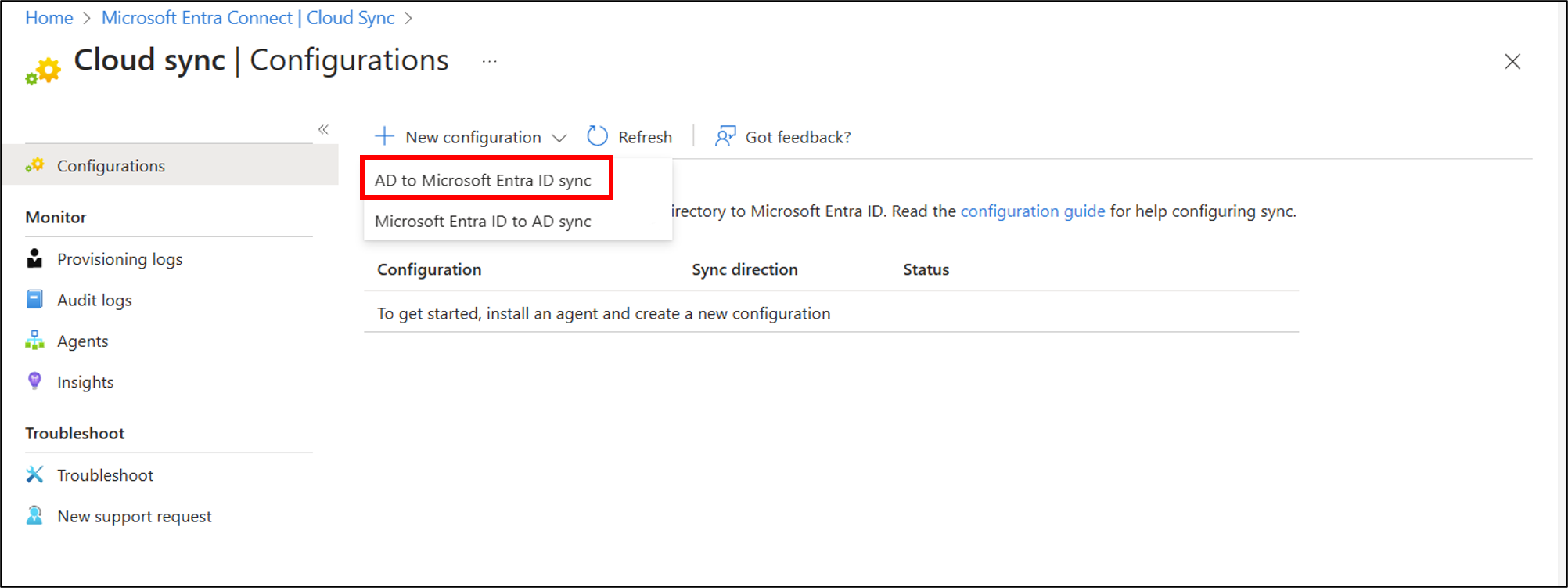
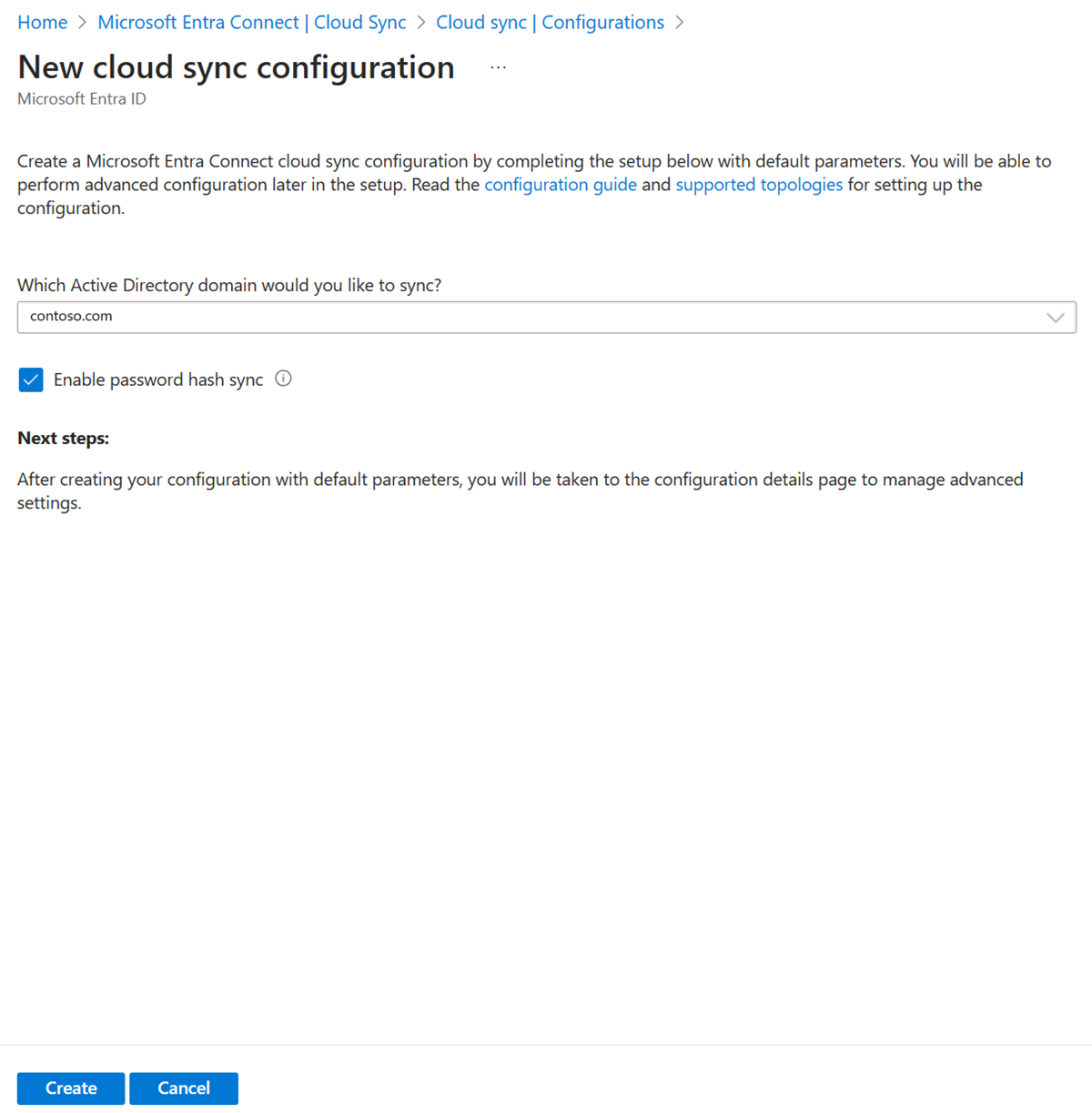
Step 5 — Configure scoping (OU or group)

Cloud Sync only supports filtering by OU distinguished name or group membership. Enter the full DN of each OU, for example:
OU=Users,OU=Singapore,DC=corp,DC=contoso,DC=comStep 6 — Verify with PowerShell
# Import Cloud Sync tools module
Import-Module "C:\Program Files\Microsoft Azure AD Connect Provisioning Agent\Utility\AADCloudSyncTools"

# Connect and check agent health
Connect-AADCloudSyncTools
Get-AADCloudSyncToolsInfo

# Check provisioning job status
Get-AADCloudSyncToolsJobStatusSet your configuration to “Enabled (no provisioning)” mode first. This runs the sync engine and logs what would be provisioned without writing any changes to Entra ID. Validate scoping and attribute mappings for 24–48 hours before switching to full provisioning.
10 Authentication methods: PHS, PTA & federation
Password Hash Synchronization (PHS) Recommended
A hash of the user’s AD password hash is synchronized to Entra ID. Users can sign in even if on-prem is completely unavailable. Also enables Entra ID Identity Protection’s leaked credential detection.
Supported by: Both Connect Sync and Cloud Sync ✓
Pass-Through Authentication (PTA)
Authentication requests proxied in real time to on-prem DCs via lightweight agents. Password is validated by AD directly and never stored in the cloud. Useful for enforcing on-prem password policies.
Supported by: Connect Sync only — not available in Cloud Sync
Federation (AD FS / third-party)
Authentication fully delegated to a federation service. Supports smart cards, certificate-based auth, and complex claims. Highest infrastructure overhead of the three options.
Supported by: Connect Sync only — not available in Cloud Sync
For most organizations, Password Hash Synchronization + Seamless SSO is the recommended sign-in method. It provides the best balance of security, resilience, and simplicity — and is the only authentication option fully supported by both sync tools.
11 When to use which tool
Choose Entra ID Connect if you…
- Run Hybrid Exchange (on-prem Exchange with Exchange Online)
- Need Pass-Through Authentication or AD FS federation
- Require attribute-value based filtering (not just OU/group)
- Need complex custom sync rules or scripted attribute transformations
- Have more than 150,000 objects per domain
- Rely on device writeback to Active Directory
Choose Microsoft Entra Cloud Sync if you…
- Are starting a new hybrid identity deployment
- Need to sync from multiple disconnected AD forests (no trust)
- Want minimal on-prem footprint — no SQL, no dedicated sync server
- Need true Active/Active HA without manual failover
- Want browser-based management without VPN dependency
- Are in a merger/acquisition requiring rapid onboarding of a new forest
- Use only Password Hash Sync for authentication
The bottom line
- Simple to medium environments (PHS, single forest, no Hybrid Exchange) → Start with Cloud Sync today.
- Complex enterprise environments (Hybrid Exchange, PTA, attribute filtering) → Stay on Connect Sync for now, but begin migration planning.
- New deployments in 2025/2026 → Cloud Sync is your default choice unless you have a specific Connect Sync requirement.
12 The 2026 transition — what’s changing
April 2026 — Microsoft’s official announcement
Microsoft officially announced the transition from Entra Connect Sync to Cloud Sync as the primary synchronization method for hybrid identity, as part of its broader cloud-native identity and Zero Trust strategy.
July 2026 — customer notifications begin
Microsoft sends notifications through the M365 Message Center with each customer’s assigned transition window. First wave: tenants using PHS only, single forest, under 150K objects. Later phases follow as Cloud Sync’s feature set expands.
September 30, 2026 — version hard deadline Action required
All Connect Sync installations must be running version 2.5.79.0 or later. Microsoft is introducing a new service principal as a security hardening measure. Older versions will be blocked from connecting to Entra ID backends.
Run the command below. If you’re below 2.5.79.0, upgrade immediately.
# Check your Entra Connect version
(Get-ItemProperty "HKLM:\SOFTWARE\Microsoft\Azure AD Connect").Version
Long term — Connect Sync retirement
No specific end-of-life date has been announced, but Microsoft explicitly states Cloud Sync is the long-term strategic platform. Connect Sync 2.x versions are also retired 12 months after a newer version ships — staying current is mandatory regardless of the transition timeline.
13 Migrating from Connect Sync to Cloud Sync
Migration readiness checklist
Your environment is a strong candidate for immediate migration if all of the following are true:
- ✓ Fewer than 150,000 objects per AD domain
- ✓ Using Password Hash Sync (not PTA or AD FS)
- ✓ No Hybrid Exchange on-premises
- ✓ No attribute-value based filtering rules
- ✓ No device writeback requirements
- ✓ AD schema is Windows Server 2016 or later
Step 1 — export your Connect Sync configuration
Open Entra Connect → Configure → View or export current configuration → Export Settings. Save the JSON. Also document your OU filtering scope, attribute customizations, and any custom sync rules.
Step 2 — install Cloud Sync agents in parallel
Install the provisioning agent on at least two servers (three for production HA). Both tools support side-by-side operation as long as they scope different objects — letting you pilot Cloud Sync on a subset before full cutover.
Step 3 — test in “no provisioning” mode
Enable Cloud Sync in Enabled (no provisioning) mode. Monitor logs in the Entra admin center for 24–48 hours to confirm correct objects and attributes before any changes are written.
Step 4 — put Connect Sync in staging mode
# Connect Sync stops exporting to Entra ID
Set-ADSyncScheduler -StagingModeEnabled $true

# Verify staging mode is active
(Get-ADSyncScheduler).StagingModeEnabled
Step 5 — enable Cloud Sync full provisioning
Switch your Cloud Sync configuration from “Enabled (no provisioning)” to Enabled in the Entra admin center. Monitor provisioning logs closely for the first 24 hours.
Step 6 — validate and decommission Connect Sync
After 2–4 weeks of stable Cloud Sync operation: confirm all objects are correctly synced, test sign-in for a representative user sample, uninstall Entra Connect via Add/Remove Programs, remove the MSOL_xxxxxxxx service account from AD, then repurpose the server as a third Cloud Sync agent.
14 Troubleshooting common issues
Connect Sync
Sync stops with “stopped-server-down”
Usually means the sync service can’t reach a DC or Entra ID. Check network connectivity and verify the MSOL service account hasn’t expired.
Test-AzureADConnectivityFromServer
Get-ADSyncRunStepResult | Where-Object {$_.StepResult -ne "success"} | Format-List *
Attribute not syncing as expected
Open Synchronization Rules Editor and check for conflicting inbound rules. The rule with the lowest precedence number wins. Use Metaverse Search in Synchronization Service Manager to inspect the current value for a specific object.
Duplicate attribute error (DirSync error 1003)
A UPN or ProxyAddress already exists on a different Entra ID object. Run IdFix and review Entra admin center Audit Logs for the specific collision.
Cloud Sync
Agent shows “Inactive” in Entra admin center
Get-Service "Microsoft Azure AD Connect Provisioning Agent"
Restart-Service "Microsoft Azure AD Connect Provisioning Agent"

Get-WinEvent -LogName "Application" |
  Where-Object {$_.ProviderName -like "*AADConnect*"} |
  Select-Object -First 20 | Format-List TimeCreated, Message
Objects not appearing in Entra ID
Verify your OU distinguished name is exact (enable Advanced Features in ADUC to see DNs). Check Provisioning Logs in the Entra admin center — they show exactly why each object was skipped or failed.
gMSA installation failure
# Verify Credential Manager service is running
Get-Service VaultSvc

# Confirm the gMSA is accessible from this server
Test-ADServiceAccount provAgentgMSA$
15 Conclusion & recommendations
Microsoft has made its direction crystal clear: Microsoft Entra Cloud Sync is the future of hybrid identity. Here’s your action plan:
- Check your Connect Sync version today. If below 2.5.79.0, upgrade before September 30, 2026 or sync stops.
- Assess migration readiness. PHS + single/multi-forest without trusts + no Hybrid Exchange + under 150K objects per domain = ready to migrate now.
- Don’t wait for Microsoft’s notification. Start piloting Cloud Sync on a non-production OU today — both tools support side-by-side operation.
- Complex environments (Hybrid Exchange, PTA, custom sync rules) — stay on Connect Sync for now but watch Microsoft’s Cloud Sync announcements closely.
- All new deployments in 2025/2026 should default to Cloud Sync unless there’s a specific technical blocker.
Drop them in the comments below — I read every one and answer technical questions from the IT community.
Further reading

Antonio Rennvick is an IT Infrastructure Manager with 15+ years running enterprise Active Directory, Microsoft 365, and Azure environments. He’s Microsoft certified (AZ-104, MS-102) and writes Core365 Cloud to share what actually works in production—PowerShell automation, AD deep dives, and security hardening drawn from real-world work, not test labs.