Windows Server

Master Windows Server with guides on deployment, administration, security, and performance optimization in enterprise environments.

Active Directory Automation Microsoft PowerShell Security & Auditing Windows Server

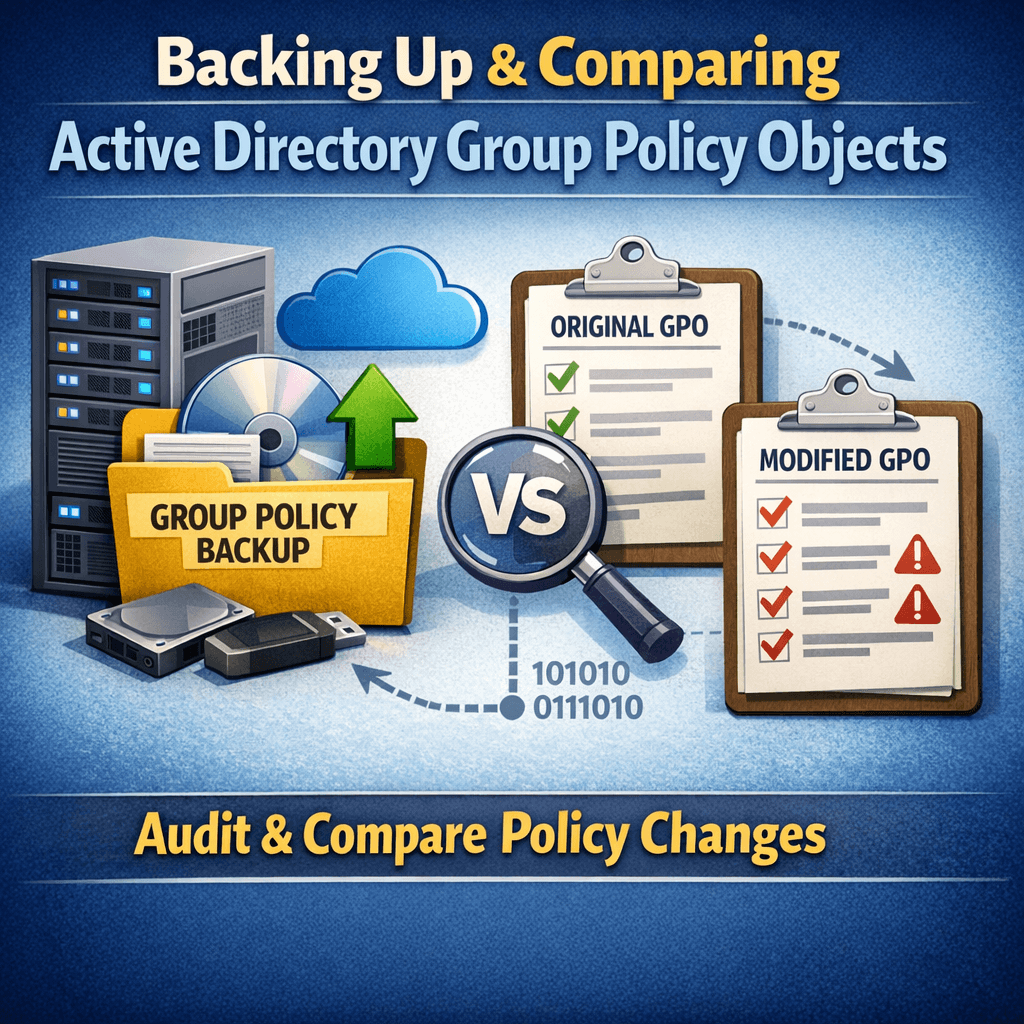
Generating GPO Change Audit Reports Using PowerShell (Part 2)

In Part 1, we automated Group Policy Object (GPO) backups using PowerShell and Task Scheduler. Backups alone are valuable—but their real power comes from visibility. Auditors don’t ask if you back up GPOs.They ask: “Show me what changed during this period.” In this post (Part 2), we’ll walk through how to compare two GPO backup
Active Directory Microsoft PowerShell Windows Server

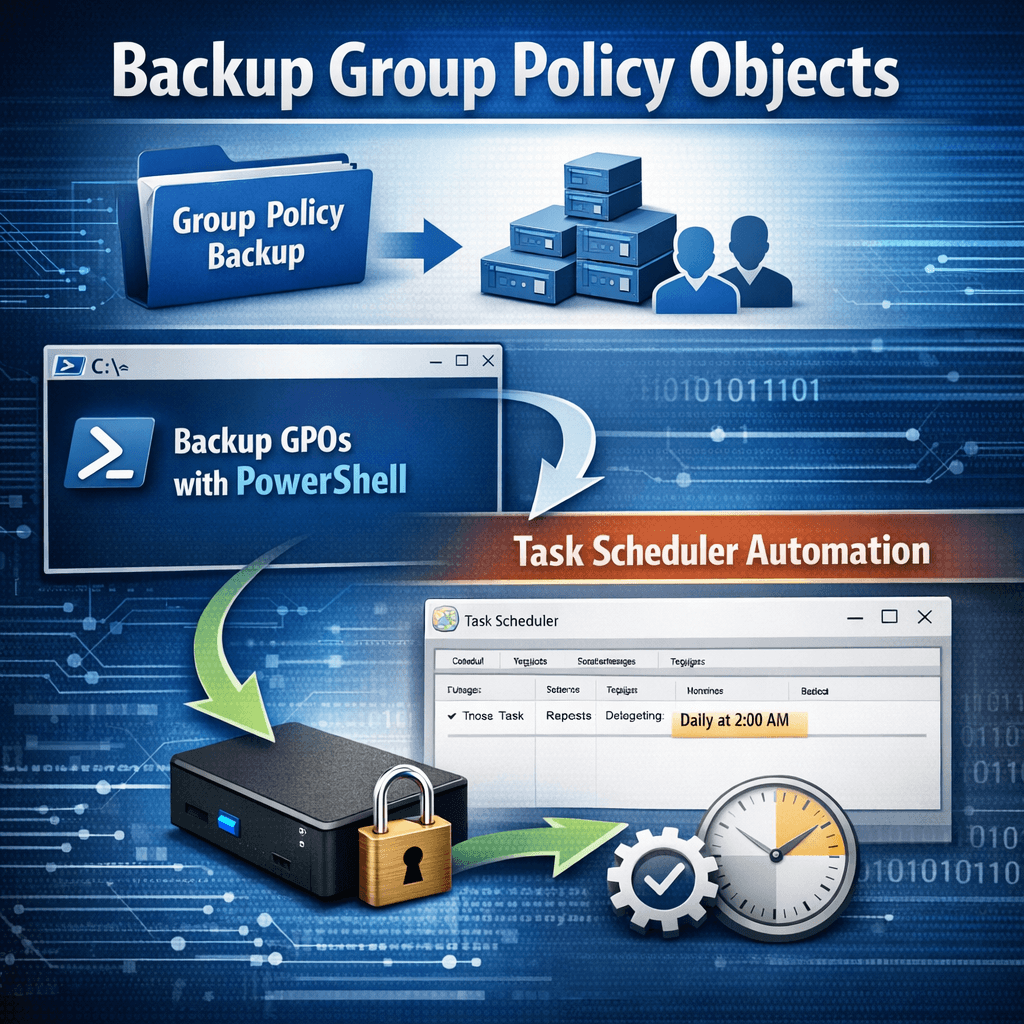
Automating Group Policy Object Backups with PowerShell and Task Scheduler (Part 1)

Group Policy Objects (GPOs) are a core component of Active Directory environments. They control security settings, user configurations, software deployment, and many other critical aspects of Windows infrastructure. Despite their importance, GPOs are often overlooked when it comes to regular backups. In this post (Part 1), we’ll cover why GPO backups matter, how to back

Active Directory Windows Server

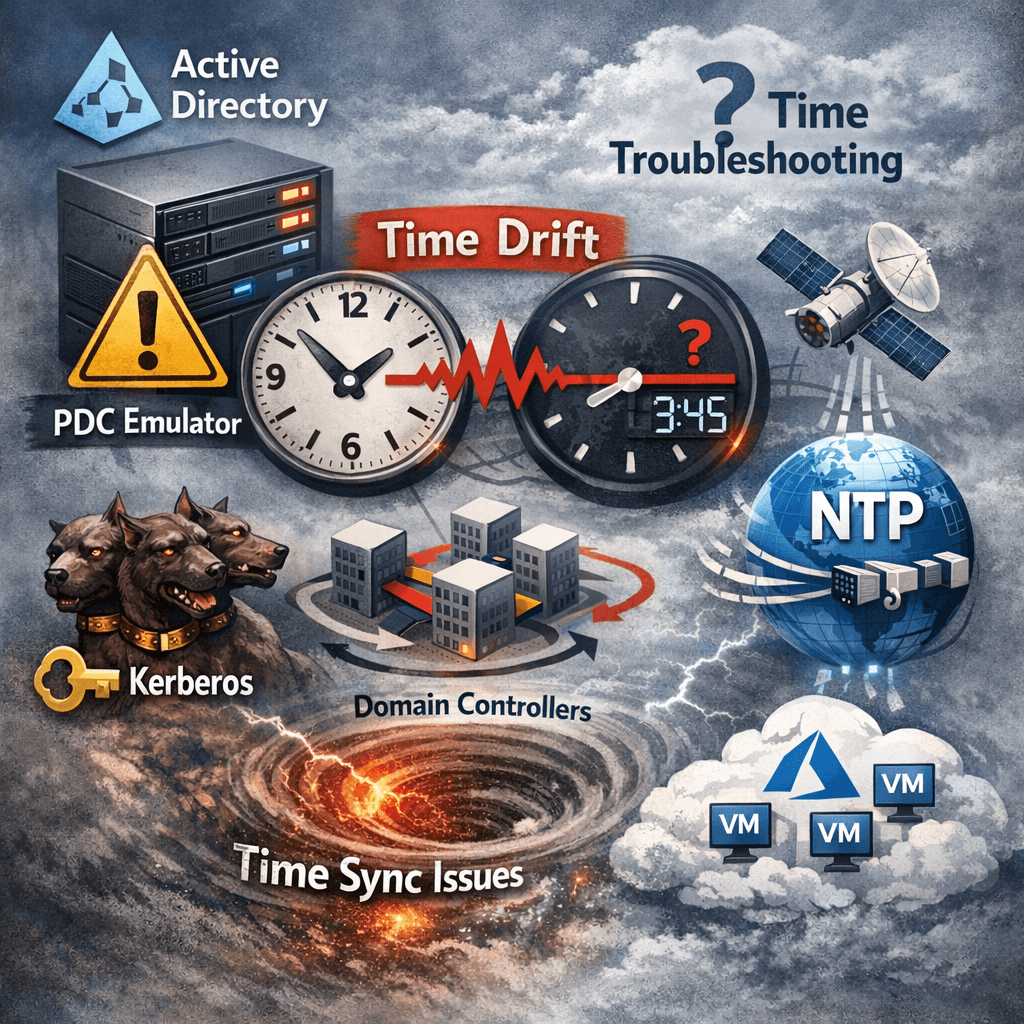
Fixing Active Directory Time Drift in Hybrid/Virtualized Environments (The Definitive Troubleshooting & Remediation Guide)

Estimated read time: 12–15 minutes. Why time drift in AD is a big deal Active Directory authentication depends on correct time. Kerberos has a strict tolerance window; when clocks drift, you get failed logons, random access issues, broken SSO, and unreliable auditing. The Windows Time service (W32Time) is designed to keep domain computers synchronized using

Active Directory LAPS Windows Server

How to Install and Configure Microsoft LAPS (Local Administrator Password Solution)

  📌 Introduction Microsoft Local Administrator Password Solution (LAPS) is a free tool that enhances security by automatically managing local administrator passwords on domain-joined computers. This guide will walk you through the installation and configuration of LAPS in a step-by-step manner. 🔍 Prerequisites Before you begin, ensure you have the following: ✅ Active Directory configured

RADIUS Windows Server

Renewing a certificate in a Windows RADIUS server

 Renewing a certificate in a Windows RADIUS server involves several steps. Here’s a step-by-step guide to help you through the process: 1. Generate a New Certificate Request Open the MMC (Microsoft Management Console): Press Win + R, type mmc, and press Enter. Add/Remove Snap-ins: Go to File > Add/Remove Snap-in. Select Certificates and click Add.

Scroll to Top
×