
Last Updated: August 2026
A Windows LAPS password lookup tool is a PowerShell script (with an optional GUI) that wraps Get-LapsAADPassword and the Microsoft Graph API so support teams can retrieve local administrator passwords backed up to Microsoft Entra ID without using raw PowerShell or the slower admin center portal. It resolves the correct device automatically, handles duplicate device names, and logs every read to Entra ID’s built-in audit trail.
- Why EUC Teams Need a Faster Lookup Tool
- How Windows LAPS Backs Up Passwords to Entra ID
- Prerequisites: Roles, Permissions, and Modules
- The DeviceId Trap (and a Graph SDK Bug)
- How the Tool Works
- The Console Script
- The GUI Script
- Handling Duplicate Device Names
- Security, Auditing, and Clipboard Safety
- Known Limitations and What’s Next
- Get the Scripts
- Troubleshooting
- FAQ
Why EUC Teams Need a Faster Lookup Tool
End User Computing (EUC) support teams often need local admin passwords dozens of times a day. Clicking through the Intune or Entra admin center for every single lookup is slow when call volume is high.
Most support technicians also aren’t comfortable running raw PowerShell commands against Microsoft Graph. As a result, they either avoid the faster method entirely or make mistakes with device IDs. This tool closes that gap without granting anyone new permissions — it only simplifies the interface for people who already hold an authorized role.
How Windows LAPS Backs Up Passwords to Entra ID
Windows LAPS is Microsoft’s built-in Local Administrator Password Solution. When it’s configured through Intune, it rotates the local admin password on each managed device and backs the password up to Microsoft Entra ID instead of on-premises Active Directory.
This matters for Entra-joined and hybrid Entra-joined devices alike: the password lives in Entra ID, and retrieving it requires Microsoft Graph, not the legacy on-premises LAPS attributes. If you’re still running classic on-prem LAPS, see our Microsoft LAPS installation guide instead — this article covers the cloud-native version.
Prerequisites: Roles, Permissions, and Modules
Before running the tool, confirm the following. Without these, the script will run but every lookup will fail.
| Requirement | Detail |
|---|---|
| Entra role | Cloud Device Administrator, Intune Administrator, or a custom role with microsoft.directory/deviceLocalCredentials/password/read |
| Graph scopes | Device.Read.All and DeviceLocalCredential.Read.All |
| LAPS module | Built into Windows via the April 2023+ cumulative update — never install a module named “LAPS” from the PowerShell Gallery |
| Graph module | Microsoft.Graph.Authentication (the script installs this automatically if missing) |
The DeviceId Trap (and a Graph SDK Bug)
Every Entra device object has two different GUIDs: Id (the directory object ID) and DeviceId (a separate identifier). However, Get-LapsAADPassword -DeviceIds needs the DeviceId, not the object Id. Using the wrong one returns a “device could not be found” error even though the device clearly exists.
In addition, the Get-MgDevice SDK cmdlet has a known client-side model-binding bug that can return an empty DeviceId even when Graph actually has the data. Therefore, this tool bypasses the SDK cmdlet entirely and calls the Graph REST endpoint directly through Invoke-MgGraphRequest, with the ConsistencyLevel: eventual header set manually. This reliably fixed the issue in testing.
When an Empty DeviceId Is Real, Not a Bug
If a device genuinely has an empty DeviceId from Graph, it hasn’t completed Entra device registration. Windows LAPS has no path to back up a password for that object, regardless of its local hybrid-join status.
How the Tool Works
The diagram below shows the lookup flow used by both the console and GUI scripts.
Tech enters devicename in toolSign in toMicrosoft GraphQuery device bydisplayName (REST)Resolve DeviceId(skip buggy SDK cmdlet)Get-LapsAADPasswordreturns passwordEntra ID logs theread in Audit LogsSame flow powers both the console script and the GUI script
The Console Script
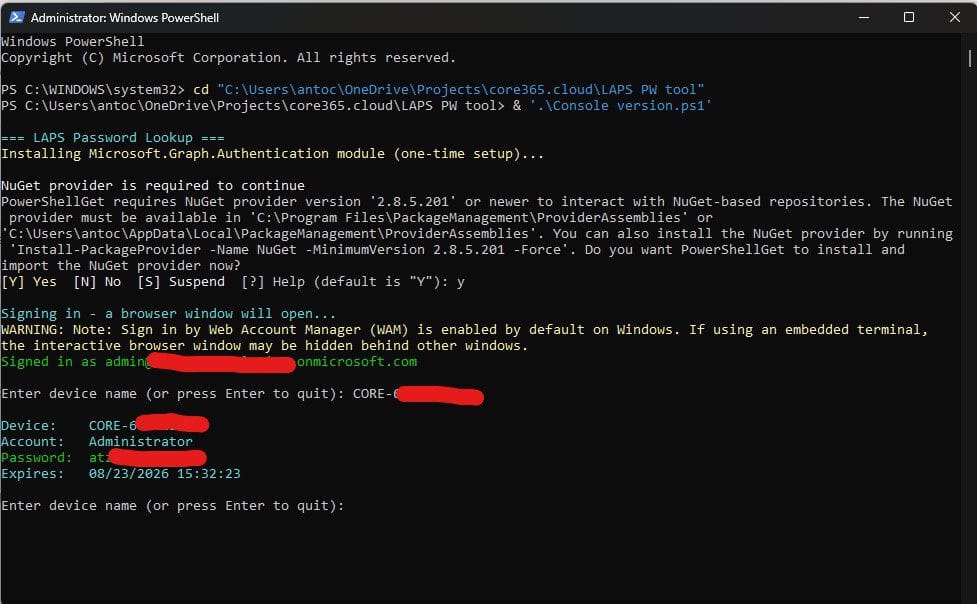
The console version checks for the LAPS module and Graph module, signs the tech in, and then loops: enter a device name, get a password, repeat. It’s the fastest option for anyone comfortable with a terminal.
The GUI Script
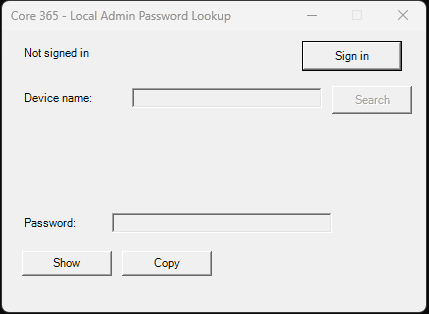
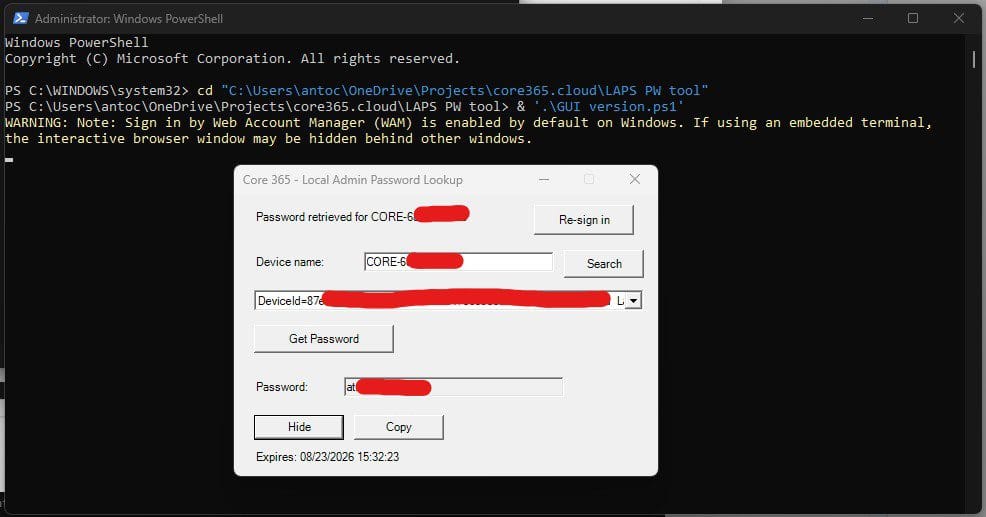
The GUI wraps the same logic in a WinForms window so non-PowerShell users get a Sign in → search → get password flow. Two fixes are worth calling out because they caused real bugs during testing.
Fixing a Clipboard-Timer Crash
The clipboard auto-clear used a System.Windows.Forms.Timer. Initially, the tick handler referenced a local variable, which PowerShell doesn’t reliably preserve across nested event scriptblocks — this crashed with “You cannot call a method on a null-valued expression.” The fix was making the timer a $script:-scoped variable instead.
Clean Errors Instead of Debugger Popups
A global Application.ThreadException handler was added so any future unhandled error shows a plain message box. As a result, support staff never see a raw .NET crash dialog.
Handling Duplicate Device Names
Devices can share the same display name — for example, stale objects left behind after a re-image or rejoin. Both scripts detect multiple matches and let the tech pick the right one, using TrustType and ApproximateLastSignInDateTime to identify the current device.
Security, Auditing, and Clipboard Safety
The tool doesn’t grant any new access — it only simplifies the interface for people who already have an authorized role. Two safeguards are built in:
- Clipboard auto-clear: copied passwords are wiped from the clipboard after 30 seconds.
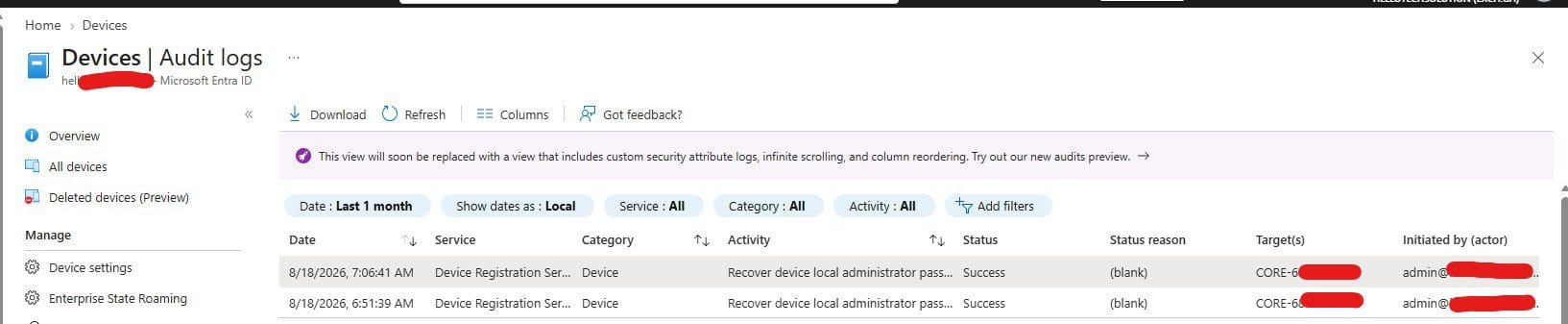
- Full audit trail: every password read — whether through the portal, Graph PowerShell, or this tool — is logged automatically in Entra ID’s audit logs (Identity → Devices → Overview → Audit logs). Filter Activity for “Recover device local administrator password”; the reader’s UPN shows in the event detail.
Known Limitations and What’s Next
A few things are still in progress:
- Execution policy: some environments enforce AllSigned via Group Policy, which always overrides command-line flags like
-ExecutionPolicy Bypass. The planned fix is compiling the GUI to a standalone .exe withps2exe(Install-Module ps2exe, thenInvoke-ps2exe -inputFile ... -outputFile ... -noConsole), since a compiled exe isn’t subject to PowerShell’s execution policy — though AppLocker/WDAC could still block an unsigned exe. - Dedicated app registration: registering a scoped Entra app (rather than reusing the default Microsoft Graph PowerShell app) is recommended so permissions stay scoped to just this tool.
- Launch restriction: the Enterprise Application “Assignment required” setting, combined with a security group, can restrict who can even launch the tool. The group only needs to be role-assignable if it’s also used to assign the actual Entra RBAC role — not for this sign-in gate.
Get the Scripts
Both scripts are published on GitHub, along with a README covering setup and the ps2exe packaging steps:
- Console script: Download the console script on GitHub
- GUI script: Download the GUI script on GitHub
Troubleshooting
| Symptom | Cause | Fix |
|---|---|---|
| “Device could not be found” | Used object Id instead of DeviceId | Confirm the script queries and passes deviceId, not id |
Empty DeviceId from Get-MgDevice | Known SDK model-binding bug, or device isn’t registered | Use Invoke-MgGraphRequest with ConsistencyLevel: eventual; if still empty, the device hasn’t completed registration |
| Script won’t run at all | AllSigned execution policy enforced by GPO | Package with ps2exe, or get the script signed |
| “Session expired” in GUI | Graph token expired mid-session | Click “Re-sign in” and retry the search |
| No password returned, no error | Device hasn’t rotated a password yet, or LAPS policy isn’t applied | Check the Intune LAPS policy assignment and confirm the device has checked in since assignment |
Frequently Asked Questions
What is Windows LAPS?
Windows LAPS is Microsoft’s built-in Local Administrator Password Solution. It rotates local admin passwords automatically and can back them up to either on-premises Active Directory or Microsoft Entra ID.
Where is Get-LapsAADPassword installed from?
It ships built into Windows through the April 2023 or later cumulative update. It should never be installed from the PowerShell Gallery — a same-named, unrelated third-party package exists there.
What Entra role do I need to read LAPS passwords?
Cloud Device Administrator, Intune Administrator, or a custom role that includes microsoft.directory/deviceLocalCredentials/password/read.
What Graph scopes does this tool request?
It requests Device.Read.All and DeviceLocalCredential.Read.All when calling Connect-MgGraph.
Why does “device not found” happen even though the device exists?
The tool likely used the object Id instead of the separate DeviceId GUID that Get-LapsAADPassword requires.
Why does Get-MgDevice sometimes return an empty DeviceId?
This is a documented client-side model-binding bug in the Microsoft Graph SDK, not a data problem. Calling the Graph REST endpoint directly resolves it.
What if a device has a genuinely empty DeviceId?
That means it hasn’t completed Entra device registration. Windows LAPS has no way to back up a password for that object until registration completes.
How does the tool handle duplicate device names?
It lists every match with its TrustType and last sign-in time, so the tech can pick the correct, currently active device.
Does this tool grant any new access?
No. It only works for users who already hold an authorized Entra role — it simplifies the interface, not the permission model.
Is every password lookup logged?
Yes. Entra ID automatically logs every LAPS password read — portal, Graph PowerShell, or this tool — in its audit logs, including the reader’s UPN.
Why won’t the script run on some machines?
Group Policy can enforce an AllSigned execution policy, which overrides command-line bypass flags. Packaging the GUI with ps2exe avoids this restriction.
Is a compiled .exe fully unrestricted?
Not necessarily. A compiled exe isn’t subject to PowerShell’s execution policy, but AppLocker or WDAC could still block an unsigned executable.
Should this use the default Microsoft Graph PowerShell app registration?
It’s better to register a dedicated Entra app scoped to just this tool, rather than reusing the default Graph PowerShell app, so permissions stay contained.

Antonio Rennvick is an IT Infrastructure Manager with 15+ years running enterprise Active Directory, Microsoft 365, and Azure environments. He’s Microsoft certified (AZ-104, MS-102) and writes Core365 Cloud to share what actually works in production—PowerShell automation, AD deep dives, and security hardening drawn from real-world work, not test labs.