
Last Updated: July 2026
Windows LAPS Intune troubleshooting starts with the Windows-LAPS/Operational event log, not Group Policy or the legacy AdmPwd log. Most failures trace back to one of two causes: the target local admin account doesn’t exist yet (Event 10013), or the tenant-level LAPS toggle in Entra ID is off even though the Intune policy looks correct (Event 10024). Because of this, resolving Windows LAPS problems is really a two-layer check — the Entra ID tenant gate, then the Intune device policy — and this guide walks through both, plus every deployment option available.
- What Is Windows LAPS (and How Is It Different From Legacy LAPS)?
- Windows LAPS Architecture: How the Password Actually Moves
- Deployment Options: Manual Account vs. Automatic Account Management
- The Complete Windows LAPS Event ID Reference Table
- Troubleshooting Decision Flow: From First Error to Fix
- Fixing Event ID 10013: Account Not Found
- Fixing “Policy Configured as Disabled” (Event 10024)
- Automatic Account Management Deep Dive: Defuncted Accounts Explained
- Password Retrieval Options: Portal vs. Graph API vs. PowerShell
- Entra ID-Only vs. Active Directory Backup: Which Should You Choose?
- RBAC and Security Hardening
- PowerShell Command Reference for Diagnostics
- Common Mistakes From Real-World Deployments
- Frequently Asked Questions
What Is Windows LAPS (and How Is It Different From Legacy LAPS)?
Windows LAPS is a native Windows feature that automatically rotates a local administrator account’s password and backs it up to either Microsoft Entra ID or on-prem Active Directory. Unlike legacy LAPS, it ships as part of the OS instead of requiring a separately installed CSE. As a result, there’s no AD schema extension to run and no GPO client-side extension to deploy.
If you’ve already read our legacy LAPS installation guide, that post covers the classic AdmPwd tool for on-prem, GPO-managed environments. This guide covers the modern, cloud-native path: configuring Windows LAPS through Intune for Entra-joined and hybrid-joined devices, and — more importantly — what to do when it breaks.
Why the Distinction Matters for Troubleshooting
Legacy LAPS failures usually point to Group Policy processing or a missing schema attribute. Windows LAPS failures point somewhere else entirely: the Windows-LAPS/Operational event log, the Intune Settings Catalog, and a tenant-level Entra ID toggle that’s easy to miss. Consequently, the troubleshooting muscle memory from classic LAPS doesn’t transfer directly — you’re debugging a different pipeline.
Windows LAPS Architecture: How the Password Actually Moves
Before troubleshooting any system, it helps to see the full path a change takes. Windows LAPS moves through four distinct stages, and a failure at any one of them produces a different, specific error.
Intune PolicySettings Catalog (LAPS)Device MDM SyncWindows LAPS CSPLocal Admin AccountPassword Rotated(Manual or AAM-created)Entra ID BackupdeviceLocalCredentialsActive Directory Backupms-Mcs-AdmPwd attrsRBAC-Gated RetrievalEntra Portal / Graph API / PowerShell
Notice the branch at stage three. Backup Directory is a per-policy setting, so a device can only report to one destination at a time — Entra ID or AD, never both. Meanwhile, stage four is worth remembering during any access review: whoever holds the RBAC role can read that password, regardless of which backup path was used.
Deployment Options: Manual Account vs. Automatic Account Management
Windows LAPS actually gives you two fundamentally different modes for the account itself, and picking the wrong one is the single biggest source of avoidable errors.
Creating the Policy in Intune
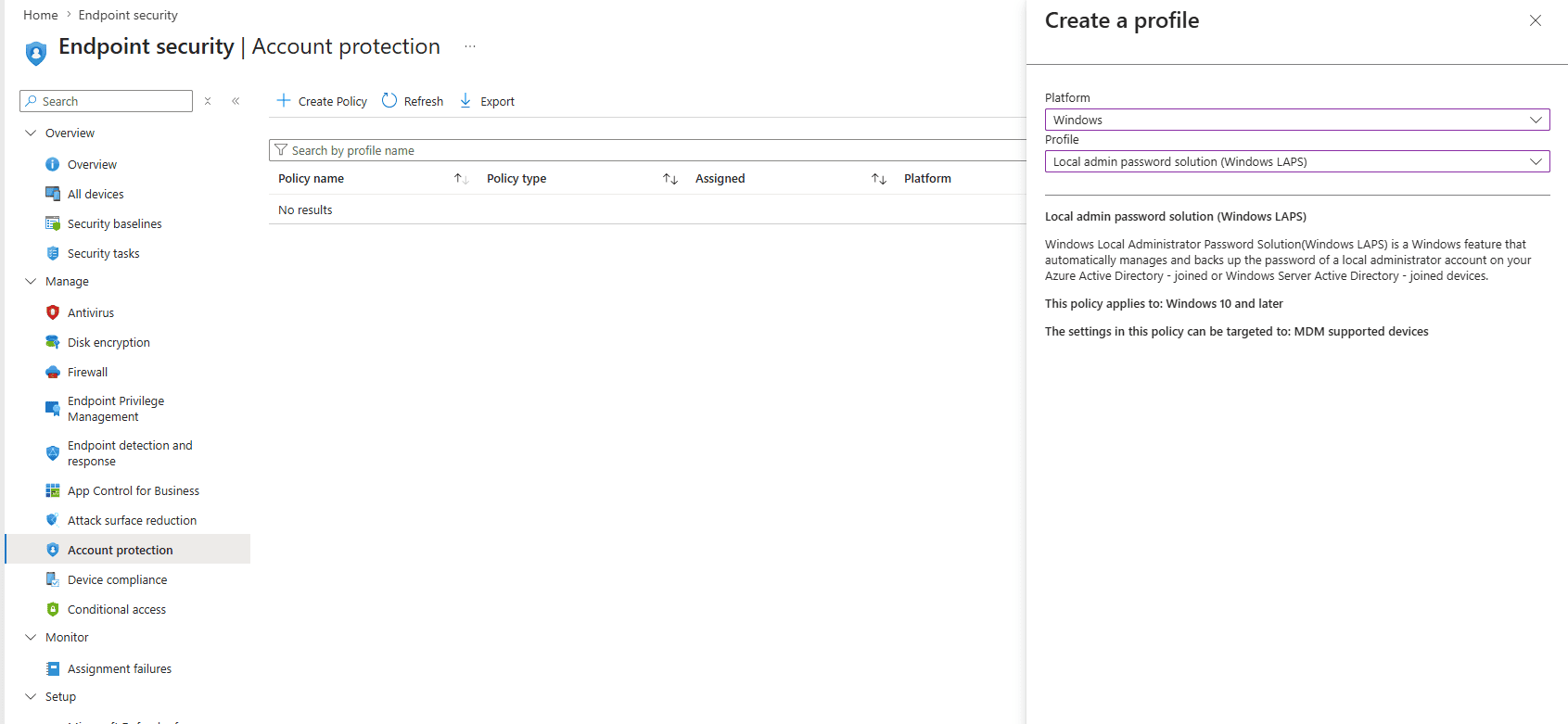
Start in Intune Admin Center > Endpoint Security > Account Protection > Create Policy, choose Windows 10 and later, and select the “Local admin password solution (Windows LAPS)” profile type.
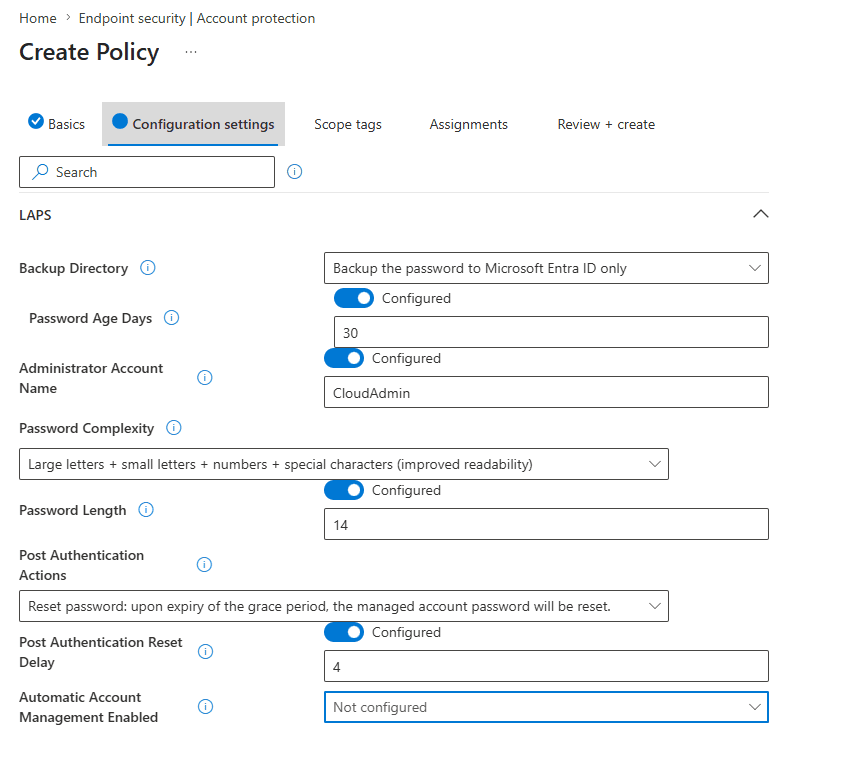
On the Configuration settings tab, the LAPS category exposes every field you’ll be tuning throughout this guide: Backup Directory, Password Age Days, Administrator Account Name, Password Complexity, Password Length, and the Post Authentication Actions that control what happens right after a password is used.
| Mode | How the account is created | Best for | Common failure |
|---|---|---|---|
| Manual (Administrator Account Name) | You create the local account yourself via imaging, Autopilot, or PowerShell. LAPS only manages its password. | Environments with an existing provisioning process that already creates a standard admin account. | Event 10013 — account doesn’t exist yet on first sync. |
| Automatic Account Management (AAM) | LAPS creates, enables, and fully owns the account — name, group membership, and lifecycle. | New builds, Autopilot fleets, or anyone tired of the 10013 error on every fresh device. | Name collision with a pre-existing local account of the same name (handled via a “defuncted” rename). |
What Happens If You Leave Administrator Account Name Unconfigured
If you toggle Administrator Account Name back to Not Configured without enabling Automatic Account Management, Windows LAPS doesn’t fall back to your previous custom account. Instead, it targets the built-in Administrator account by default.
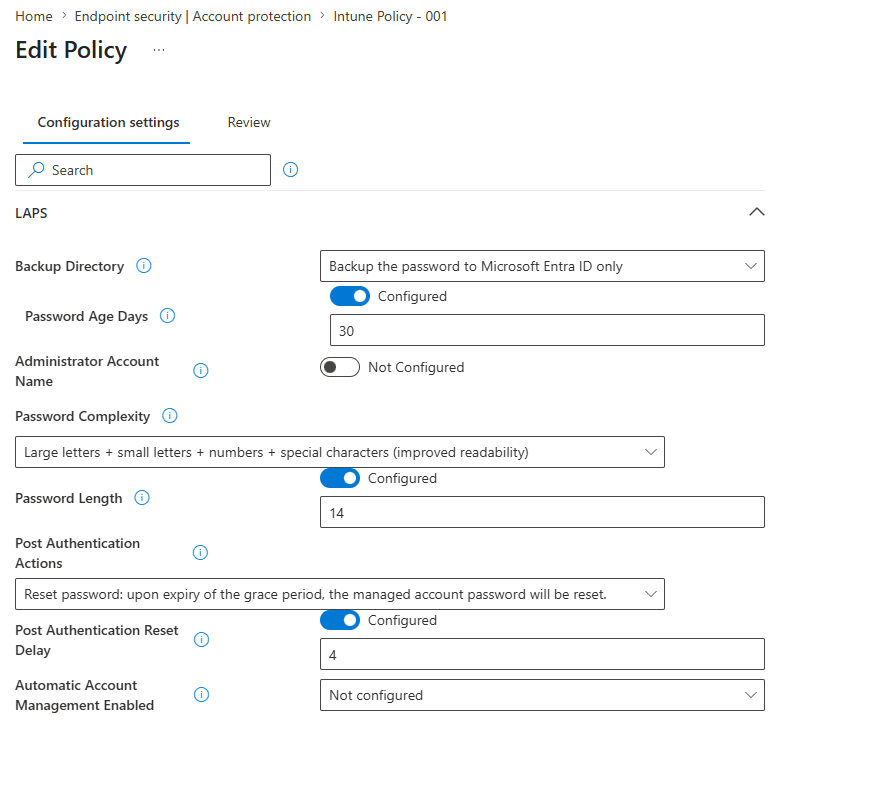
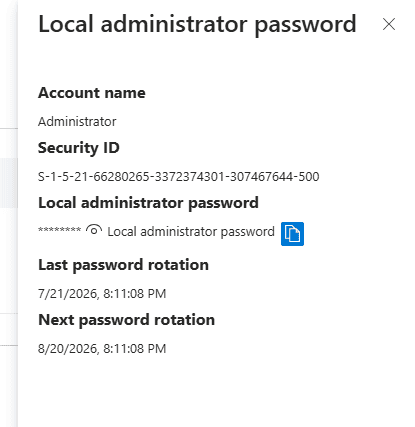
Therefore, always confirm which account actually received the new password after any policy change — the Security ID ending in -500 is your tell that you’ve landed on the built-in account rather than a custom one.
The Complete Windows LAPS Event ID Reference Table
Every Windows LAPS action writes to Microsoft-Windows-LAPS/Operational. This is the single log you need — not Application, not System, not the legacy AdmPwd source. Running the wrong command produces a misleading dead end:
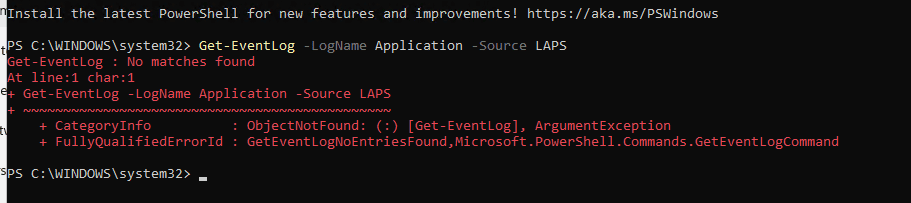
Use Get-WinEvent -LogName "Microsoft-Windows-LAPS/Operational" instead. Here’s every Event ID you’ll actually encounter:
| Event ID | Meaning | Action Needed |
|---|---|---|
| 10000 | LAPS feature DLL loaded successfully | Informational only. |
| 10002 | LAPS DLL unloaded | Normal during service restarts. |
| 10003 | Policy processing started | Confirms the cycle is running — check for a matching 10004 or 10005 next. |
| 10004 | Policy processing succeeded | Good sign, but doesn’t guarantee the password rotated — check for 10020 too. |
| 10005 | Policy processing failed (generic wrapper) | Check the Details tab for the specific inner error code. |
| 10010 | Password backup to Entra ID/AD succeeded | The backup leg completed — combine with 10020 to confirm full success. |
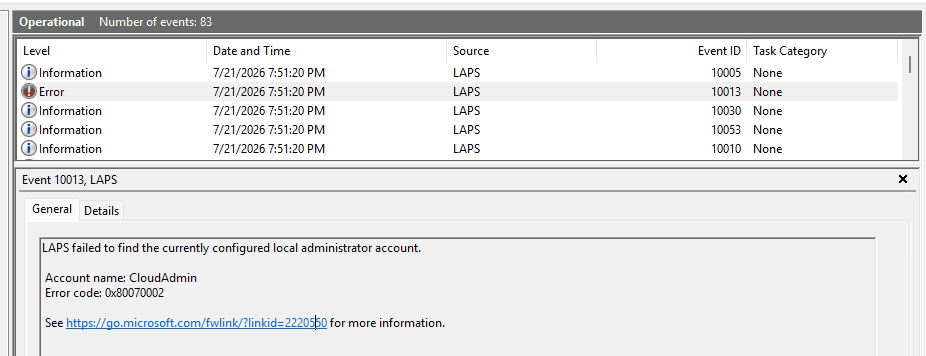
| 10013 | Configured local admin account not found (0x80070002) | Create the account manually, or switch to Automatic Account Management. See §6. |
| 10020 | Local admin password successfully updated | This is the confirmation you actually want to see. |
| 10022 | Account management action performed (AAM create/enable) | Confirms AAM created or modified the target account. |
| 10024 | Policy is configured as disabled | Check the Entra ID tenant-level toggle first, then policy assignment. See §7. |
| 10029 / 10030 | Post-authentication action / reset delay processed | Confirms grace-period reset behavior is active after credential use. |
| 10050 | Password complexity/length policy applied | Confirms the generated password meets your configured rules. |
| 10068 | Device joined to Azure AD/Entra ID | Informational — confirms join type, relevant when troubleshooting backup directory eligibility. |
Troubleshooting Decision Flow: From First Error to Fix
In my testing across several pilot devices, almost every Windows LAPS issue collapses into one of two branches once you know where to look. Here’s the decision tree I actually use.
Event 10003: Processing StartedEvent 10024:Policy Disabled?Disabled = TrueCheck: Automatic Account Mgmttoggle + Entra ID Device Settings”Enable LAPS” = YesPolicy ActiveContinues to Event 10004(Processing Succeeded)10013: Account Not FoundFix: create local account orswitch to Automatic Account Mgmt
Fixing Event ID 10013: Account Not Found
This is by far the most common Windows LAPS error, and it’s really a configuration mismatch rather than a bug. The Intune policy points to a named account — for example CloudAdmin — but nobody has actually created that account on the device yet.
Confirming the Error
Event Viewer makes the cause explicit — it names the exact account it went looking for and couldn’t find.
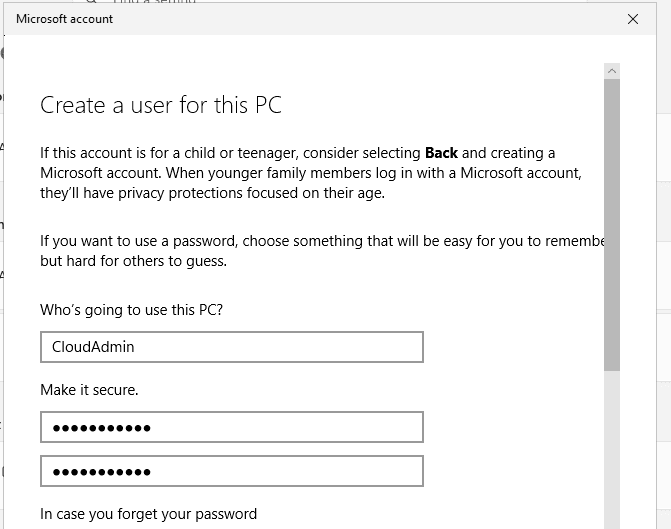
Option A: Create the Account Manually
If you’re staying in manual mode, create the account and add it to the local Administrators group during imaging or via a remediation script:
$Password = Read-Host -AsSecureString
New-LocalUser -Name "CloudAdmin" -Password $Password -PasswordNeverExpires
Add-LocalGroupMember -Group "Administrators" -Member "CloudAdmin"
Afterward, force reprocessing instead of waiting for the hourly cycle:
Invoke-LapsPolicyProcessing
Get-WinEvent -LogName "Microsoft-Windows-LAPS/Operational" -MaxEvents 10
Confirming the Fix
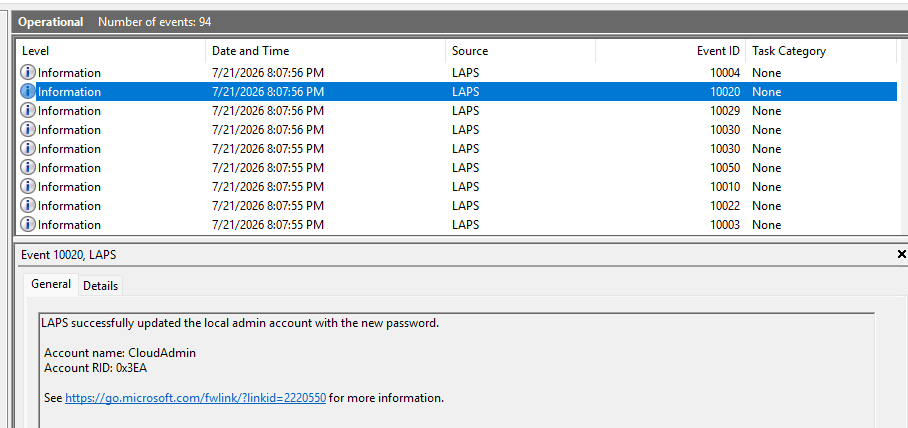
A clean run shows Event 10020 with no follow-up 10013 — proof the account was found and the password was rotated successfully.
Option B: Switch to Automatic Account Management
Instead of managing account creation yourself, let LAPS own it. In the Intune Settings Catalog, set Automatic Account Management Enabled to “The target account will be automatically managed,” then supply a name or prefix under Automatic Account Management Name Or Prefix. Because LAPS creates the account itself on first sync, this permanently eliminates the 10013 error on any future device — no provisioning step required. Full walkthrough in §8 below.
Fixing “Policy Configured as Disabled” (Event 10024)
This one catches people off guard because the Intune policy can look completely correct while Event 10024 still reports the policy as disabled. That’s because Windows LAPS has a second, tenant-wide gate that lives outside Intune entirely.
Check the Entra ID Tenant Setting First
Go to Entra ID → Devices → Device settings and confirm “Enable Microsoft Entra Local Administrator Password Solution (LAPS)” is set to Yes.
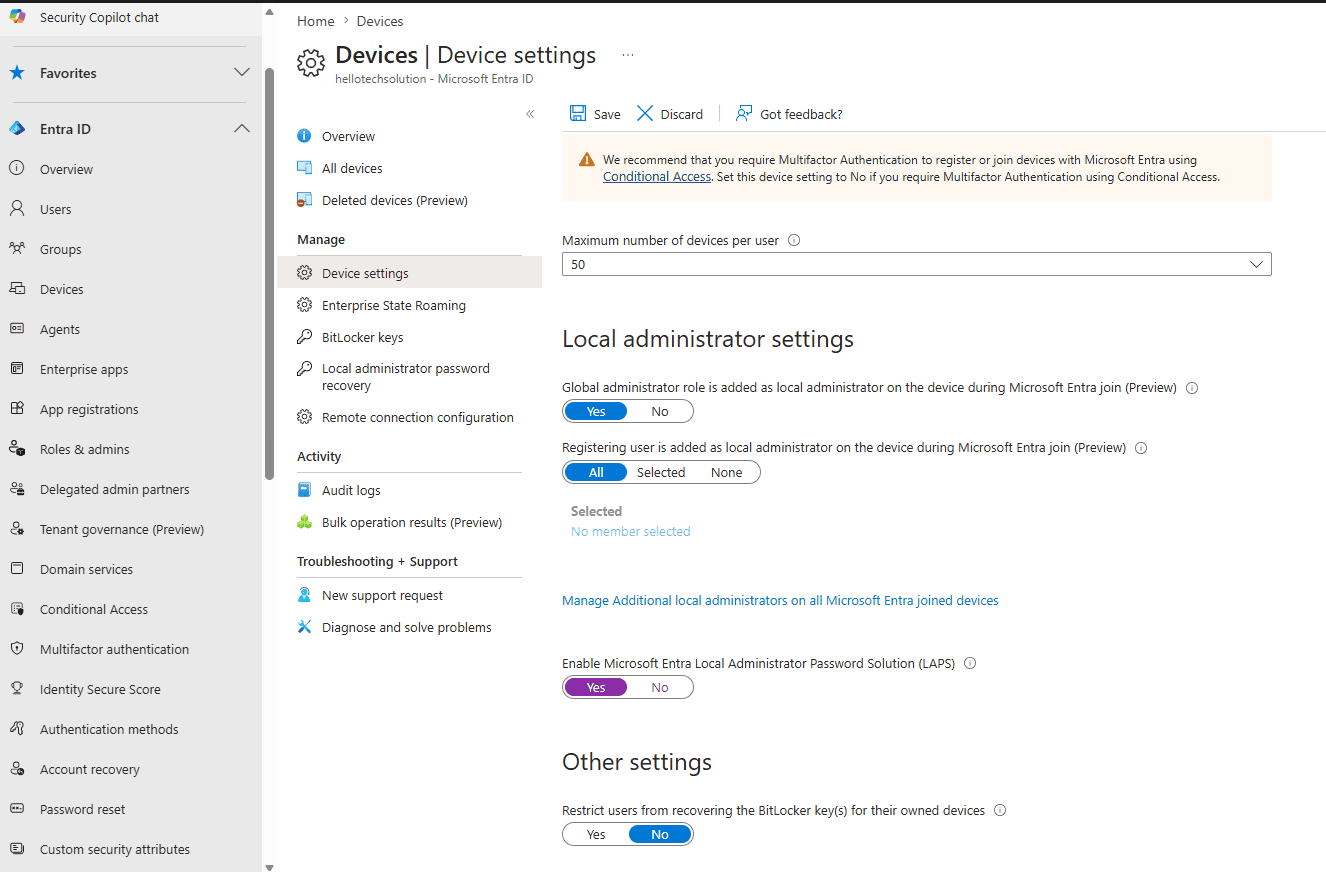
If it’s set to No, every Intune LAPS policy in the tenant is effectively inert, regardless of how correctly it’s configured. Since this setting applies tenant-wide rather than per-device, it’s an easy thing to overlook if someone else originally provisioned the tenant.
Then Check Policy Assignment
If the tenant toggle is already Yes, confirm the configuration profile is actually assigned to a group containing the device — a policy that exists but isn’t assigned will also surface as disabled from the device’s perspective.
Automatic Account Management Deep Dive: Defuncted Accounts Explained
One AAM behavior worth knowing about in advance: if you point AAM at a name that already exists locally — say, an account you created manually before switching modes — LAPS won’t error out or silently reuse it.
Enabling AAM
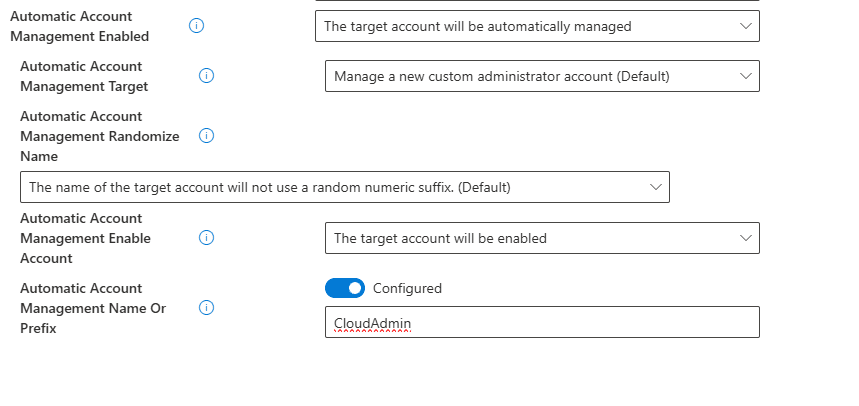
Set Automatic Account Management to “The target account will be automatically managed,” choose “Manage a new custom administrator account,” and give it a name.
Resolving a Naming Conflict
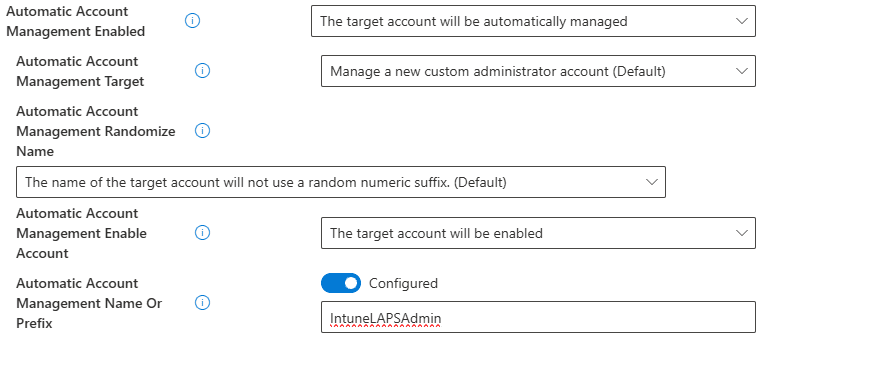
If that name already exists locally, simply choose a different one rather than troubleshooting the conflict.
Understanding the Defuncted Account
Even without renaming first, LAPS handles a collision gracefully on its own: it renames the pre-existing account to something like WLapsDefuncted127714 and creates a fresh, LAPS-owned account under the intended name.
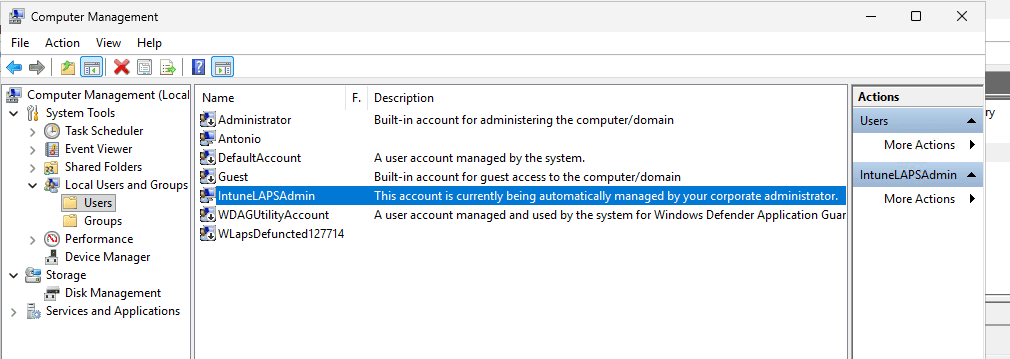
In other words, the old account isn’t deleted; it’s set aside. Because it no longer serves a purpose, treat it as cleanup:
net user WLapsDefuncted127714 /delete
You’ll also see the AAM-managed account’s description read: “This account is currently being automatically managed by your corporate administrator.” That’s the visual marker distinguishing an AAM account from a regular local one.
Password Retrieval Options: Portal vs. Graph API vs. PowerShell
Once rotation is confirmed working, admins need a way to actually retrieve the password. There are three supported paths, and they’re not interchangeable in terms of auditability.
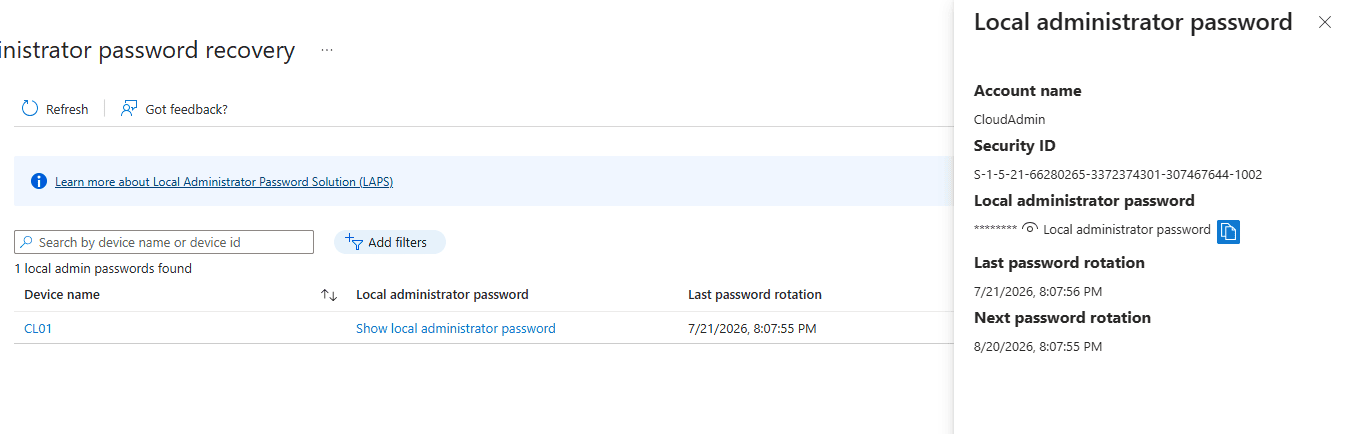
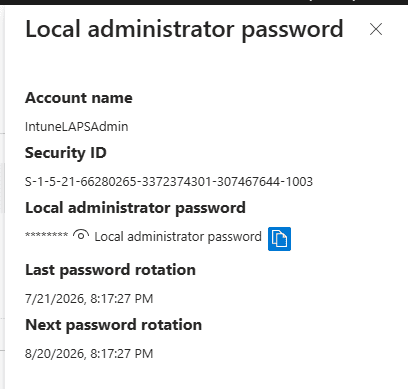
Portal Retrieval Example
The Entra ID portal shows the account name, Security ID, masked password, and both the last and next rotation dates.
| Method | Where | Best for |
|---|---|---|
| Entra ID Portal | Devices → [device] → Local administrator password recovery | One-off help desk lookups |
| Microsoft Graph API | GET /deviceLocalCredentials/{deviceId}?$select=credentials | Automation, ticketing-system integrations, bulk audits |
| PowerShell (on-device) | Get-LapsDiagnostics | Confirming local rotation status and generating a support bundle — this does not return the password itself |
Entra ID-Only vs. Active Directory Backup: Which Should You Choose?
| Backup Directory | Requirement | Use When |
|---|---|---|
| Microsoft Entra ID only | Device must be Entra-joined (registration alone isn’t sufficient) | Cloud-native, Entra-joined Windows 11 fleets |
| Active Directory | On-prem schema must support the ms-Mcs-AdmPwd attribute set | Hybrid-joined devices still authenticating against on-prem AD |
If you choose Entra ID-only on a device that’s merely Entra-registered rather than fully joined, expect processing failures — the backup leg has nowhere valid to write to.
RBAC and Security Hardening
A common mistake I see is treating LAPS rotation as the finish line. Rotation without access control just means the same password is now automatically refreshed for anyone who can already read it.
Scope the Recovery Role
Assign the Local Administrator Password Recovery role in Entra ID → Roles and administrators, scoped to a specific device group rather than tenant-wide, so help desk tiers only see passwords for devices they actually support.
Disable the Built-In Administrator Account
If Automatic Account Management targets a custom account name, the built-in Administrator (RID 500) is still enabled by default. Disable it once your managed account is confirmed working:
net user Administrator /active:no
This matters because attackers who gain local access frequently target the built-in RID 500 account first — see our deep dive on PRT abuse and phantom device attacks for how stolen local credentials get chained into broader identity compromise.
PowerShell Command Reference for Diagnostics
| Command | Purpose |
|---|---|
Get-WinEvent -LogName "Microsoft-Windows-LAPS/Operational" -MaxEvents 10 | View the 10 most recent LAPS events — always start here, never the classic Application log |
Invoke-LapsPolicyProcessing | Forces an immediate policy re-evaluation instead of waiting for the hourly cycle |
Get-LapsDiagnostics | Generates a zip diagnostics bundle covering policy state and event history |
net user | Confirms whether the target account (manual or AAM) actually exists locally |
wevtutil sl Microsoft-Windows-LAPS/Operational /e:true | Enables the LAPS operational log if it appears disabled on an older image |
Common Mistakes From Real-World Deployments
In our environment, a few patterns kept surfacing across different pilot devices, so it’s worth naming them directly.
- Leaving both account settings configured. Manual “Administrator Account Name” and AAM’s “Name Or Prefix” fields fighting each other produces confusing, inconsistent results.
- Checking the wrong event log.
Get-EventLog -LogName Application -Source LAPSonly surfaces legacy AdmPwd events and will always return “No matches found” for Windows LAPS. - Assuming Entra-registered equals Entra-joined. Only fully joined devices are eligible for Entra ID-only backup.
- Forgetting the tenant-level toggle exists at all. It’s easy to spend an hour debugging an Intune policy that was never the problem.
For hybrid-joined fleets specifically, pair this guide with our Entra hybrid join troubleshooting guide — several of the same join-state prerequisites apply to both features.
Frequently Asked Questions
What is Windows LAPS?
Windows LAPS is a built-in Windows feature that automatically rotates a local administrator account’s password and backs it up to Microsoft Entra ID or Active Directory.
Is Windows LAPS different from legacy LAPS?
Yes. Legacy LAPS (AdmPwd) requires a separate download and AD schema extension. Windows LAPS is native to the OS and supports Entra ID as a backup target.
Why does Event ID 10013 appear after configuring the policy?
Event 10013 means the local admin account name specified in the policy doesn’t exist yet on that device. Create it manually or switch to Automatic Account Management.
Why does LAPS show “policy is configured as disabled”?
This usually means the tenant-wide “Enable Microsoft Entra LAPS” toggle in Entra ID Device Settings is set to No, even if the Intune policy itself is correctly configured.
What is Automatic Account Management?
It’s a Windows LAPS mode where the account itself — not just its password — is created, enabled, and owned entirely by LAPS, removing the need to provision it separately.
What happens if AAM’s target account name already exists locally?
LAPS renames the pre-existing account to a “defuncted” name (e.g., WLapsDefuncted127714) and creates a fresh, LAPS-owned account under the intended name.
Should I choose Entra ID or Active Directory as the backup directory?
Choose Entra ID for fully Entra-joined devices. Choose Active Directory for hybrid-joined devices still authenticating on-prem.
How do I retrieve a Windows LAPS password?
Use the Entra ID portal for one-off lookups, or the Microsoft Graph deviceLocalCredentials endpoint for automation and bulk retrieval.
Does Get-LapsDiagnostics show me the password?
No. It generates a diagnostics zip file covering policy state and event history, not the password itself.
How do I force LAPS to process immediately instead of waiting?
Run Invoke-LapsPolicyProcessing on the device, then check the event log for a fresh 10003/10004/10020 sequence.
What’s the default password rotation interval?
The default is 30 days, controlled by the “Password Age Days” setting in the Intune Settings Catalog policy.
Who should be allowed to view LAPS passwords?
Only admins assigned the “Local Administrator Password Recovery” role, ideally scoped to specific device groups rather than granted tenant-wide.
Should I disable the built-in Administrator account once LAPS is working?
Yes. Once your managed account is confirmed rotating correctly, disable the built-in Administrator (RID 500) to reduce the local attack surface.

Antonio Rennvick is an IT Infrastructure Manager with 15+ years running enterprise Active Directory, Microsoft 365, and Azure environments. He’s Microsoft certified (AZ-104, MS-102) and writes Core365 Cloud to share what actually works in production—PowerShell automation, AD deep dives, and security hardening drawn from real-world work, not test labs.