
1. Introduction
Microsoft Entra Hybrid Join is the bridge between traditional on-premises Active Directory and modern cloud identity. It powers Single Sign-On, Conditional Access, Windows Hello for Business, and — critically — Windows LAPS password escrow.
But when Hybrid Join breaks, the failures are notoriously silent. Devices simply show up as Entra Registered instead of Hybrid Joined, LAPS never escrows the password, and Conditional Access misbehaves.
This guide walks through real-world failures, the exact dsregcmd outputs you’ll see, the Event IDs in Windows, and the precise fix for each — from client-side registry misconfigurations to certificate synchronisation issues in Entra Connect.
2. Understanding Microsoft Entra Hybrid Join
A Hybrid Joined device is:
- Joined to on-premises Active Directory
- Registered in Microsoft Entra ID
- Managed by Microsoft Intune (optional but common)
The join process relies on:
| 🔧 Component | 🎯 Purpose |
|---|---|
| 📍 Service Connection Point (SCP) | Tells the device which tenant to register with. |
| ⚙️ dsregcmd binary | Client-side registration engine. |
| ⏰ Automatic-Device-Join Task | Scheduled task that triggers registration. |
| 🔄 Entra Connect | Synchronizes the computer object and the userCertificate attribute to Microsoft Entra ID. |
| ☁️ enterpriseregistration.windows.net | The cloud registration endpoint. |
3. Prerequisites Checklist
Before troubleshooting, confirm these prerequisites:
- ✅ Windows 10 20H2+ / Windows 11 / Server 2016+
- ✅ Device is domain joined to on-premises AD
- ✅ Device can reach:
enterpriseregistration.windows.netlogin.microsoftonline.comdevice.login.microsoftonline.comautologon.microsoftazuread-sso.com
- ✅ Entra Connect is syncing the OU containing the computer object
- ✅
cloudUserCertificateattribute is enabled in Entra Connect sync configuration - ✅ SCP configured in AD OR client-side registry set
4. The Hybrid Join Flow – What Actually Happens
5. Your Primary Diagnostic Tool: dsregcmd
dsregcmd is the built-in Windows utility for diagnosing device registration. The three commands you’ll use most:
| 💻 Command | 🎯 Purpose |
|---|---|
dsregcmd /status | Display current Microsoft Entra join state, registration details, and diagnostic information. |
dsregcmd /join | Manually initiate Hybrid Entra ID device registration. |
dsregcmd /leave | Remove the existing device registration and leave Microsoft Entra ID. |
Open Command Prompt as Administrator or PowerShell as Administrator.
6. Reading dsregcmd /status Output
There are four sections that matter most:
Device State
AzureAdJoined : YES
EnterpriseJoined : NO
DomainJoined : YES
DomainName : CONTOSO
Device Name : LT-CORP-001.contoso.local| 📋 Join Status | 🔍 Meaning |
|---|---|
AzureAdJoined = YES +
DomainJoined = YES | ✅ Hybrid Joined |
AzureAdJoined = NO +
DomainJoined = YES | ❌ Hybrid Join Failed |
AzureAdJoined = YES +
DomainJoined = NO | ☁️ Cloud-Only Entra Joined |
Diagnostic Data
AD Connectivity Test : PASS
AD Configuration Test : PASS
DRS Discovery Test : PASS
DRS Connectivity Test : PASS
Kerberos Ticket Test : PASS
Token acquisition Test : PASS
Any FAIL here tells you the phase where the join broke.
Error Phase and Codes
Error Phase : discover
Client ErrorCode : 0x801c001d
Server ErrorCode : invalid_request
Server ErrorSubCode : error_computer_user_cert_not_found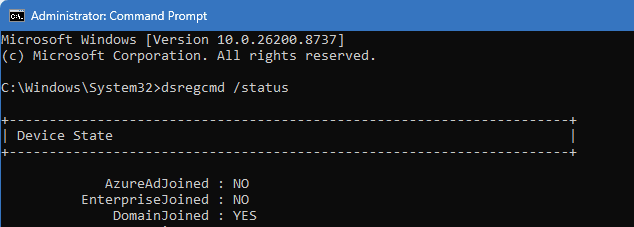
7. Common Failure #1: SCP Discovery Failure (0x801c001d)
What You See
AzureAdJoined : NO
DomainJoined : YES

AD Connectivity Test : PASS
AD Configuration Test : FAIL [0x80070002]
DRS Discovery Test : SKIPPED

Previous Registration : <timestamp>
Error Phase : discover
Client ErrorCode : 0x801c001d
Event Viewer
Log: Applications and Services > Microsoft > Windows > User Device Registration > Admin
Event ID: 304
Source: Microsoft-Windows-User Device Registration

Description:
Automatic registration failed at join phase.
Exit code: Unknown HResult Error code: 0x801c001d
Server error:
Tenant type: undefined
Registration type: undefined
Debug Output:
joinMode: Join
drsInstance: undefined
registrationType: undefined
tenantType: undefined
tenantId: undefined
configLocation: undefined
errorPhase: discover
What It Means
The device cannot discover the tenant. It’s looking for an SCP in AD or the client-side registry keys, and finding neither.
Root Cause
- SCP container not created in AD, or
- SCP registry keys on the laptop are missing or incorrectly named
The Fix — Option A: AD-Based SCP
Run Microsoft Entra Connect on your sync server:
- Open Microsoft Entra Connect
- Click Configure
- Select Configure device options
- Click through, sign in with a Hybrid Identity Administrator
- Tick Configure Hybrid Azure AD join
- Complete the wizard
This creates:
CN=62a0ff2e-97b9-4513-943f-0d221bd30080,CN=Device Registration Configuration,CN=Services,...The Fix — Option B: Client-Side Registry
If you can’t modify AD (or prefer targeted rollout), inject the tenant info directly:
# Create the registry key path
New-Item -Path "HKLM:\SOFTWARE\Microsoft\Windows\CurrentVersion\CDJ\AAD" -Force

# TenantName - your verified domain
New-ItemProperty `
    -Path "HKLM:\SOFTWARE\Microsoft\Windows\CurrentVersion\CDJ\AAD" `
    -Name "TenantName" `
    -Value "contoso.onmicrosoft.com" `
    -PropertyType String `
    -Force

# TenantId - your Entra Tenant GUID
New-ItemProperty `
    -Path "HKLM:\SOFTWARE\Microsoft\Windows\CurrentVersion\CDJ\AAD" `
    -Name "TenantId" `
    -Value "00000000-0000-0000-0000-000000000000" `
    -PropertyType String `
    -Force
Verification
reg query "HKLM\SOFTWARE\Microsoft\Windows\CurrentVersion\CDJ\AAD"Expected output:
HKEY_LOCAL_MACHINE\SOFTWARE\Microsoft\Windows\CurrentVersion\CDJ\AAD
    TenantName    REG_SZ    contoso.onmicrosoft.com
    TenantId      REG_SZ    00000000-0000-0000-0000-000000000000
8. Common Failure #2: User Certificate Not Found (0x801c005a)
What You See
AzureAdJoined : NO
DomainJoined : YES

AD Connectivity Test : PASS
AD Configuration Test : PASS
DRS Discovery Test : PASS
DRS Connectivity Test : PASS
Kerberos Ticket Test : FAIL [0x80090311]

Registration Type : fallback_sync
Error Phase : join
Client ErrorCode : 0x801c005a
Server ErrorCode : invalid_request
Server ErrorSubCode : error_computer_user_cert_not_found
Server Message : The user certificate is not found on the device with id: <device-guid>.
Event Viewer – Event 304
Automatic registration failed at join phase.
Exit code: 0x801c005a
Server error: The user certificate is not found on the device with id: <device-guid>.
Tenant type: Managed
Registration type: fallback_sync
tenantId: 00000000-0000-0000-0000-000000000000
errorPhase: join
Event Viewer – Event 204
The get join response operation callback failed with exit code: 0x801c005a
Server response was:
{
  "code":"invalid_request",
  "subcode":"error_computer_user_cert_not_found",
  "message":"The user certificate is not found on the device with id: <device-guid>.",
  "operation":"DeviceRenew",
  "requestid":"<request-id>"
}
What It Means
Discovery succeeded. The device found the tenant. Entra even knows the device exists. But when Entra tries to validate the request, the userCertificate attribute on the Entra device object is empty.
This is almost always an Entra Connect certificate sync issue.
Root Cause
The userCertificate attribute exists on the on-prem AD computer object, but Entra Connect either:
- Hasn’t synced the certificate yet
- Doesn’t have
cloudUserCertificateenabled in the sync config - Has the certificate in “Awaiting Export Confirmation” state
Diagnosis: Confirm the userCertificate exists in AD
Open Active Directory Users and Computers → find the computer → Properties → Attribute Editor → look for userCertificate.
It should contain binary data.
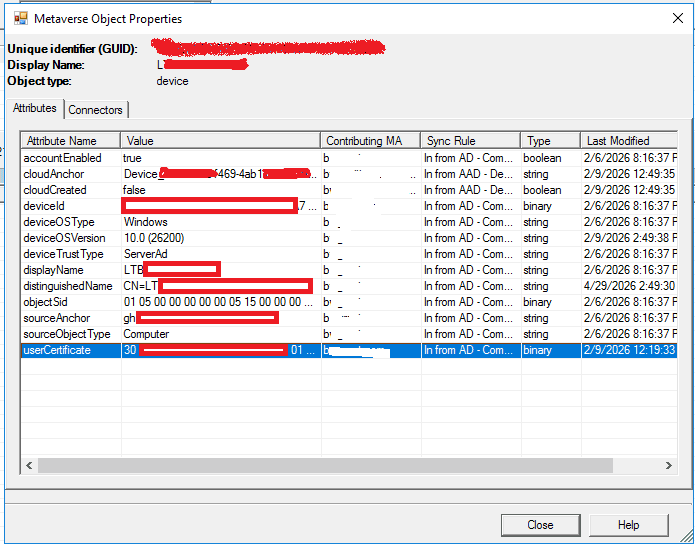
Diagnosis: Check Entra Connect Metaverse
On the Entra Connect server:
- Open Synchronization Service Manager
- Metaverse Search → search by
displayName = LT-CORP-001 - Right click → Properties
- Confirm
userCertificateattribute has binary data
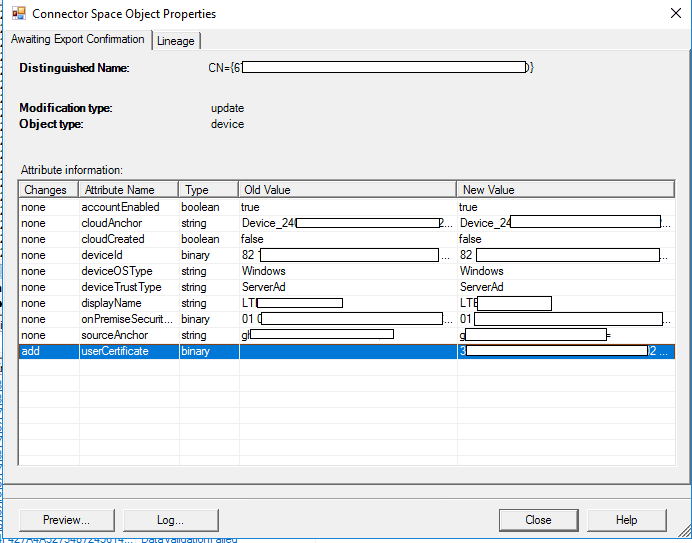
Diagnosis: Check AAD Connector Space
- In Sync Service Manager → Connectors tab
- Right click
<tenant>.onmicrosoft.com - AAD→ Search Connector Space - Scope: DN or anchor → search by DN
- Right click the object → Properties
If you see a tab titled “Awaiting Export Confirmation” with userCertificate under the add column — the certificate is queued but not yet exported.
The Fix
On the Entra Connect server (PowerShell as Administrator):
# Force delta sync
Start-ADSyncSyncCycle -PolicyType Delta
Or manually via GUI:
- Sync Service Manager → Connectors
- Right click
<tenant>.onmicrosoft.com - AAD→ Run → Export - Right click again → Run → Delta Import (this collects the confirmation)
Wait 2 minutes.
Then on the laptop:
dsregcmd /leave
dsregcmd /join
Trigger the scheduled task:
Task Scheduler
→ Microsoft
→ Windows
→ Workplace Join
→ Automatic-Device-Join → Right click → Run
Wait 2–3 minutes.
dsregcmd /statusYou should now see:
AzureAdJoined : YES
DomainJoined  : YES
DeviceAuthStatus : SUCCESS
If cloudUserCertificate is Not Enabled
Rerun Entra Connect wizard:
- Configure → Customize synchronisation options
- Continue to Optional Features
- Tick Azure AD app and attribute filtering
- On the Azure AD attributes page → tick
cloudUserCertificate - Complete wizard → run:
Start-ADSyncSyncCycle -PolicyType Initial9. Common Failure #3: Directory Service Quota Exceeded (0x801c03f2)
What You See
Error Phase : join
Client ErrorCode : 0x801c03f2
Server ErrorCode : DirectoryServiceQuotaExceeded
What It Means
The user has hit their maximum device registration limit in Entra.
The Fix
An Entra Administrator can:
- Clean up stale devices from the user’s registered devices list
- Or increase the tenant-wide device quota:
Entra Admin Center
→ Devices
→ Device Settings
→ Maximum number of devices per user
→ Increase or set to Unlimited
10. Common Failure #4: Network Timeout (0x80072cfe / 0x80072ecc)
What You See
AD Connectivity Test : PASS
DRS Discovery Test : FAIL [0x80072ee7]
What It Means
The SYSTEM context cannot reach the cloud endpoints. This is typically:
- Proxy blocking
- Firewall blocking
- Split tunnel VPN
- WPAD misconfiguration
The Fix
Ensure the following URLs are reachable by the SYSTEM account:
enterpriseregistration.windows.net
login.microsoftonline.com
device.login.microsoftonline.com
autologon.microsoftazuread-sso.com
Test from an elevated command prompt:
Test-NetConnection enterpriseregistration.windows.net -Port 443
Test-NetConnection login.microsoftonline.com -Port 443
If you’re behind a proxy, configure it for the SYSTEM context:
netsh winhttp set proxy proxy-server="proxy.contoso.local:8080"11. Windows Event Viewer Diagnostics
Two logs matter for Hybrid Join troubleshooting:
Log 1: User Device Registration
Applications and Services Logs
→ Microsoft
→ Windows
→ User Device Registration
→ Admin| 📋 Event ID | 🔍 Meaning |
|---|---|
| 304 | ❌ Automatic registration failed during the join phase. |
| 305 | ✅ Registration completed successfully. |
| 204 | ⚠️ Server response details available (HTTP-level errors). |
| 307 | 🔒 Certificate validation failed. |
| 335 | 🎉 Device registration completed successfully. |
Log 2: Workplace Join
Applications and Services Logs
→ Microsoft
→ Windows
→ Workplace Join
→ Admin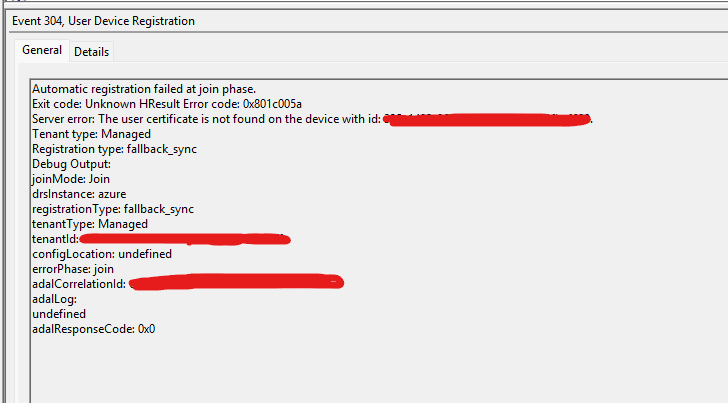
12. Client-Side SCP Registry Configuration
Also useful when using GPO for controlled rollout without modifying AD:
GPO-Based Deployment
Use Group Policy Preferences → Registry Item:
Action     : Update
Hive       : HKEY_LOCAL_MACHINE
Key Path   : SOFTWARE\Microsoft\Windows\CurrentVersion\CDJ\AAD
Value name : TenantId
Value type : REG_SZ
Value data : <YourTenantIdGUID>
Repeat for TenantName.
Link the GPO to the OU containing target devices.
13. Entra Connect Certificate Flow
The certificate journey during Hybrid Join:
dsregcmd /joinGenerates a device certificate
userCertificateBinary certificate stored in Active Directory
cloudUserCertificateCertificate available for validation during Hybrid Join
Verify Each Stage
Action: Open the computer object and navigate to the
Attribute Editor tab.Verify: Confirm the
userCertificate attribute contains a certificate value.Action: Search for the computer object.
Verify: Confirm the
userCertificate attribute exists in the Metaverse object.Action: Search Connector Space for the device object.
Verify: Ensure there is no status showing
Awaiting Export Confirmation.Action: Search for the device by hostname.
Verify: Device status progresses from Pending → Registered.
14. Force Sync and Retry Steps
Once you’ve fixed the underlying cause, force the retry cycle:
Step 1 – Entra Connect Delta Sync
Start-ADSyncSyncCycle -PolicyType DeltaStep 2 – Clean Up Failed Registration on Laptop
dsregcmd /leaveStep 3 – Trigger Fresh Registration
dsregcmd /joinStep 4 – Run the Scheduled Task
Open Task Scheduler → navigate to:
Microsoft → Windows → Workplace Join → Automatic-Device-JoinRight click → Run
Step 5 – Force Intune Sync (if using Intune)
Get-ScheduledTask | Where-Object {$_.TaskName -eq 'PushLaunch'} | Start-ScheduledTaskStep 6 – Verify
dsregcmd /status15. Verifying Successful Hybrid Join
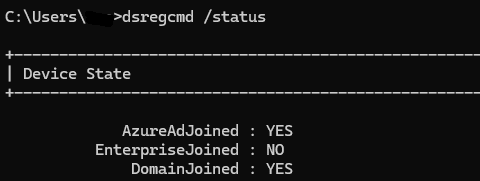
A fully successful dsregcmd /status will show:
+------------------------------------------+
| Device State                             |
+------------------------------------------+
AzureAdJoined  : YES
EnterpriseJoined : NO
DomainJoined   : YES
DomainName     : CONTOSO
Device Name    : LT-CORP-001.contoso.local

+------------------------------------------+
| Device Details                           |
+------------------------------------------+
DeviceId       : <guid>
Thumbprint     : <thumbprint>
DeviceCertificateValidity : [ valid range ]
DeviceAuthStatus : SUCCESS

+------------------------------------------+
| Diagnostic Data                          |
+------------------------------------------+
KeySignTest : PASSED
The device will appear in Entra with:
- Join type: Microsoft Entra hybrid joined
- Registered: timestamp (not “Pending”)

16. Cleanup: Duplicate Device Records
During failed join attempts, devices often accumulate multiple objects in Entra:
- ✅ Microsoft Entra hybrid joined – KEEP
- ❌ Microsoft Entra registered – DELETE
- ❌ Objects with empty Join type – DELETE
- ❌ Duplicate “Pending” entries – DELETE
Recommended Approach
- In Entra Devices → search by device name
- Identify the healthy hybrid joined object (has Registered timestamp)
- Delete all others
- Repeat cleanup in Intune Devices if applicable
Prevent Future Entra Registered Records
Block Workplace Join via registry (deploy via GPO):
Key:       HKLM\SOFTWARE\Policies\Microsoft\Windows\WorkplaceJoin
Name:      BlockAADWorkplaceJoin
Type:      DWORD
Value:     1
This stops users from creating “Entra Registered” states when signing into Outlook or Teams.
17. Quick Reference Cheat Sheet
Diagnostic Commands
dsregcmd /status
dsregcmd /leave
dsregcmd /join
Force Registration
Task Scheduler → Microsoft → Windows → Workplace Join → Automatic-Device-Join → RunForce Entra Connect Sync
Start-ADSyncSyncCycle -PolicyType DeltaRegistry Check
reg query "HKLM\SOFTWARE\Microsoft\Windows\CurrentVersion\CDJ\AAD"Common Error Codes
| 🚨 Error Code | 📍 Phase | 🔍 Root Cause | 🛠️ Recommended Fix |
|---|---|---|---|
0x801c001d | Discover | Missing SCP configuration or client-side registry settings. | Configure the Service Connection Point (SCP) or client registry settings. |
0x801c005a | Join | userCertificate has not been synchronized to Entra ID. | Force a Delta Sync in Microsoft Entra Connect and retry registration. |
0x801c03f2 | Join | Device registration quota exceeded. | Increase the device quota or remove stale device objects. |
0x80072ee7 | Discover | DNS, network, or proxy connectivity issue. | Verify connectivity and whitelist required Entra registration endpoints. |
0x80070520 | User Context | User is not signed in with a corporate account. | Sign in using a valid organizational account. |
0x80090311 | Kerberos | LSA/Kerberos authentication failure. | Restart the device and verify domain controller connectivity. |
Required Network Endpoints
enterpriseregistration.windows.net
login.microsoftonline.com
device.login.microsoftonline.com
autologon.microsoftazuread-sso.com
18. Conclusion
Microsoft Entra Hybrid Join issues almost always fall into one of four categories:
- Discovery failure – SCP or registry misconfiguration
- Certificate sync failure – Entra Connect not pushing
userCertificate - Quota / capacity issues – Device quota exceeded
- Network / proxy issues – SYSTEM cannot reach cloud endpoints
The key to fast diagnosis is:
- Read
dsregcmd /statusDiagnostic Data - Cross-check against User Device Registration event log
- Identify the Error Phase first (discover / join / kerberos)
- Only then apply the targeted fix
With this workflow, you’ll cut Hybrid Join troubleshooting time from days to minutes.
💬 Have you run into a Hybrid Join issue this guide didn’t cover?
Drop a comment below with your dsregcmd /status diagnostic output, or reach out via core365.cloud — we’ll help you decode it.
🔗 Related Reading
- Windows LAPS deployment with Intune (coming soon)
- Intune LAPS troubleshooting (coming soon)
- Entra Connect health monitoring (coming soon)
1. What is Microsoft Entra Hybrid Join?
Microsoft Entra Hybrid Join is a device state where a Windows device is joined to both on-premises Active Directory and Microsoft Entra ID (formerly Azure AD) at the same time.
As a result, organizations can take advantage of modern identity features such as Single Sign-On (SSO), Conditional Access, Windows Hello for Business, Windows LAPS password escrow, and Intune co-management without rebuilding domain-joined devices as cloud-only endpoints.
2. What is the difference between Entra Hybrid Joined and Entra Registered?
| Feature | Microsoft Entra Hybrid Joined | Microsoft Entra Registered |
|---|---|---|
| Device Ownership | ✅ Corporate | 👤 Personal (BYOD) |
| On-Prem Active Directory Required | ✅ Yes | ❌ No |
| Windows LAPS Support | ✅ Yes | ❌ No |
| Conditional Access | ✅ Full Support | ⚠️ Limited |
| Corporate Single Sign-On | ✅ Seamless | ⚠️ Basic |
If your device appears as Entra Registered when you expect Microsoft Entra Hybrid Joined, the environment is typically suffering from an SCP, registration, or certificate synchronization issue.
3. Why does my device show “AzureAdJoined : NO” in dsregcmd /status?
When AzureAdJoined : NO appears in dsregcmd /status, the Hybrid Join
process has not completed successfully.
The most common causes include:
- Missing Service Connection Point (SCP) configuration in Active Directory
- Incorrect TenantId or TenantName registry values
- userCertificate not synchronized from on-premises AD to Entra ID
- Firewall, proxy, or DNS issues preventing cloud connectivity
- Microsoft Entra device registration quota exceeded
Always review the Error Phase and Client ErrorCode
sections in dsregcmd /status to identify exactly where the registration failed.
4. What does error code 0x801c001d mean during Hybrid Join?
Error 0x801c001d occurs during the discover phase and indicates
the device cannot determine which Microsoft Entra tenant it should register with.
This usually means either:
- The Active Directory Service Connection Point (SCP) does not exist.
- The client-side registry configuration is missing.
- TenantId or TenantName registry values are incorrectly configured.
To fix the issue, configure Hybrid Join through the Microsoft Entra Connect wizard or create the required registry values under:
HKLM\SOFTWARE\Microsoft\Windows\CurrentVersion\CDJ\AAD5. What does error code 0x801c005a mean and how do I fix it?
Error 0x801c005a occurs during the join phase and usually
appears with the message:
The user certificate is not found on the device.
This indicates that:
- The tenant was successfully discovered.
- A device object exists in Microsoft Entra ID.
- The AD
userCertificateattribute has not synchronized correctly.
Force a synchronization from the Entra Connect server:
Start-ADSyncSyncCycle -PolicyType DeltaThen confirm the object is no longer listed in Awaiting Export Confirmation before rerunning:
dsregcmd /join6. Do I need to install a certificate manually for Hybrid Join?
No.
Despite the wording of certain error messages, administrators do not manually install certificates for Hybrid Join.
The userCertificate is automatically generated by Windows during the device
registration process. Your responsibility is simply to ensure the certificate flows from:
- Device
- Active Directory
- Microsoft Entra Connect
- Microsoft Entra ID
Importing or creating certificates manually will not fix a synchronization issue.
7. How long does Entra Connect take to sync a device certificate?
By default, Microsoft Entra Connect performs a delta synchronization approximately every 30 minutes.
You can speed up the process by running:
Start-ADSyncSyncCycle -PolicyType DeltaIn most environments, the complete synchronization and export process finishes within 1–5 minutes after manually triggering a sync.
8. Can I use Hybrid Join without a Service Connection Point (SCP)?
Yes. Microsoft supports a client-side configuration method that bypasses SCP discovery.
Create the following registry values:
HKLM\SOFTWARE\Microsoft\Windows\CurrentVersion\CDJ\AAD

TenantName (REG_SZ)
TenantId   (REG_SZ)
This approach is commonly used during pilot deployments, phased migrations, or in environments where modifying Active Directory configuration is restricted.
9. How do I stop devices from becoming “Entra Registered” instead of Hybrid Joined?
Users often create unwanted Entra Registered devices when Outlook, Teams, or other Microsoft 365 applications prompt them to allow organization management.
To block this behaviour, deploy:
Key:   HKLM\SOFTWARE\Policies\Microsoft\Windows\WorkplaceJoin
Name:  BlockAADWorkplaceJoin
Type:  DWORD
Value: 1
This prevents Workplace Join registration while still allowing users to authenticate to Microsoft 365 services normally.
10. How do I verify Hybrid Join is fully working?
Run:
dsregcmd /statusConfirm the following values:
AzureAdJoined : YES
DomainJoined : YES
DeviceAuthStatus : SUCCESS
KeySignTest : PASSED
Next, verify in the Microsoft Entra admin center that:
- Join Type: Microsoft Entra hybrid joined
- Registered: Displays a timestamp, not Pending
Finally, if Windows LAPS is enabled, confirm that the local administrator password is available in Microsoft Entra ID or Intune. If LAPS is working, your Hybrid Join deployment is functioning correctly end-to-end.

Antonio Rennvick is an IT Infrastructure Manager with 15+ years running enterprise Active Directory, Microsoft 365, and Azure environments. He’s Microsoft certified (AZ-104, MS-102) and writes Core365 Cloud to share what actually works in production—PowerShell automation, AD deep dives, and security hardening drawn from real-world work, not test labs.