
Group Policy Objects (GPOs) are a core component of Active Directory environments. They control security settings, user configurations, software deployment, and many other critical aspects of Windows infrastructure.
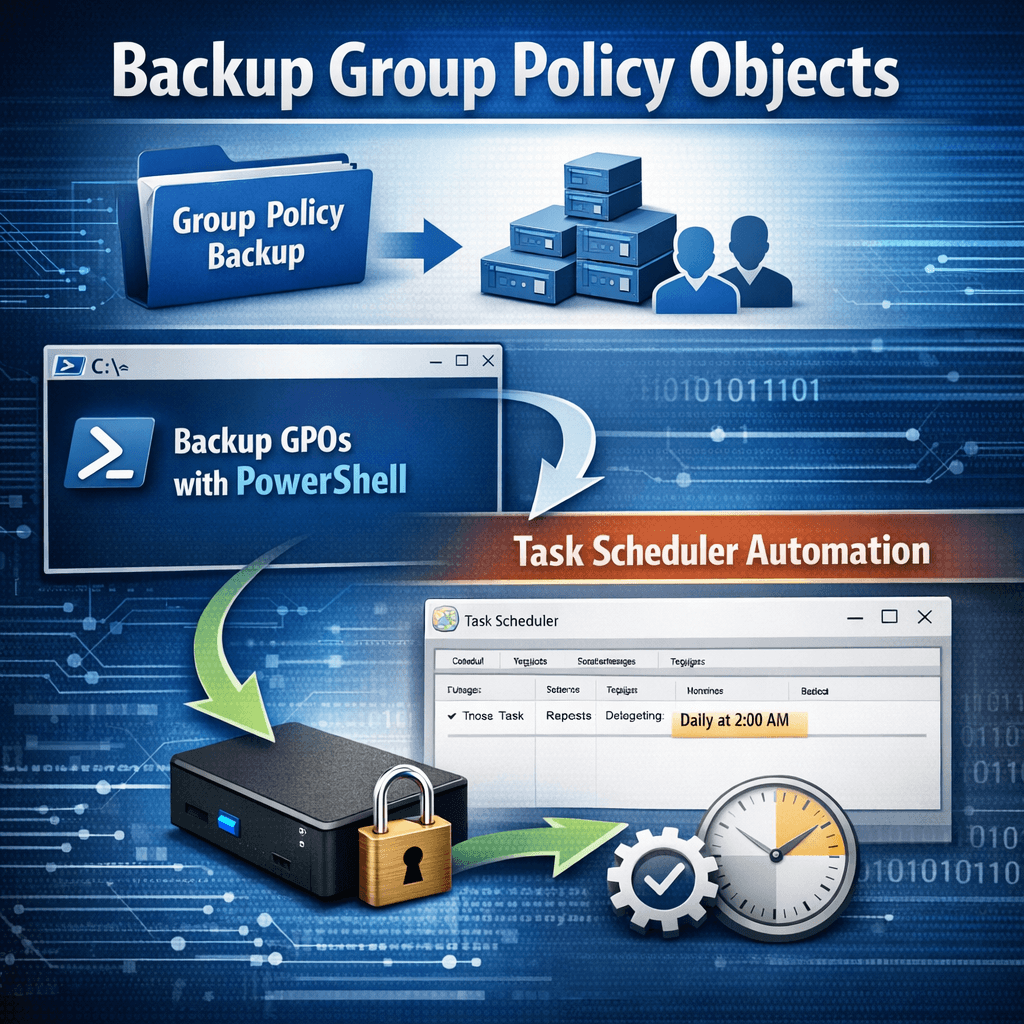
Despite their importance, GPOs are often overlooked when it comes to regular backups. In this post (Part 1), we’ll cover why GPO backups matter, how to back them up using PowerShell, and how to automate the process using Windows Task Scheduler.
Why Do We Need to Back Up GPOs?
Backing up GPOs is not just a best practice—it’s a necessity. Here’s why:
1. Protection Against Human Error
Mistakes happen. An administrator may accidentally:
- Delete a GPO
- Modify security filtering
- Change critical policy settings
Having a recent backup allows you to restore quickly with minimal impact.
2. Recovery from Corruption or AD Issues
Active Directory corruption, failed updates, or replication issues can damage GPOs. A backup ensures your policies are recoverable even in worst‑case scenarios.
3. Change Tracking and Auditing
Regular backups create historical checkpoints. These can later be compared to identify:
- What changed
- When it changed
- Which settings were modified
(This becomes especially powerful and will be covered in Part 2.)
4. Disaster Recovery and Compliance
Organizations with compliance requirements (ISO, SOC, etc.) often need evidence of configuration control. Scheduled GPO backups provide predictable, repeatable recovery points.
Requirements Before You Begin
Before running the backup:
- Run the script on a machine with Group Policy Management Console (GPMC) installed
- Use an account that has permission to read all GPOs
- Ensure sufficient disk space for backups
- PowerShell must be run as Administrator
PowerShell Script to Back Up All GPOs
The following PowerShell script backs up all GPOs into a date‑stamped folder. This keeps historical backups neatly organized.
# Root backup directory
$BackupRoot = "C:\GPO_Backups"

# Create date-stamped folder: yyyy-MM-dd
$Date = Get-Date -Format "yyyy-MM-dd"
$BackupPath = Join-Path $BackupRoot $Date

# Create the folder
New-Item -Path $BackupPath -ItemType Directory -Force | Out-Null

# Backup all GPOs
Backup-GPO -All -Path $BackupPath

Write-Host "GPO Backup completed. Saved in: $BackupPath"
How the Script Works
- Creates a root backup folder (
C:\GPO_Backups) - Generates a subfolder using the current date
- Backs up every GPO in the domain
- Allows easy rollback to any previous day’s configuration
Automating GPO Backups with Task Scheduler
Manual backups are unreliable. Automation ensures consistency.
Step 1: Save the Script
C:\Scripts\Backup-GPOs.ps1Step 2: Create a Scheduled Task
- Open Task Scheduler
- Click Create Task
- Configure the following:
General Tab
- Name:
Daily GPO Backup - Run whether user is logged on or not
- Run with highest privileges
- Use a service or admin account
Triggers Tab
- Click New
- Begin the task: On a schedule
- Set:
- Daily (recommended)
- Time: During off‑peak hours (e.g., 2:00 AM)
Actions Tab
- Click New
- Action: Start a program
- Program/script:
powershell.exe - Add arguments:
-NoProfile -ExecutionPolicy Bypass -File "C:\Scripts\Backup-GPOs.ps1" - Start in:
C:\Scripts
Conditions & Settings
(Optional but recommended)
- Disable “Stop task if it runs longer than…”
- Enable task retry on failure
Step 3: Test the Task
- Right‑click the task
- Select Run
- Verify a new dated folder appears under
C:\GPO_Backups
When Should You Use Scheduled GPO Backups?
This method is ideal for:
- Daily or weekly GPO protection
- Environments with frequent policy changes
- Change management and rollback scenarios
- Preparing for audits or security reviews
- Disaster recovery readiness
Even small environments benefit from having consistent, versioned GPO backups.
What’s Next? (Part 2 Preview)
In Part 2, we’ll take GPO backups to the next level by:
- Comparing backups between two dates
- Generating audit‑ready change reports
- Identifying exactly what changed in your GPOs
- Supporting security reviews and compliance audits
👉 Part 2: Using GPO Backups to Generate Change and Audit Reports