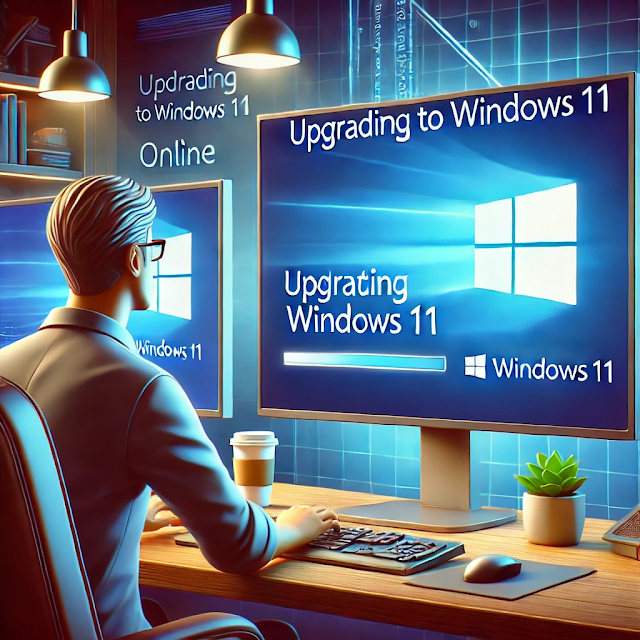

Upgrading your PC from Windows 10 to Windows 11 Pro online is a straightforward process. You don’t need a USB drive or any external media. If your PC meets the system requirements, you can perform the upgrade directly through Windows Update or the Installation Assistant.
System Requirements for Windows 11 Pro
Before upgrading, ensure that your PC meets the minimum system requirements:
- Processor: 1 GHz or faster with at least two cores (64-bit compatible)
- RAM: 4 GB or more
- Storage: 64 GB or larger
- TPM: Version 2.0
- Secure Boot: Enabled
- Graphics Card: DirectX 12 compatible
- Display: 720p resolution or higher
To check if your PC is compatible, download and run the PC Health Check tool from Microsoft’s website.
Method 1: Upgrade Using Windows Update
- Open Settings – Press
Win + Ito open the Settings app. - Go to Update & Security – Click on “Update & Security” and select “Windows Update.”
- Check for Updates – Click on “Check for updates.”
- Download and Install Windows 11 – If your device is eligible, you’ll see the option to upgrade. Click on “Download and install.”
- Restart Your PC – Once the installation completes, restart your PC to apply changes.
Method 2: Upgrade Using Windows 11 Installation Assistant
- Download the Windows 11 Installation Assistant – Go to the Microsoft Windows 11 Download Page and download the tool.
- Run the Assistant – Open the downloaded file and follow the on-screen instructions.
- Accept the License Agreement – Click “Accept and Install” to start the upgrade.
- Wait for the Installation to Complete – The assistant will download and install Windows 11.
- Restart Your PC – Once the process is complete, restart your PC to finalize the upgrade.
Method 3: Upgrade Using the Media Creation Tool (Without USB)
- Download the Media Creation Tool from Microsoft’s official website.
- Run the Tool and select “Upgrade this PC now.”
- Choose Keep Files and Apps – Ensure that you select “Keep personal files and apps.”
- Start Installation – Follow the on-screen instructions to upgrade.
- Restart and Set Up Windows 11 – Once the installation is complete, restart your PC.
How to Activate Windows 11 Pro
If your PC was running Windows 10 Pro, your activation will carry over. If it was running Windows 10 Home, you need a valid Windows 11 Pro product key:
- Go to Settings – Open
Settings > System > Activation. - Click on “Change Product Key” and enter a valid Windows 11 Pro key.
- Activate Windows – Click “Next” and follow the activation process.
Conclusion
Upgrading from Windows 10 to Windows 11 Pro is easy and can be done online without using a USB. Make sure your PC meets the system requirements before proceeding. By following the steps above, you can enjoy the new features and improvements of Windows 11 Pro seamlessly.
- Windows 10 to Windows 11 upgrade
- Upgrade Windows 11 Pro online
- Windows 11 upgrade without USB
- Install Windows 11 without USB
- Windows 11 Installation Assistant
- Windows 11 Pro activation
- How to upgrade to Windows 11 Pro
- Windows 11 system requirements
- Windows 11 upgrade tutorial
- Windows 11 update guide