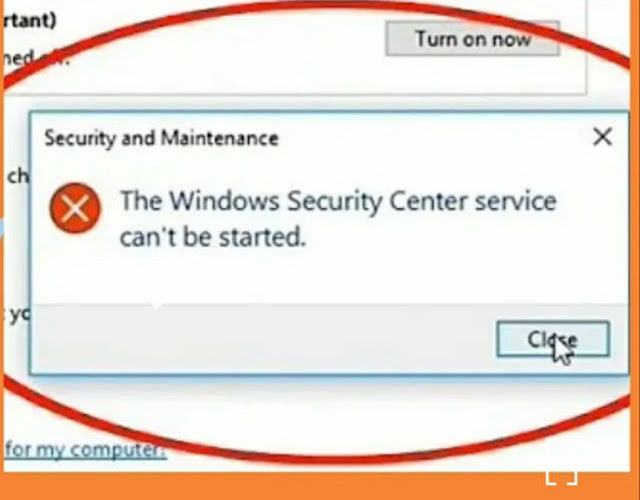

If you’re seeing the ❌ “Windows Security Center service can’t be started”, it means your 💻 system can’t activate the 🛡️ Security Center service, which 📊 monitors and reports 🔐 settings. This can leave your PC 🛑 vulnerable to threats, so fixing it should be a 🔝 priority.
❓ Causes of the Issue
Some common reasons why the Windows Security Center service fails to start include:
-
🚫 Disabled or corrupted service
-
🦠 Malware infection
-
🔄 Conflicting third-party software
-
🛠️ Corrupt system files
-
📝 Windows Registry issues
✅ Solutions to Fix the Issue
1️⃣ Restart the Security Center Service
-
Press
Win + R⌨️, typeservices.msc, and press Enter 🔎. -
Scroll 🔽 and find Security Center 🔍.
-
Right-click 🖱️ and select Properties ⚙️.
-
Set Startup type to
Automatic (Delayed Start)🔄. -
Click Start ▶️ to manually start the service.
-
Click Apply ✅ and OK, then restart 🔄 your 💻.
If the service won’t start and you get an ❌ error, proceed to the next method. ⏭️
2️⃣ Check Dependencies
-
In Services (
services.msc), right-click 🖱️ Security Center and choose Properties ⚙️. -
Go to the Dependencies 🔗 tab.
-
Check if the following services are running:
-
Remote Procedure Call (RPC) 🔄
-
Windows Management Instrumentation 🖥️
-
-
If any are stopped, start them ▶️ and set their startup type to Automatic 🔁.
3️⃣ Scan for Malware 🦠
Since some malware can disable 🔧 Windows 🛡️ security features, perform a full system scan 🧐:
-
Open Windows Security (
Win + S), then type “Windows Security” 🔍. -
Go to Virus & threat protection 🦠 > Scan options 📑.
-
Choose Full scan 📂 and click Scan now 🕵️.
-
Remove any detected threats 🚮 and restart 🔄 your 💻.
4️⃣ Use SFC & DISM to Repair System Files 🛠️
-
Open Command Prompt (
Win + X> Command Prompt (Admin)) ⚙️. -
Type the following command and press Enter ⌨️:
sfc /scannow -
Wait ⏳ for the scan to complete ✅ and restart 🔄 your PC.
-
If the issue persists, run:
DISM /Online /Cleanup-Image /RestoreHealthRestart your PC 🔄 after the process completes ✅.
5️⃣ Reset the Security Center Service in Registry 📝
-
Press
Win + R, typeregedit, and press Enter ⌨️. -
Navigate to:
HKEY_LOCAL_MACHINE\SYSTEM\CurrentControlSet\Services\wscsvc -
Double-click 🖱️ Start and set its value to
2(Automatic Start) 🔄. -
Close Registry Editor 📑 and restart 🔄 your 💻.
6️⃣ Perform a Clean Boot 🚀
If third-party software is causing conflicts ⚠️:
-
Press
Win + R, typemsconfig, and press Enter ⌨️. -
Go to the Services 🛠️ tab and check Hide all Microsoft services 👀.
-
Click Disable all 🚫, then go to the Startup tab and click Open Task Manager 📊.
-
Disable unnecessary startup items 🚀.
-
Restart 🔄 your 💻 and check if the issue persists ❓.
🎯 Conclusion
If none of these methods work ❌, you might need to consider System Restore 🕒 or Windows Reset 🔄 as a last resort. Keeping your system updated 🔄 and using reliable antivirus software 🦠 can prevent such issues in the future.